A signature is the sign-off added to your messages — your name, title, and contact details. This guide shows how to create a formatted signature and set how it's added to your mail.
Step 1 — Open Settings
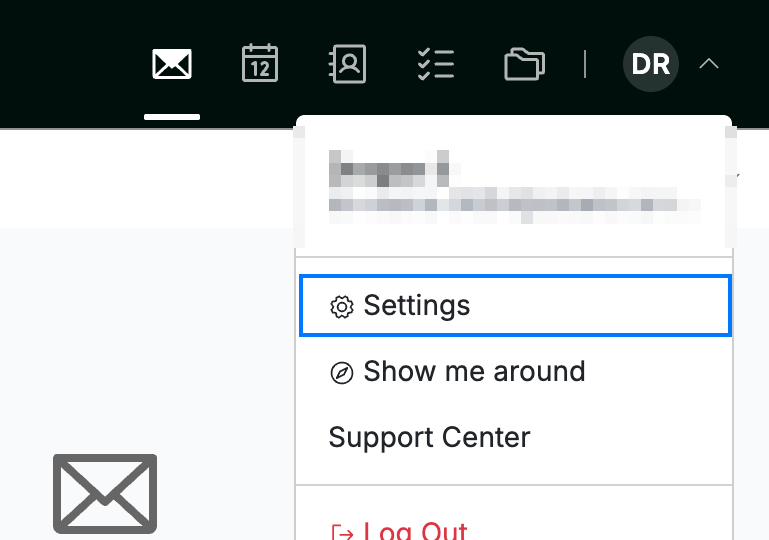
Click your avatar in the top-right corner and select Settings.
Step 2 — Open Signatures
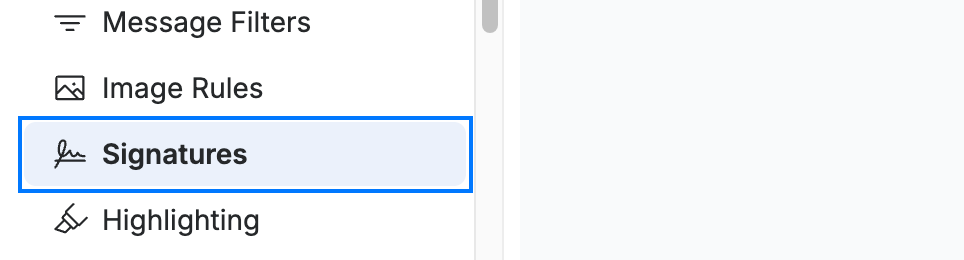
Select Signatures from the Mail section of the settings sidebar.
Step 3 — Create your signature
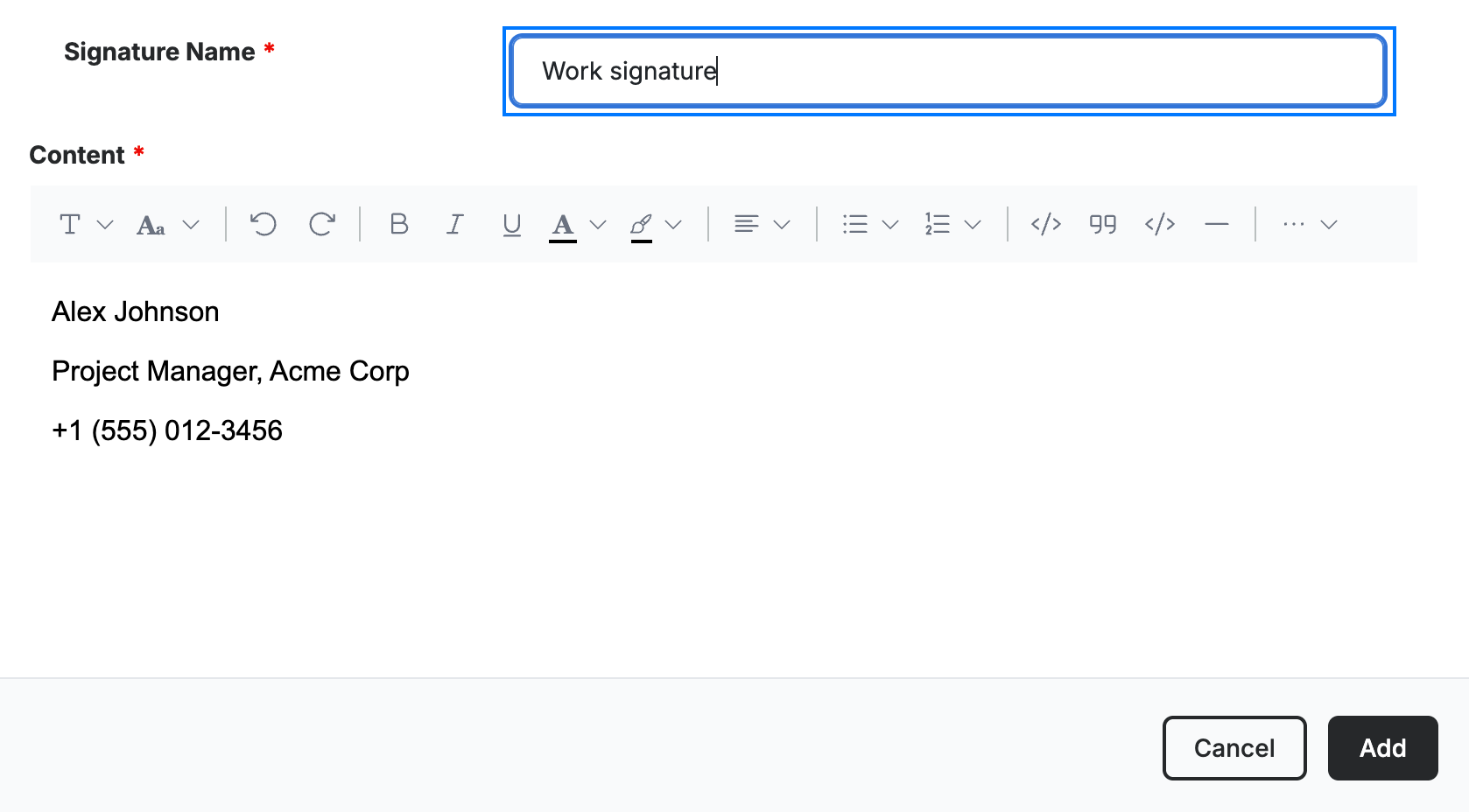
Enter a Signature Name (blue) to name the signature, then type and format its content in the editor — use the toolbar for bold, links, lists, images, and more. Click Add to save it to your list of signatures.
Step 4 — Set signature options
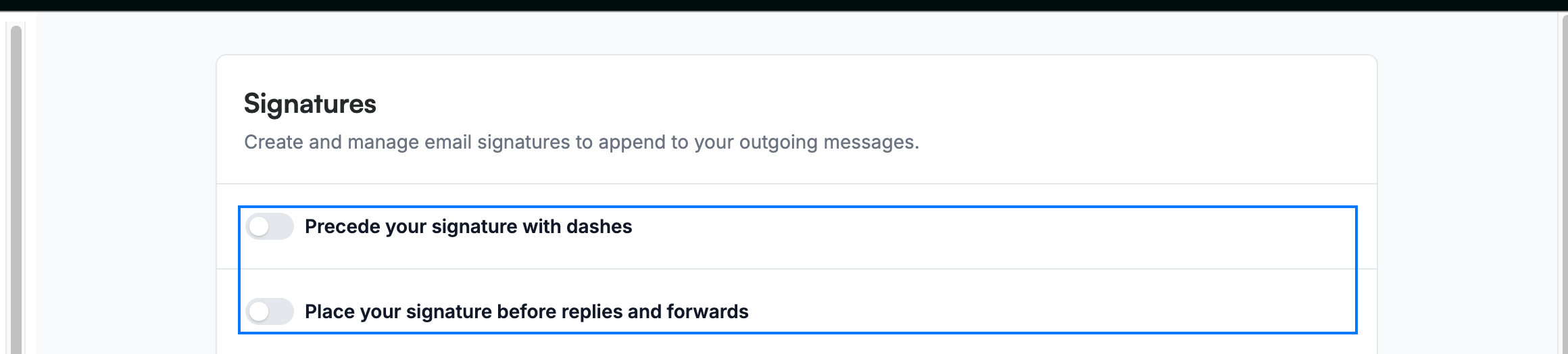
Choose how your signature is added (blue):
- Precede your signature with dashes — inserts a `--` separator line above it.
- Place your signature before replies and forwards — adds it above quoted text instead of at the very bottom.
Note: Changes to these options are saved automatically.
Explore our other guides to get the most out of Webmail.