Choose the format Webmail uses when you reply to or forward a message. This guide shows how to set the reply format to match the original, or to always use rich text or plain text.
Step 1 — Open Settings
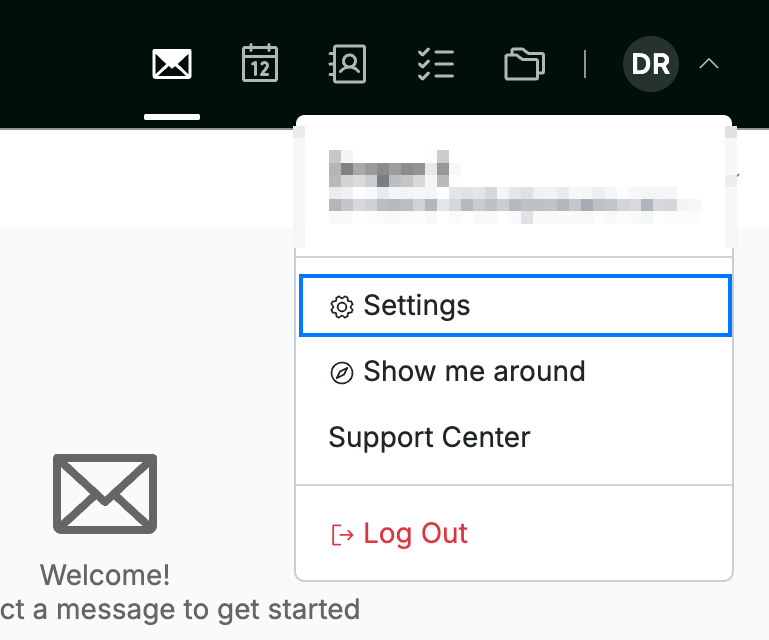
Click your avatar in the top-right corner and select Settings.
Step 2 — Select Message Composing
Select Message Composing from the settings sidebar.

Step 3 — Choose a Reply Format
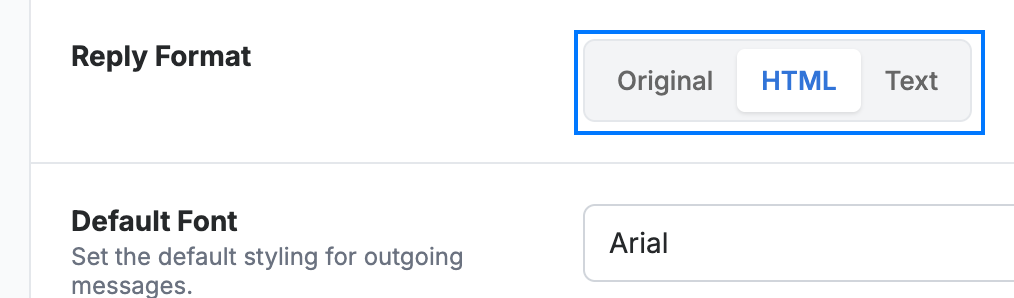
Select a Reply Format to control how replies and forwards are composed:
- Original — match the format of the message you are replying to
- HTML — always use rich formatting, such as fonts, colours, and links
- Text — always use plain text
Step 4 — Click Save Updates
Click Save Updates to apply your change.

Explore our other guides to get the most out of Webmail.