Add your Webmail account to the Mail app on your Mac so you can read and send mail from macOS. This guide uses IMAP, which keeps your mail in sync across all your devices.
Before you begin: The server names and ports below are an example — always use the values shown in your own account, under Settings > Mail app setup > Other mail apps. We recommend IMAP over POP so your mail stays in sync.
Step 1 — Find your server settings
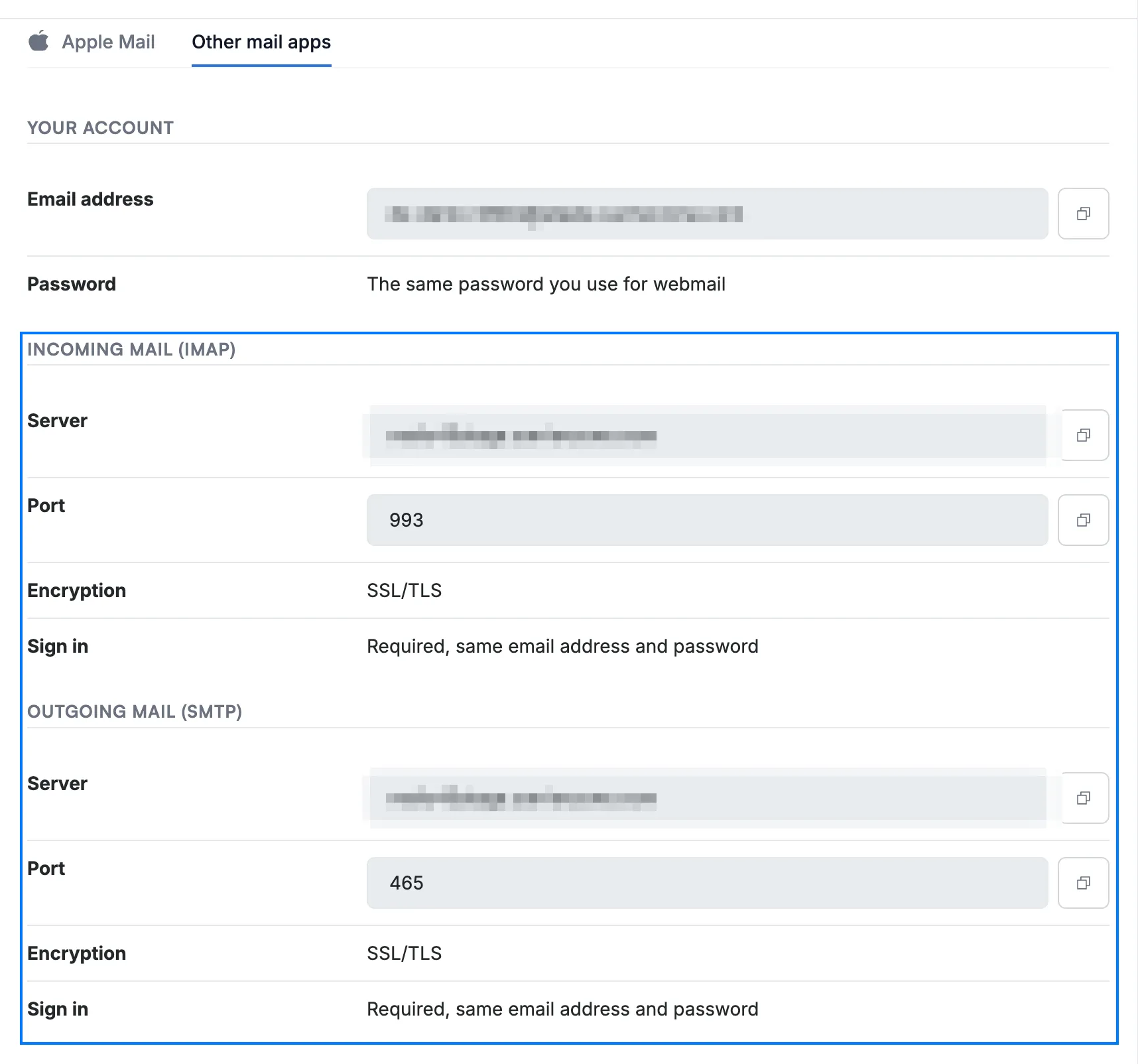
Go to Settings > Mail app setup in Webmail and click Other mail apps. Note the server details (blue): the Server, Port and Encryption values under Incoming mail (IMAP) and Outgoing mail (SMTP) — the secure ports are 993 for incoming and 465 for outgoing. Your password is the same one you use to sign in to Webmail.
Step 2 — Review the settings to enter
Review the values you noted in Step 1 — every email app asks for the same ones:
- Account type: IMAP
- Username: your full Webmail email address
- Password: the password you use to sign in to Webmail
- Incoming server: the host name from Step 1, port 993, security SSL/TLS
- Outgoing server: the host name from Step 1, port 465, security SSL/TLS, using the same username and password
Tip: If your app tries to find the settings automatically and fails, choose its manual or advanced setup and enter these values yourself.
Step 3 — Add the account in Mail
Click Mail > Add Account in the menu bar and enter your email address. If Mail asks you to choose a provider, choose the option for another mail account, then enter your name, email address and password and follow the onscreen steps. If Mail can't set up the account automatically, it asks for the incoming and outgoing mail server settings — enter the values from Step 2 (Apple's guide to adding email accounts in Mail on Mac has more detail).
Tip: If Mail can't connect, confirm the host name and that ports 993 and 465 use SSL/TLS.
Explore our other guides to get the most out of Webmail.