Save a sender straight to your address book without retyping their details. This guide shows how to add a contact directly from an open email.
Step 1 — Open the email
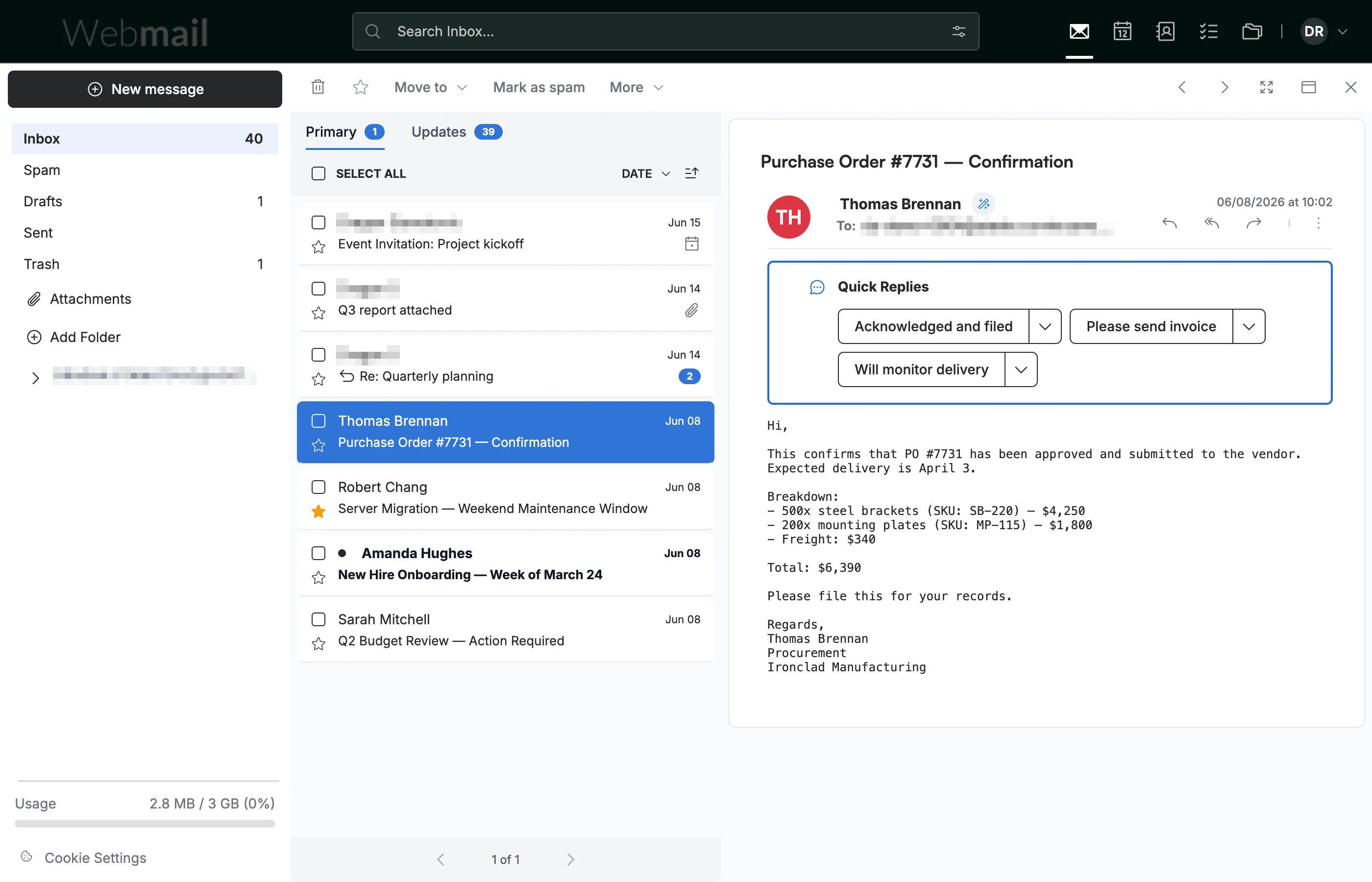
Open an email from the person you want to add to your contacts.
Step 2 — Click the Smart Contacts icon
Click the Smart Contacts icon next to the sender's name in the message header.

Step 3 — Create the contact
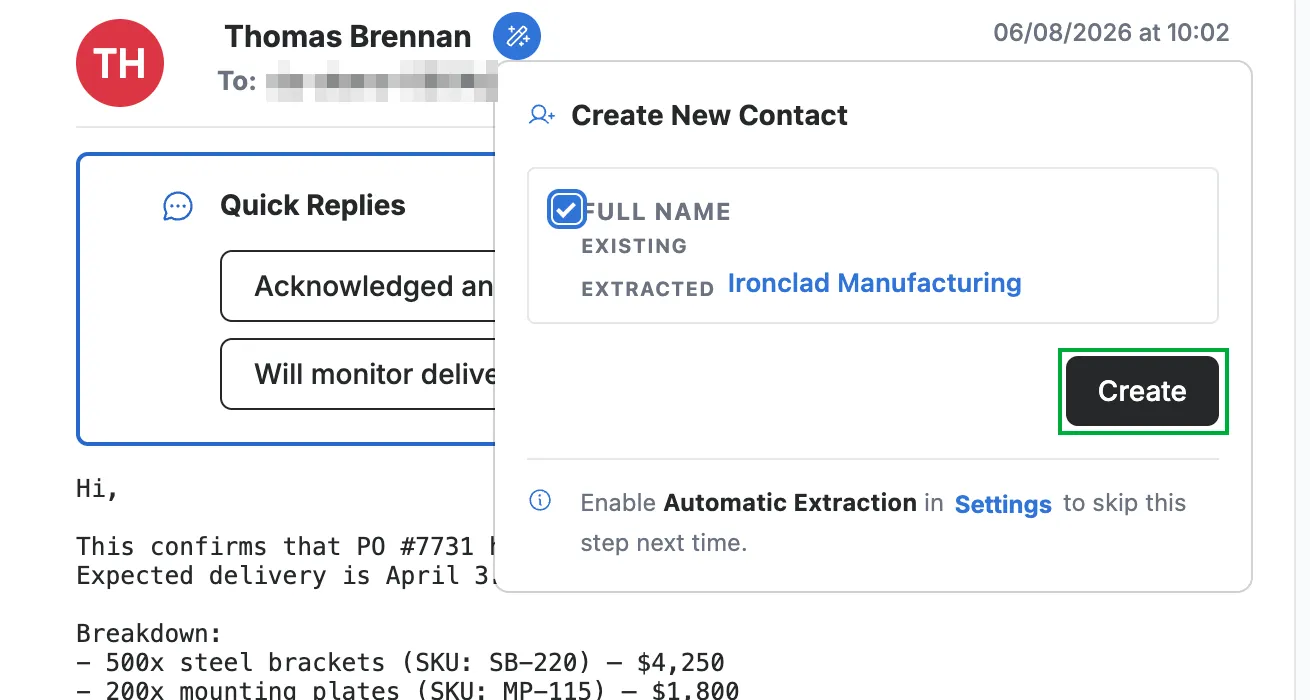
Review the extracted details in the Create New Contact panel, then click Create (green).
Note: Webmail fills each field from the message content, so the name can come from the signature — a company name, for example — rather than the sender. Clear a field's checkbox to leave it out, or edit the contact after saving it.
Explore our other guides to get the most out of Webmail.