Online Storage gives you space to keep files in Webmail, separate from your mailbox. This guide orients you to the module so you know where to upload, browse, and share files.
Step 1 — Open Online Storage
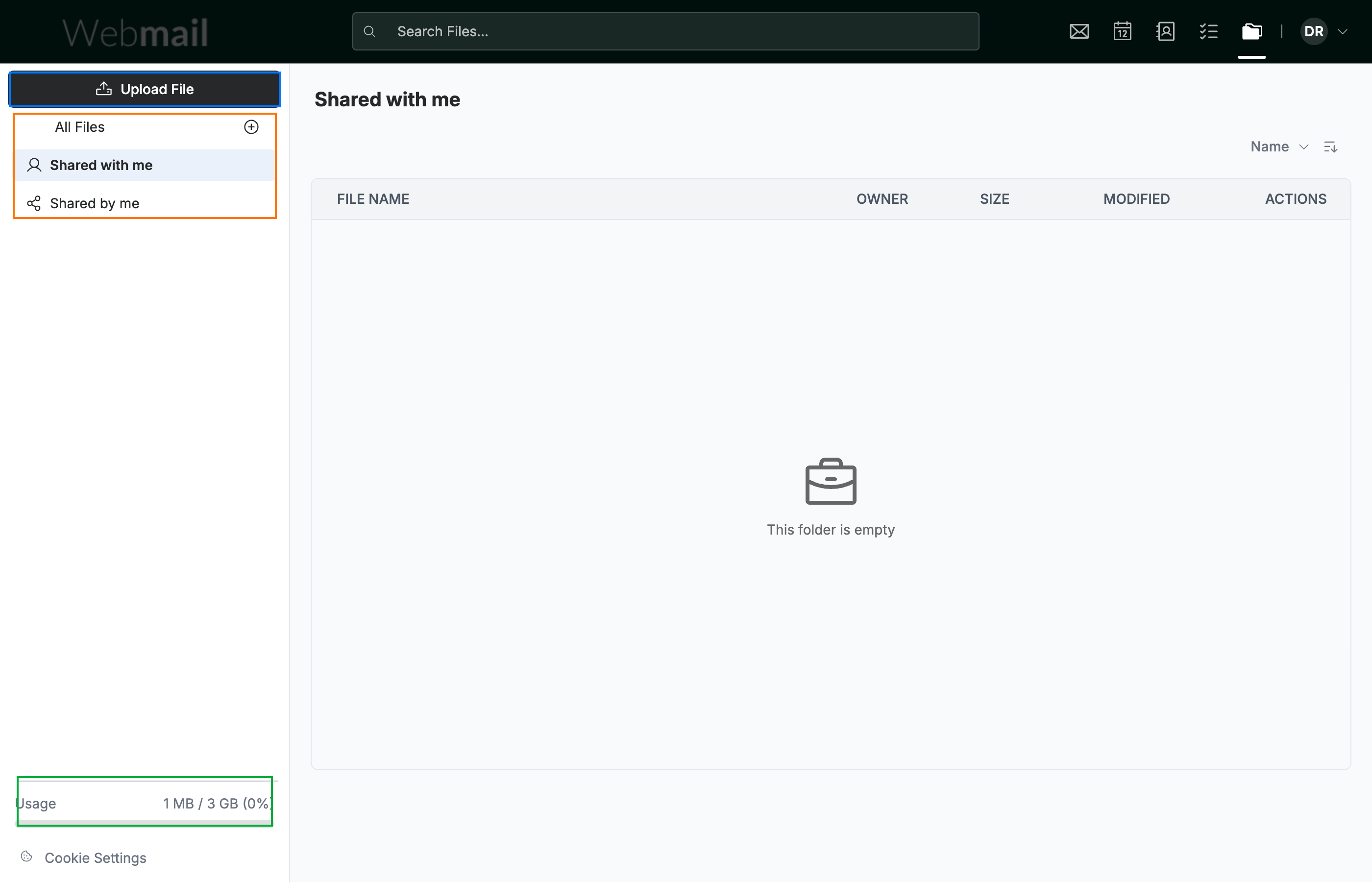
Click Online Storage in the navigation bar. The module has three main areas in the sidebar:
- Upload File (blue) — add files from your computer.
- The file views (orange) — All Files, Shared with me, and Shared by me.
- Usage (green) — how much of your storage quota you've used.
Step 2 — Switch between file views
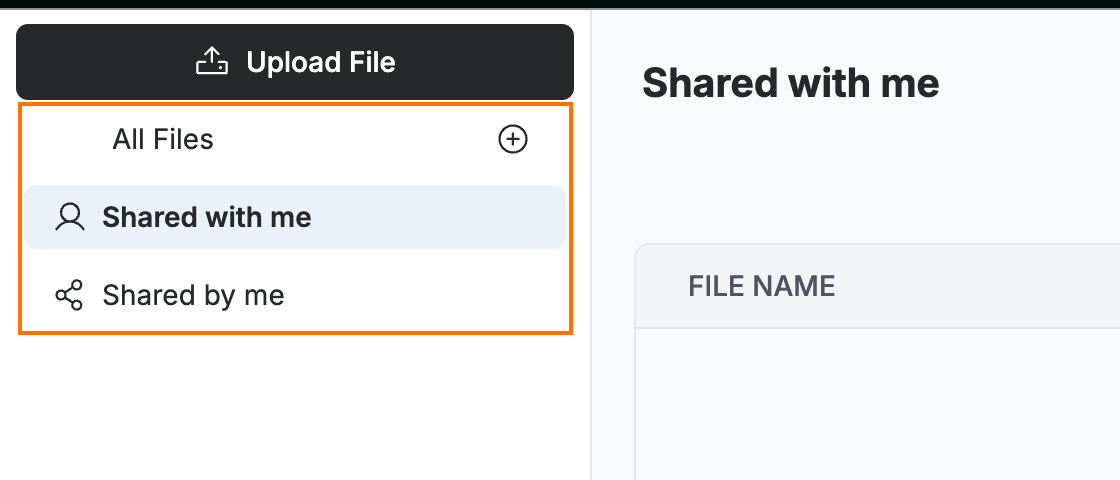
Use the views (orange) in the sidebar to filter what's shown:
- All Files — everything you've uploaded
- Shared with me — files other people have shared with you
- Shared by me — files you've shared with others
Step 3 — Upload files
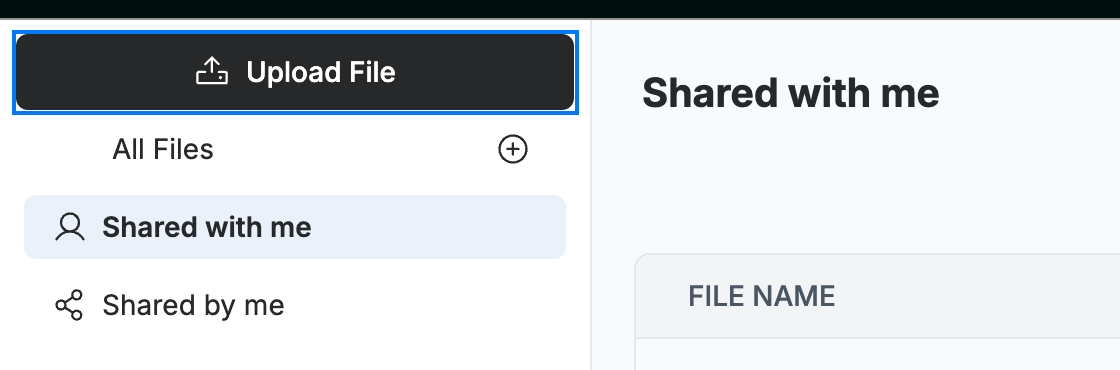
Click Upload File (blue) and choose a file from your computer to add it to All Files.
Tip: Keep large files here instead of as email attachments to help keep your mailbox under its storage limit.
Explore our other guides to get the most out of Webmail.