Learn how to connect your mailbox to the mail app on your phone, tablet or computer during the last step of the first-login setup, so you can read and send email wherever you are.
Step 1 — Select how you want to set up your device
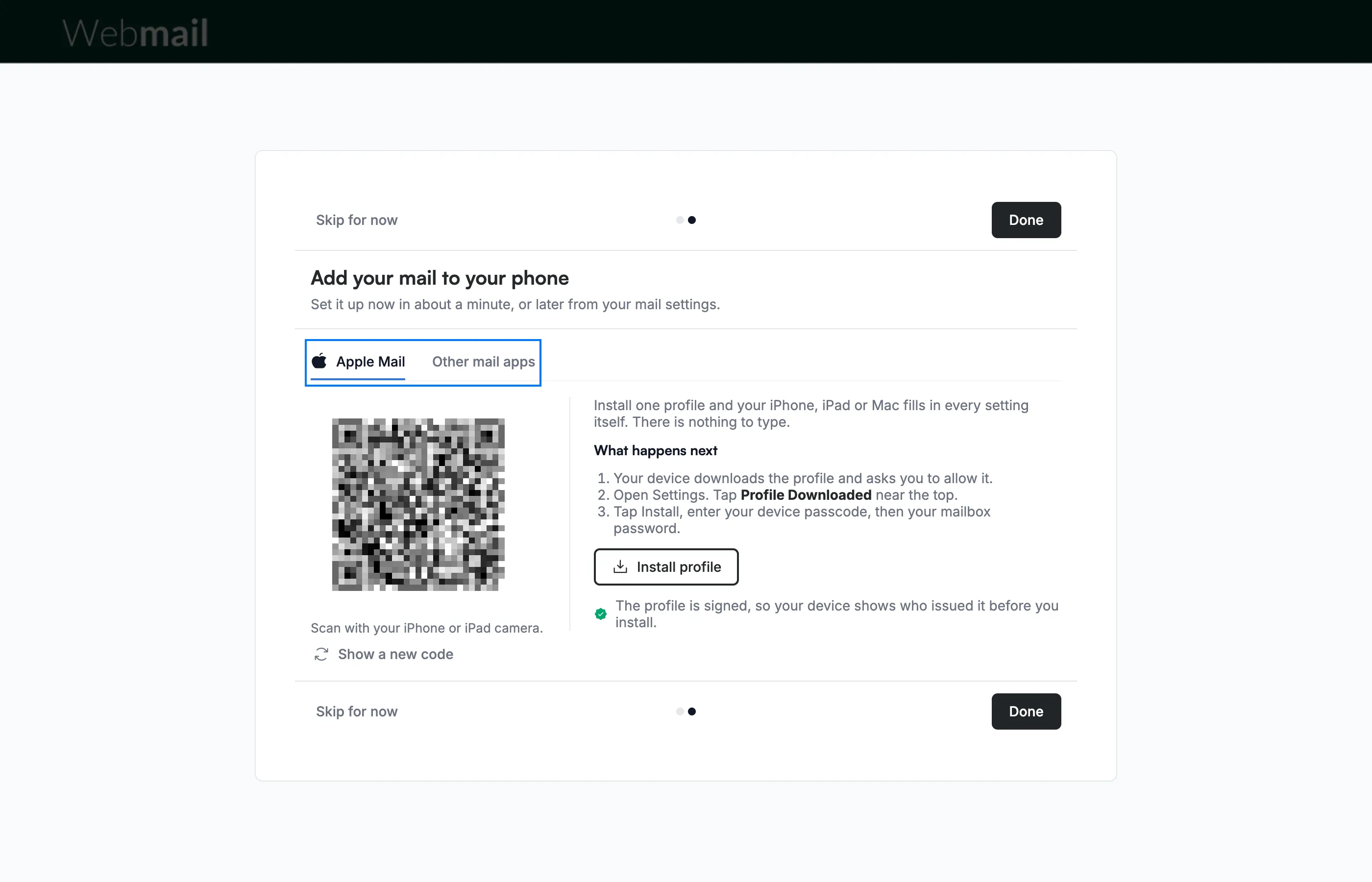
Select the tab that matches your device on the Add your mail to your phone screen: Apple Mail for an iPhone, iPad or Mac, or Other mail apps for any other mail app.
Step 2 — Scan the QR code with your iPhone or iPad
Open the camera on your iPhone or iPad, point it at the QR code on the Apple Mail tab, and tap the link that appears. Your device downloads a profile that fills in every mail setting for you.
Note: The QR code is unique to your mailbox, which is why it is blurred in this guide. Do not share it or a screenshot of it.
Tip: If the code does not scan, click Show a new code to display a fresh one.
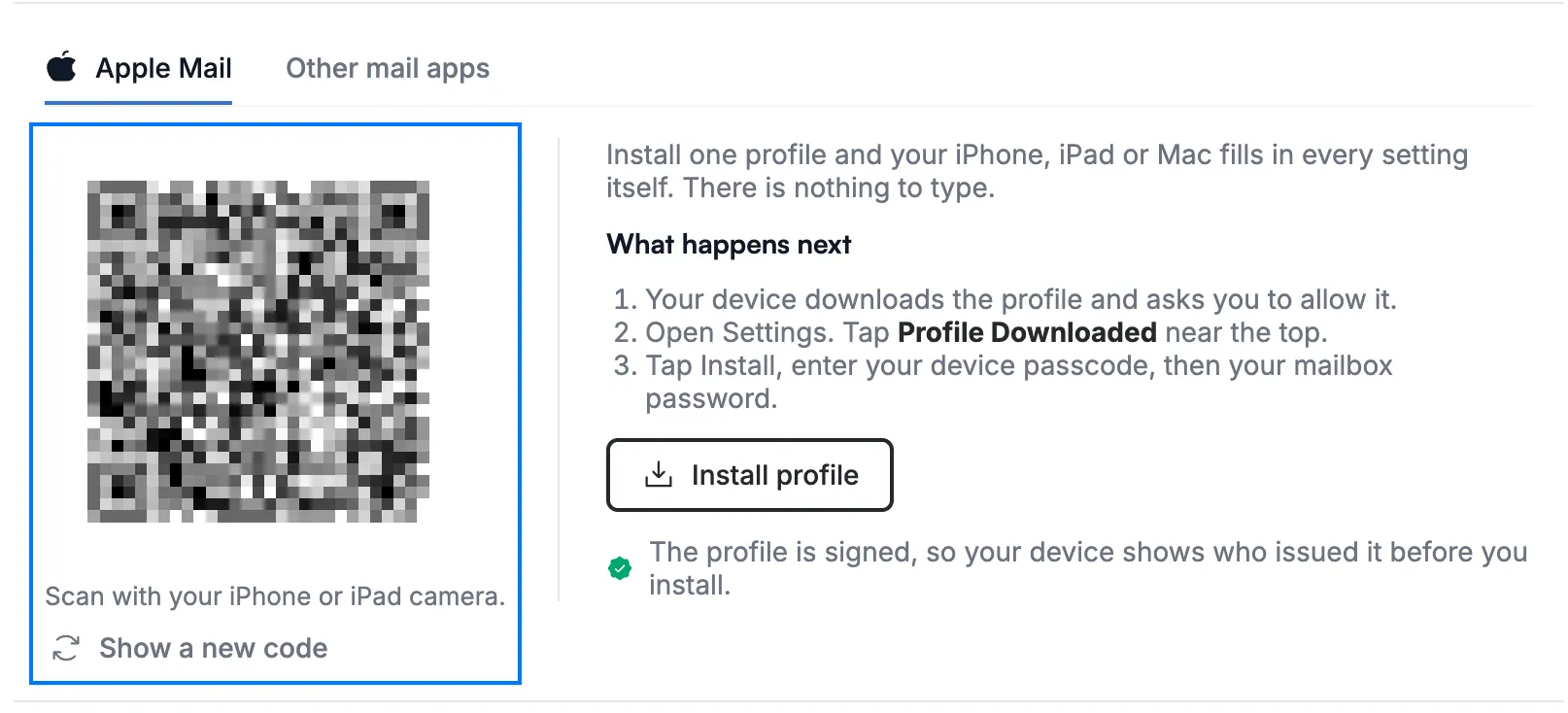
Step 3 — Click Install profile on the device you are setting up
Click Install profile if you are using Webmail on the iPhone, iPad or Mac you want to set up. Then follow the steps listed under What happens next: allow the download, open your device's settings to install the downloaded profile, and enter your device passcode followed by your mailbox password.
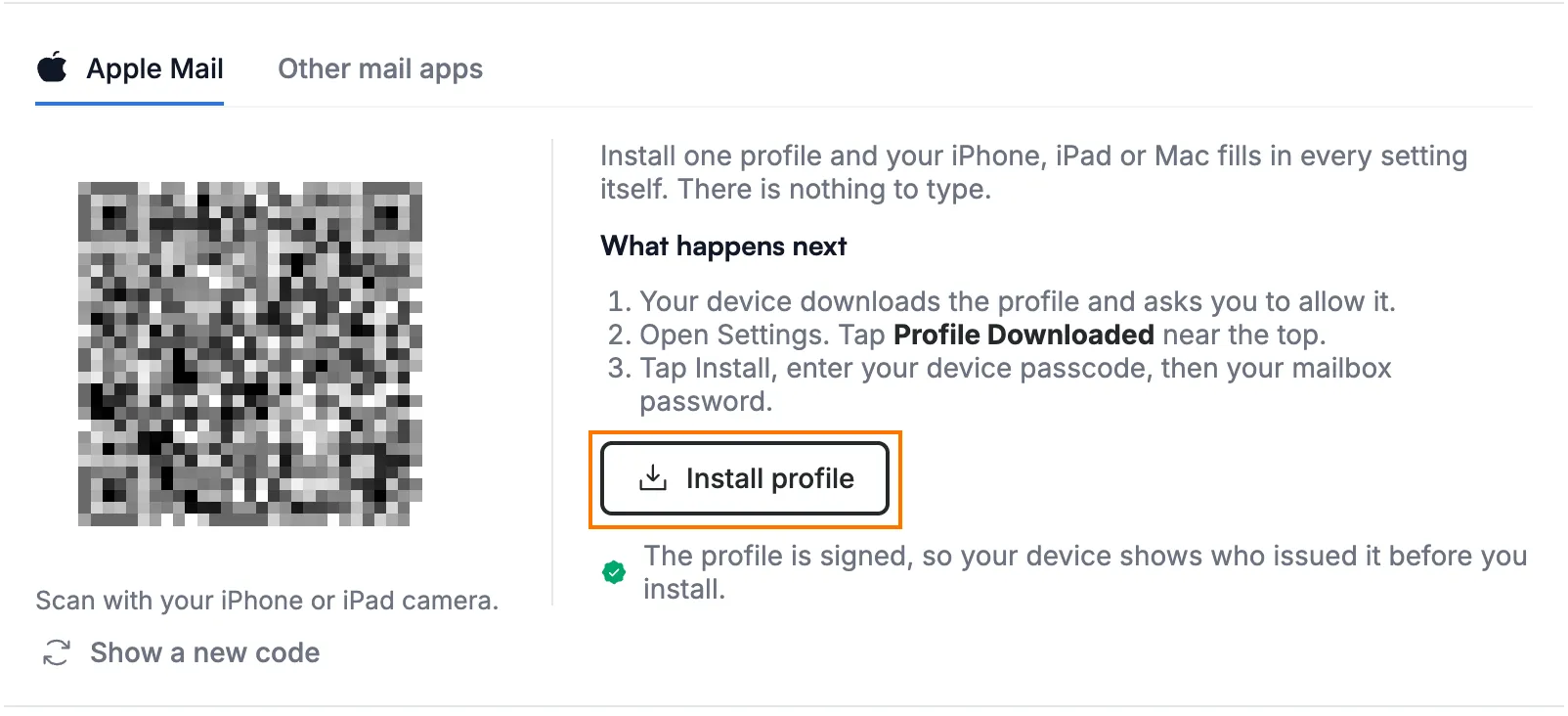
Step 4 — Click Other mail apps and copy your email address
Click Other mail apps (blue) to see the settings for any other mail app. Under Your account, click the copy button (orange) next to Email address and paste the address into your mail app. Your password is the same one you use for Webmail.
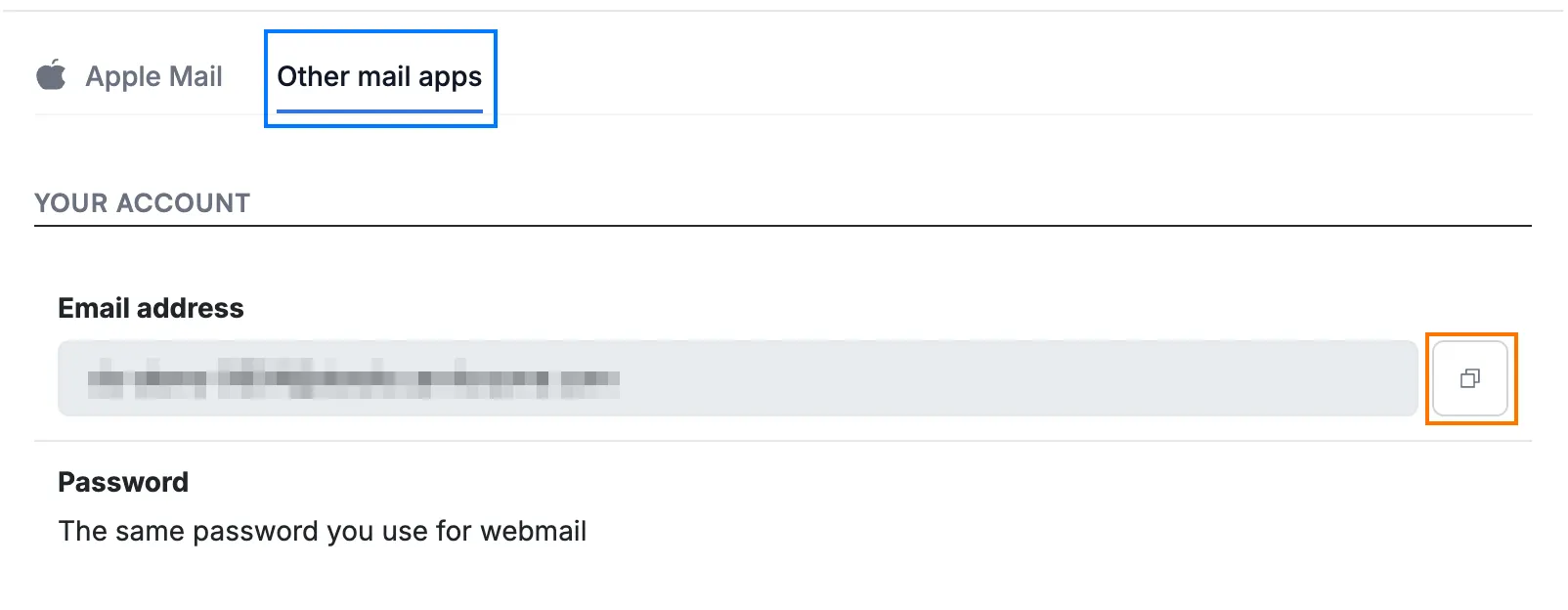
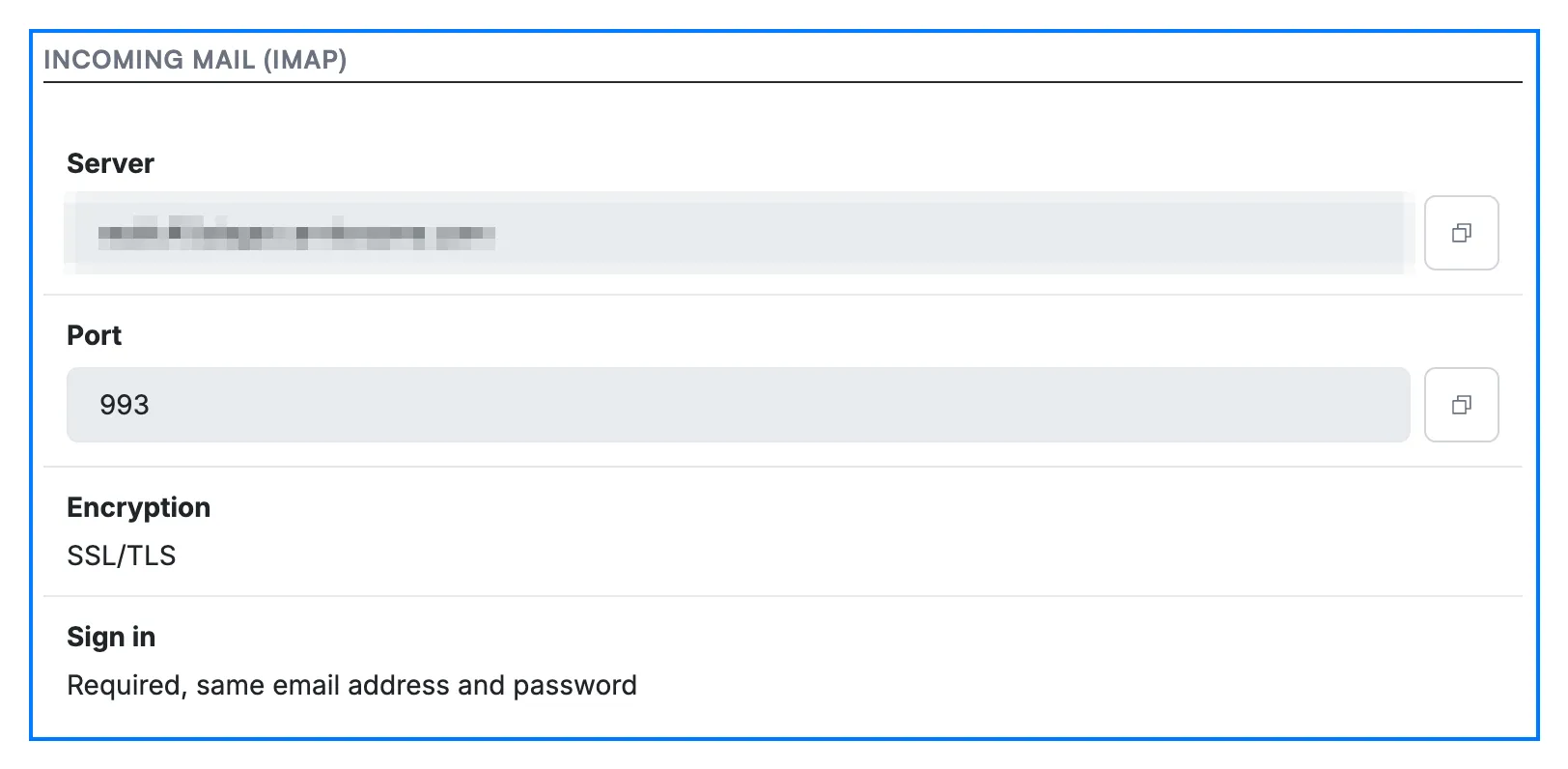
Step 5 — Enter the incoming mail settings
Enter the Server and Port values shown under Incoming mail (IMAP) in your mail app, set Encryption to SSL/TLS, and sign in with your full email address and password. Click the copy button next to a value to copy it.
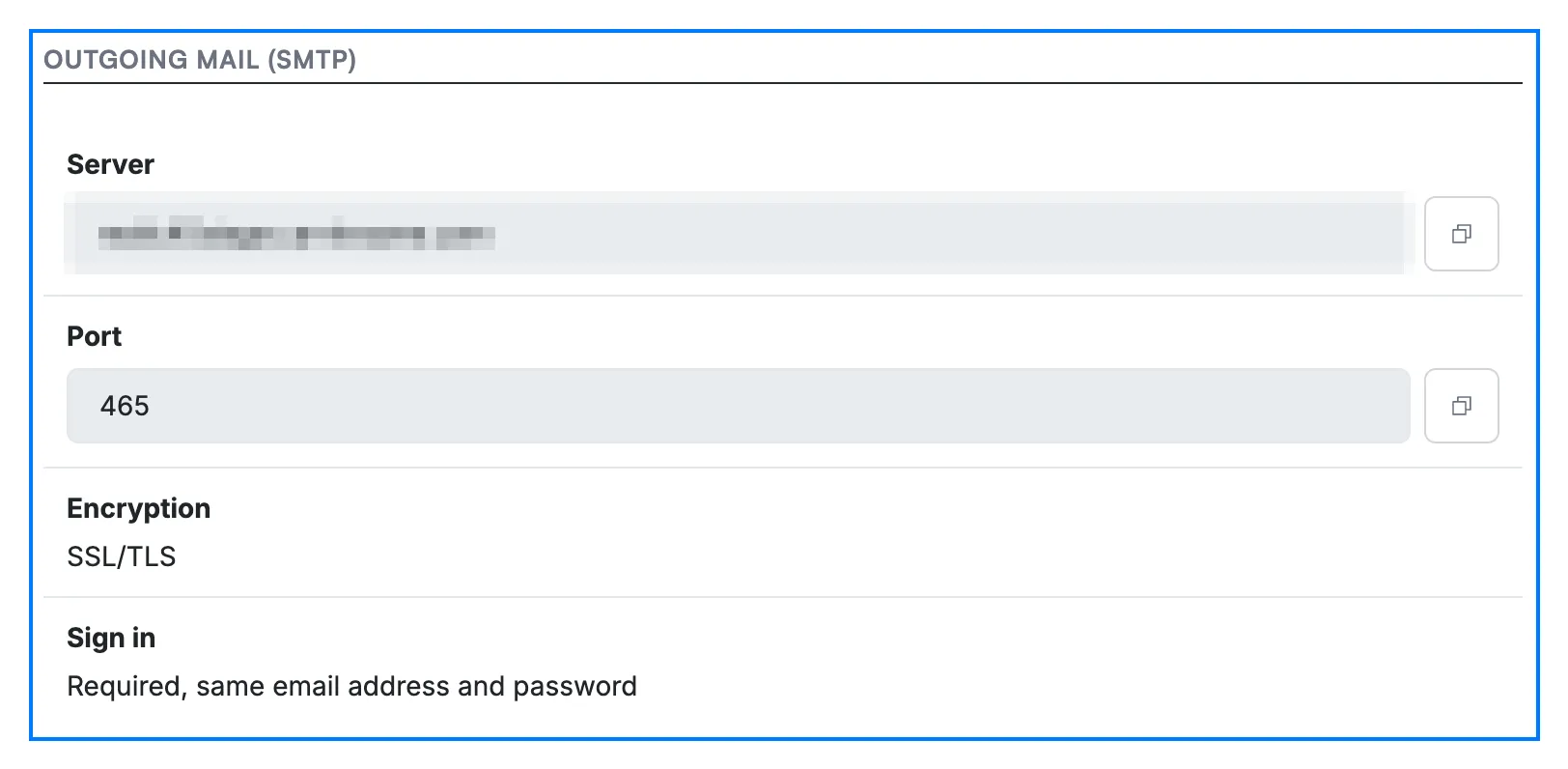
Step 6 — Enter the outgoing mail settings
Enter the Server and Port values shown under Outgoing mail (SMTP) in your mail app, set Encryption to SSL/TLS, and sign in with the same email address and password.
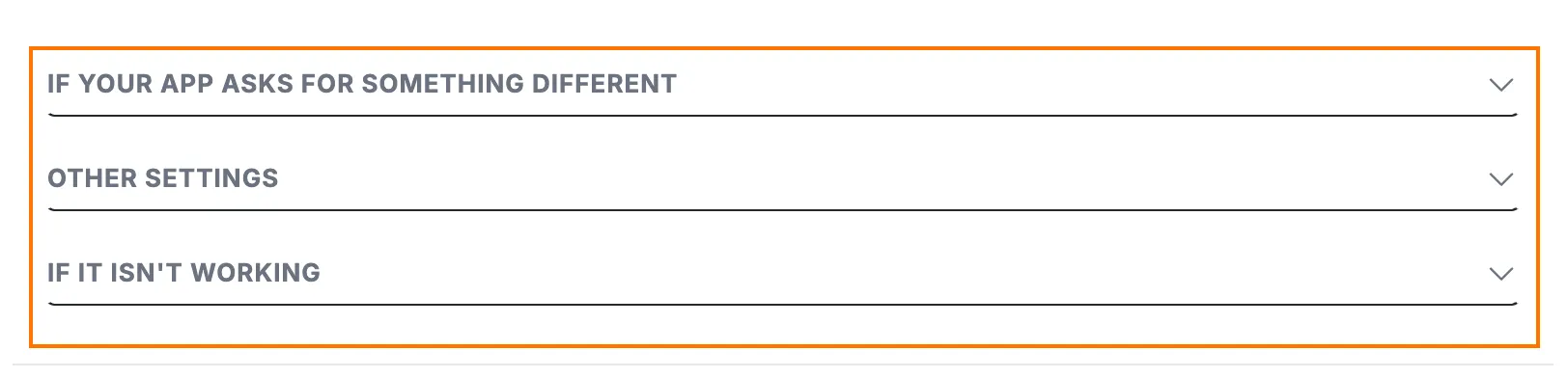
Step 7 — Open the help sections if your app needs more
Click a section heading below the server settings to expand it:
- If your app asks for something different — matches the wording your app uses for encryption and sign-in options to the right choice.
- Other settings — lists the POP settings. POP moves your mail onto one device and removes it from the server, so use IMAP if you check mail on both a phone and a computer. It also lists Settings without encryption for older apps; use them only if our support team asks you to.
- If it isn't working — explains what to do when your app warns about the server's identity or mail will not send, and how to contact support.
Step 8 — Click Done
Click Done when your device is set up to finish the first-login setup.
Tip: Not ready yet? Click Skip for now. You can add your mail to your phone later from Settings > Mail app setup — see How to set up POP/IMAP access.

Explore our other guides to get the most out of Webmail.