Filter conditions decide which incoming emails a message filter applies to — for example, messages from a certain sender or with a specific word in the subject. This guide shows how to define the conditions for a new filter.
Step 1 — Open Settings
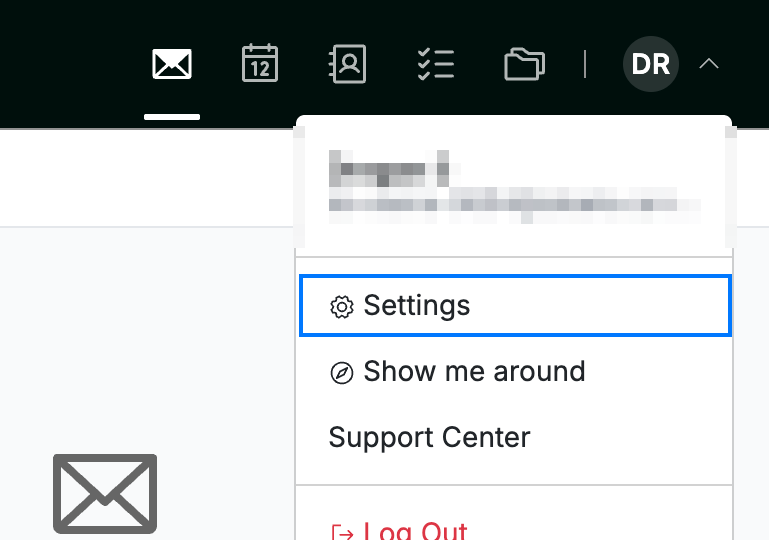
Click your avatar in the top-right corner, then click Settings.
Step 2 — Open the Message Filters panel
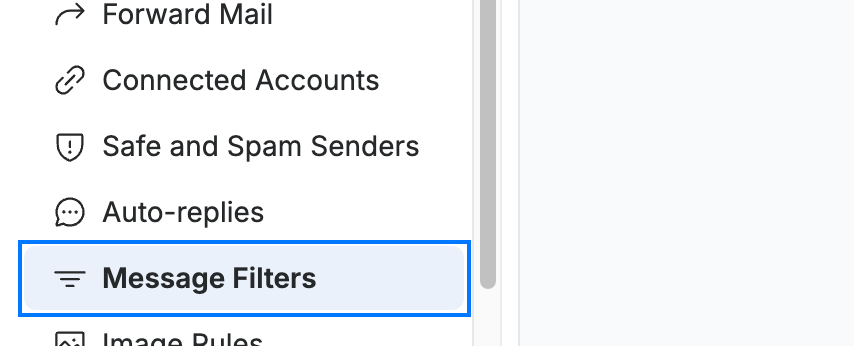
Click Message Filters (blue) in the settings sidebar.
Step 3 — Create a new filter
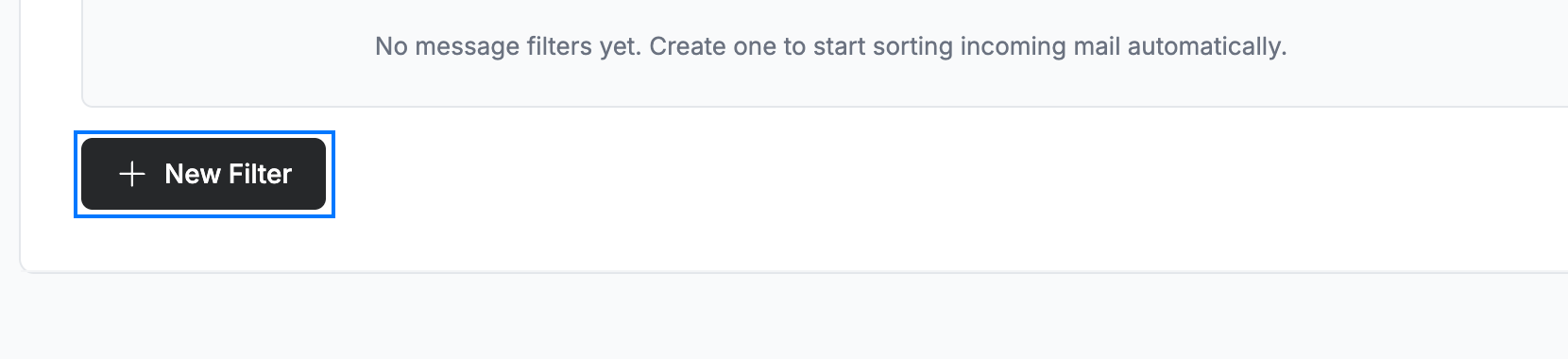
Click New Filter (blue) to start building a filter.
Step 4 — Define the condition
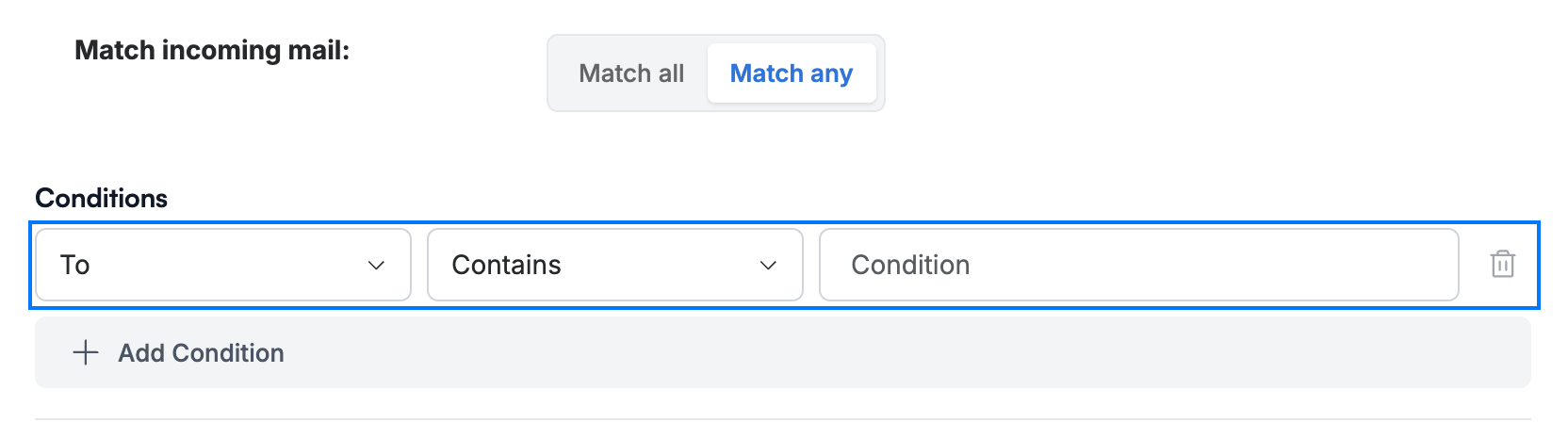
Select Match all under Match incoming mail to require every condition, or Match any to match when at least one applies. Then set the condition row (blue): choose a field (To, Subject, From, Cc, or Priority), an operator (Contains, Doesn't contain, or Equal to), and the value to look for.
Tip: Click Add Condition to layer more rules onto the same filter — for example, a message From a sender and with a Subject that Contains a keyword.
Step 5 — Save the filter
Click Add (green) to store the filter and start applying it to incoming mail.

Explore our other guides to get the most out of Webmail.