Keep your account secure by changing your Webmail password. This guide walks through updating it from the Change Password settings panel.
Step 1 — Open Settings
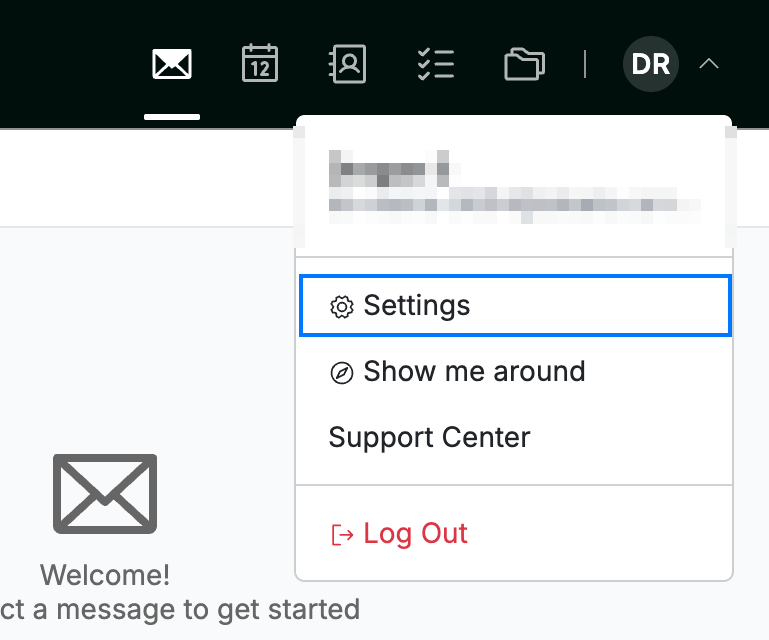
Open the user menu by clicking your initials in the top-right corner, then click Settings.
Step 2 — Select Change Password
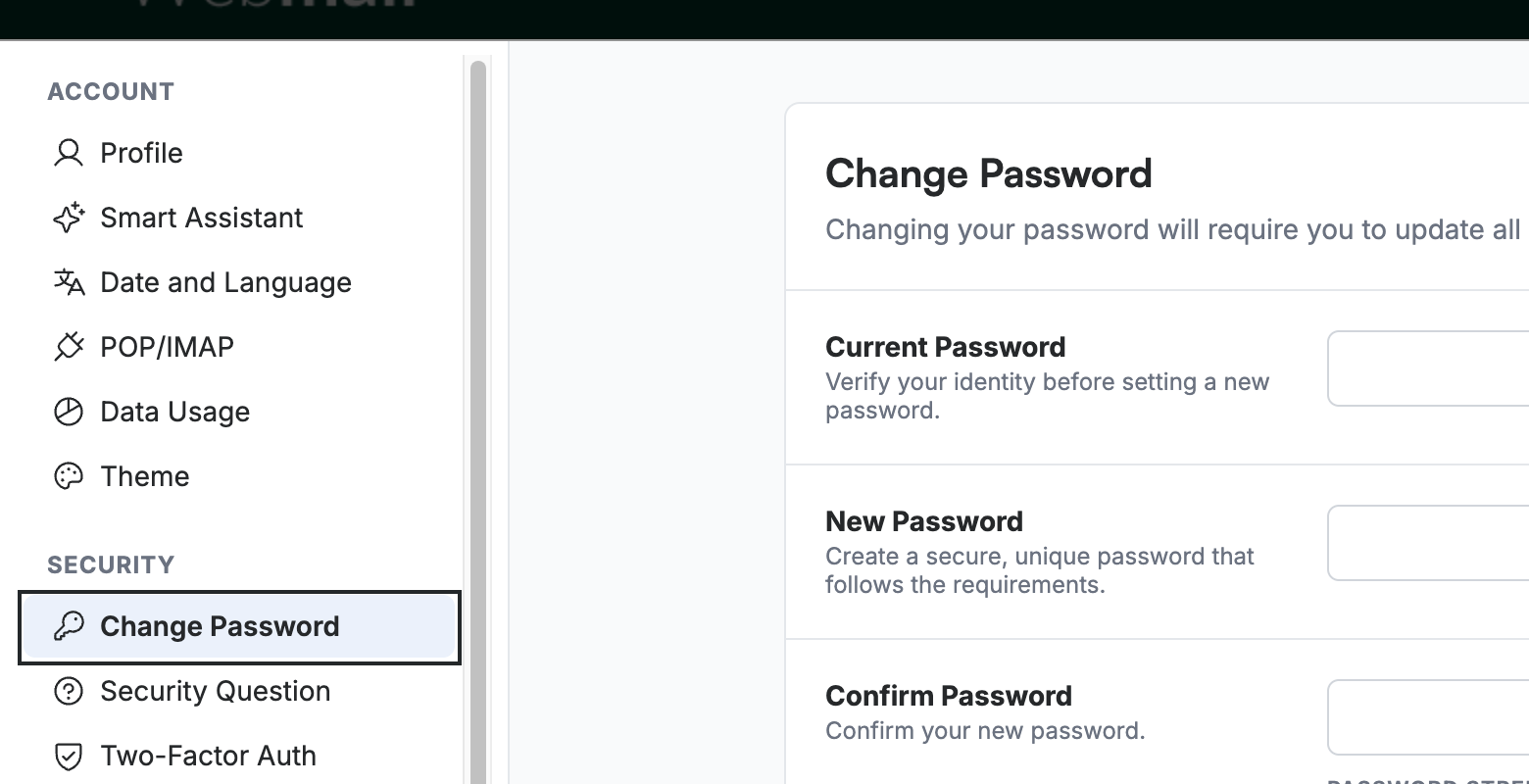
Select Change Password from the left sidebar, under the Security section.
Step 3 — Enter your current and new password
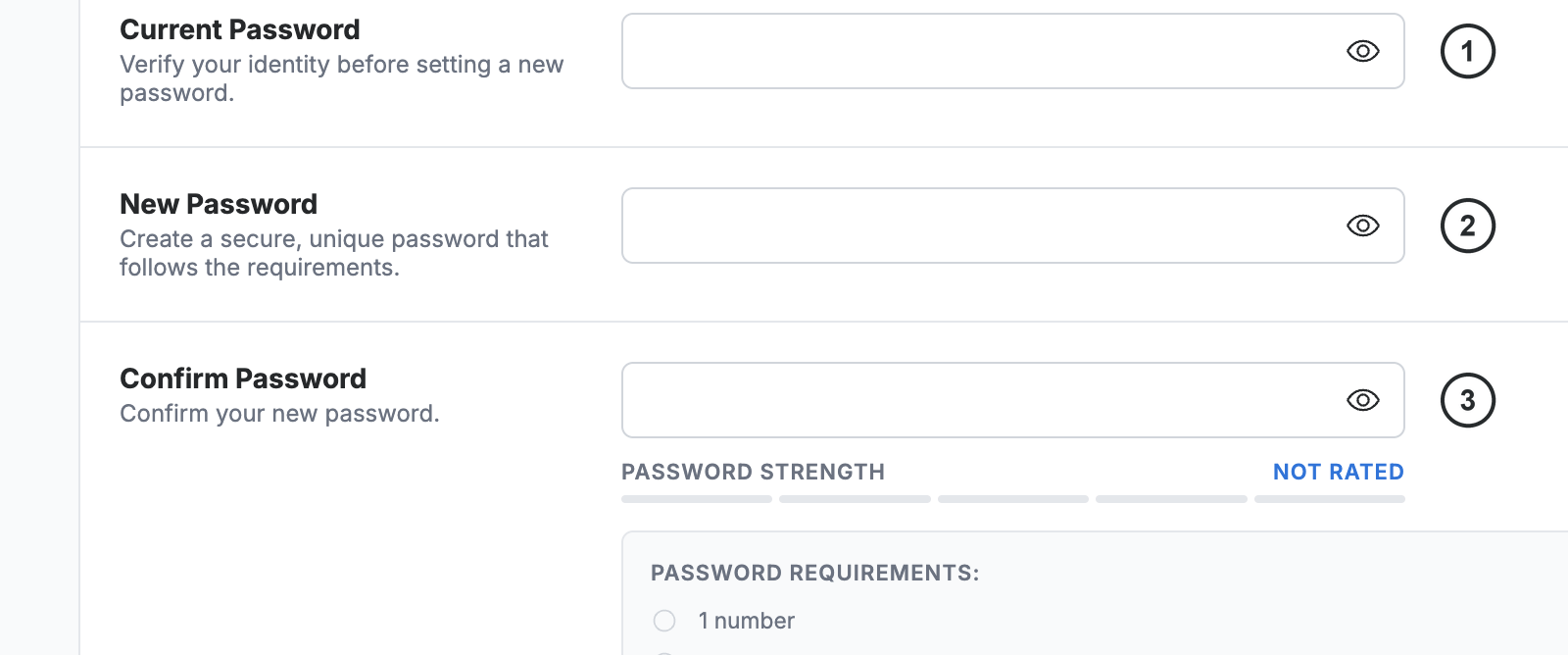
Enter your existing password in the Current Password field ①, choose a password in the New Password field ②, then re-enter it in the Confirm Password field ③. The Password Strength meter updates as you type, and the eye icon in each field toggles whether the text is visible.
Note: Your new password must be between 8 and 32 characters and cannot match any of your last 5 passwords.
Step 4 — Save your new password
Click Save Updates to apply your new password.
Note: After changing your password, update it on every device connected to this account (mail apps, phones, and other email clients).

Explore our other guides to get the most out of Webmail.