When you invite people to an event, Webmail shows a free-busy timeline so you can pick a time that works for everyone. This guide shows how to find it and use it.
Step 1 — Open the Attendees section
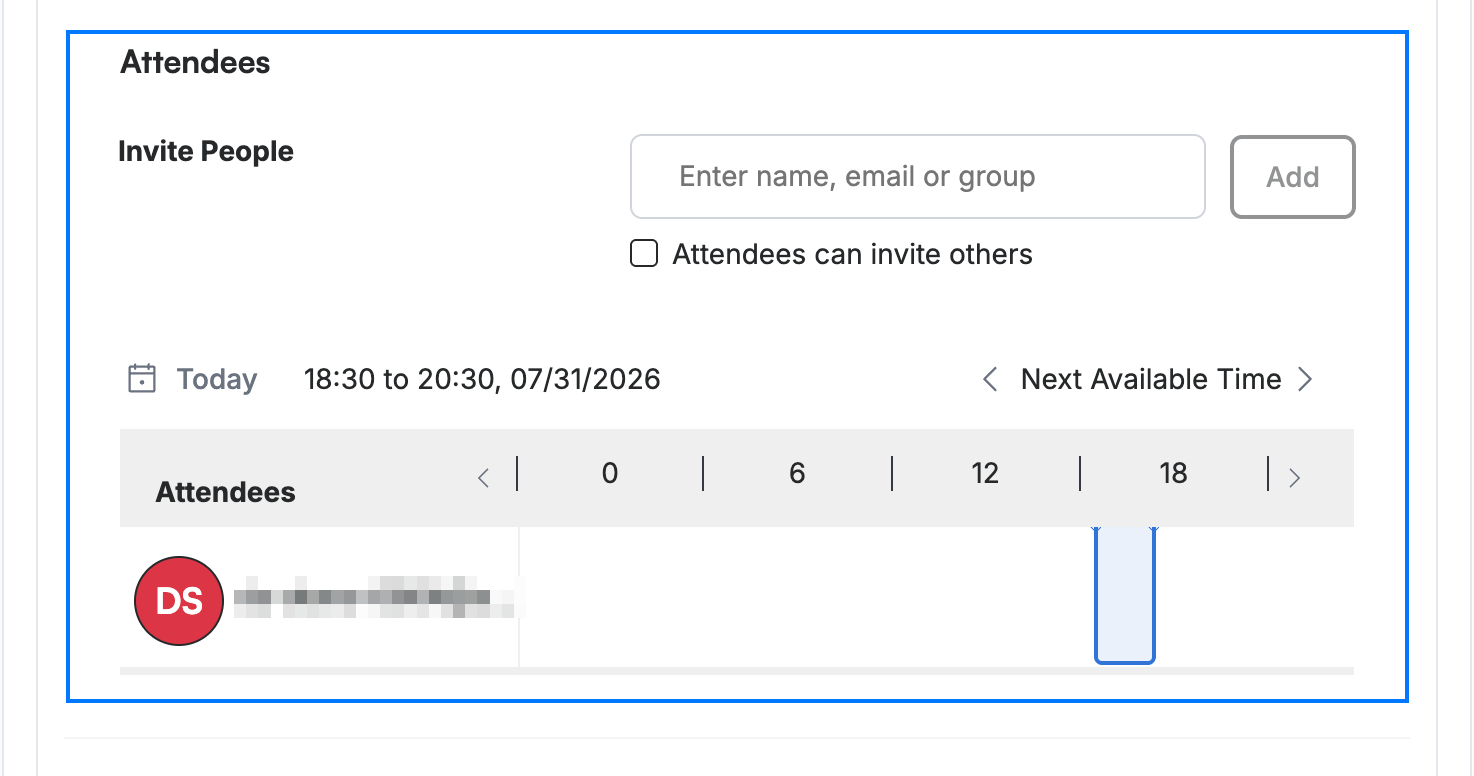
Open a new event and scroll down to the Attendees section (blue), where you can invite people and check their availability.
Step 2 — Add attendees
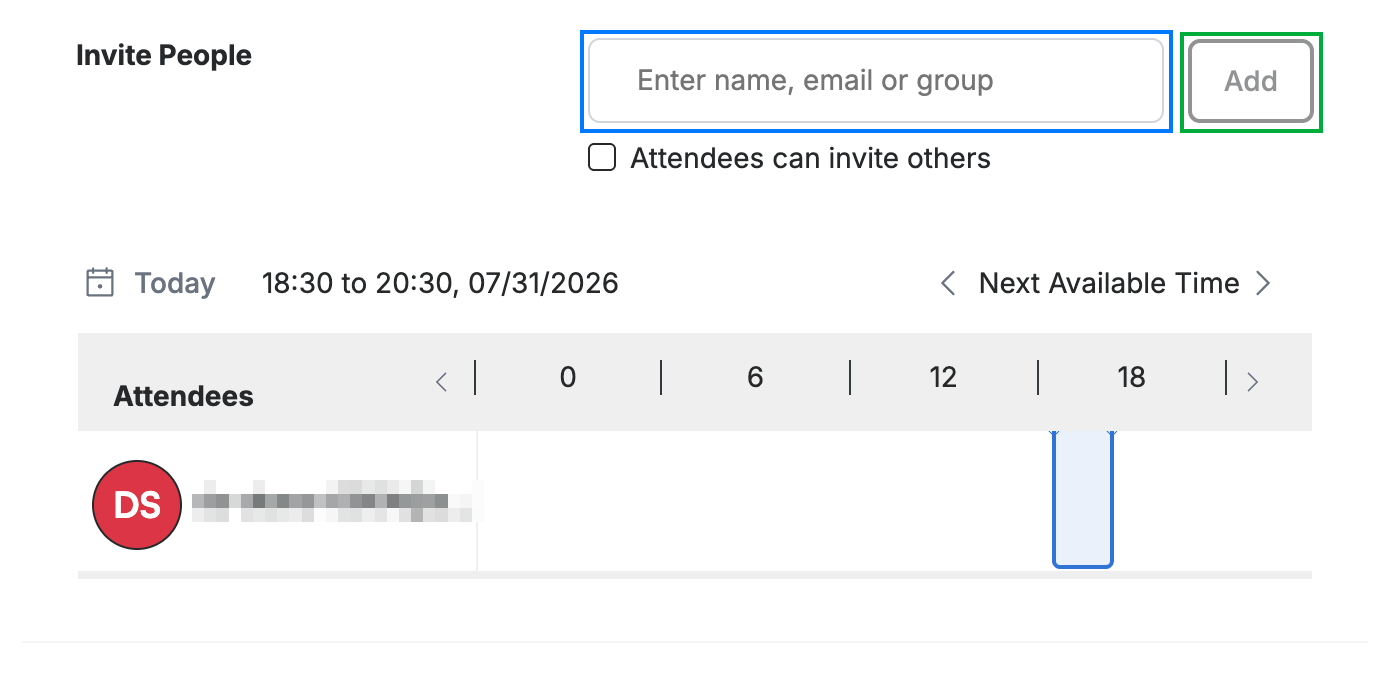
Enter a name, email, or group in the Invite People field (blue), then click Add (green). Repeat for each person you want to invite.
Step 3 — Read the availability timeline
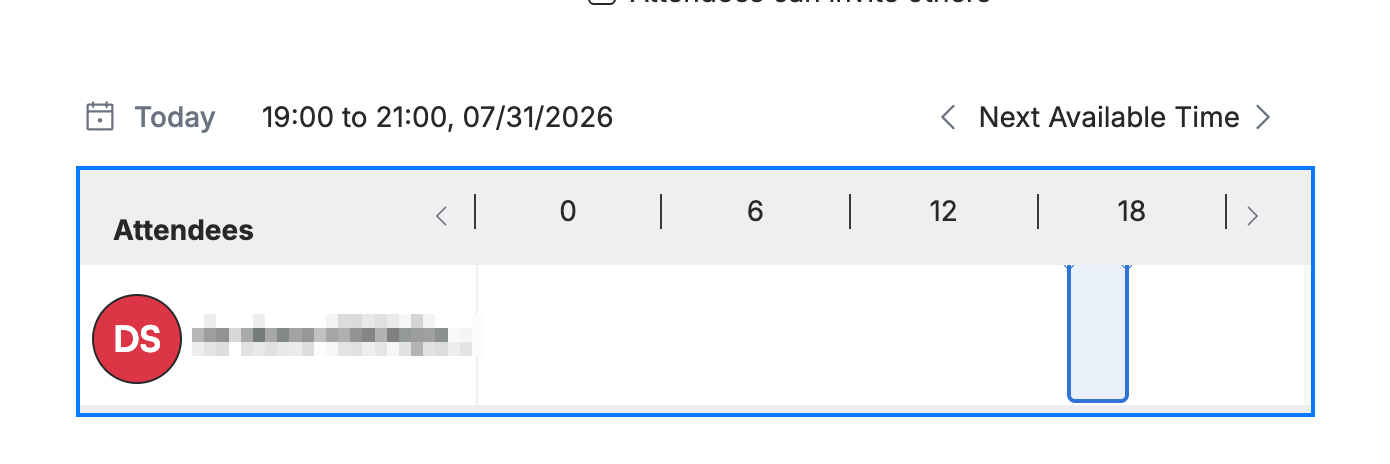
Review the free-busy timeline (blue): each attendee's busy periods are shaded across the hours of the day. Click Next Available Time to jump to the next slot when everyone is free.
Explore our other guides to get the most out of Webmail.