How to manually create a CSV contact file in Excel:
Column A: Name of contact
Column B: Last Name of Contact
Column C: Email address
Each row represents a different contact you are adding to the list.
For example:
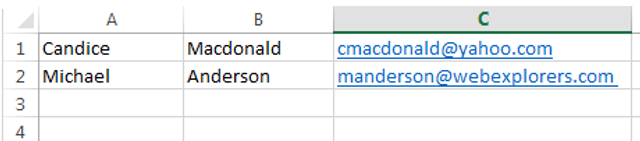
Column A row 1 - Candice (first name); Column B row 1 - Macdonald (last name); Column C row 1 cmacdonald@yahoo.com (email)
Column A row 2 Michael (first name); Column B row 2, Anderson (last name); Column C row 2, manderson@webexplorers.com (email)
Your excel file should look like this:
To save the file in Microsoft Excel, click File and then Save As. Under File Format, change to CSV (Comma Delimited) (.csv) and then press Save.
You may see a prompt confirming if you would like to continue using the format, select Yes.
Now you can import your contact list into Webmail. To learn how, see import contacts.