Personalise your Webmail interface by choosing one of the built-in themes or uploading your own background image. This guide shows where to find the themes and how to apply one.
Step 1 — Open Settings
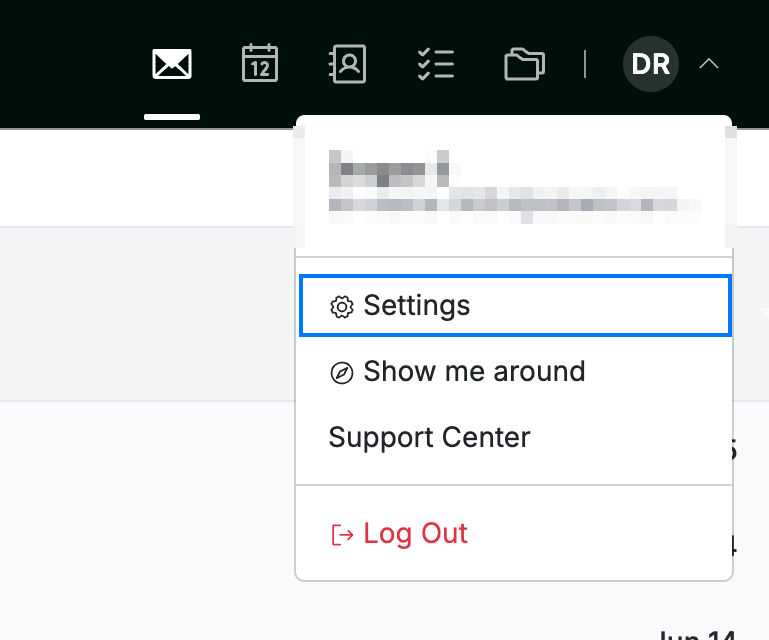
Open the user menu by clicking your initials in the top-right corner, then click Settings.
Step 2 — Select Theme
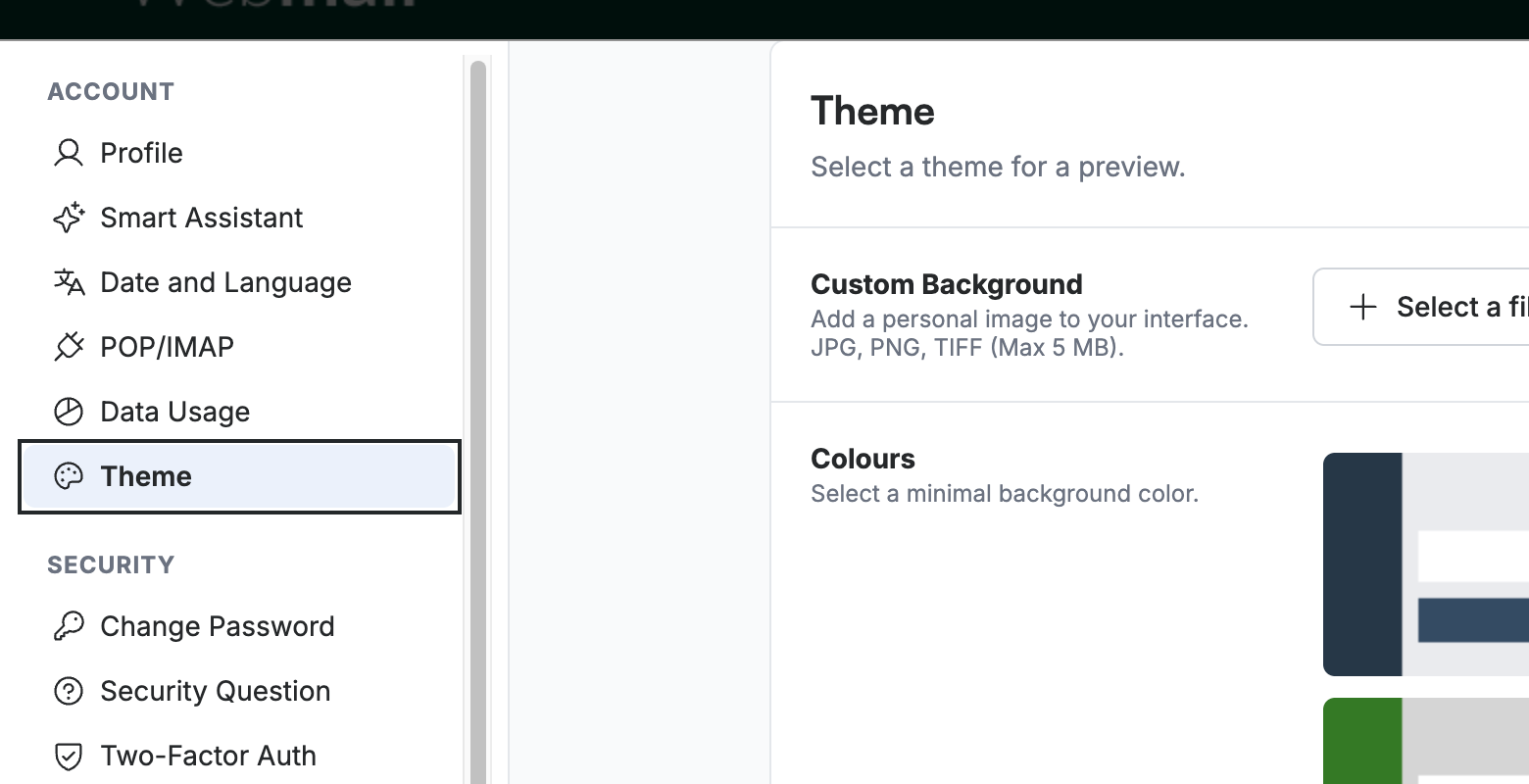
Select Theme from the left sidebar, under the Account section.
Step 3 — Choose a theme
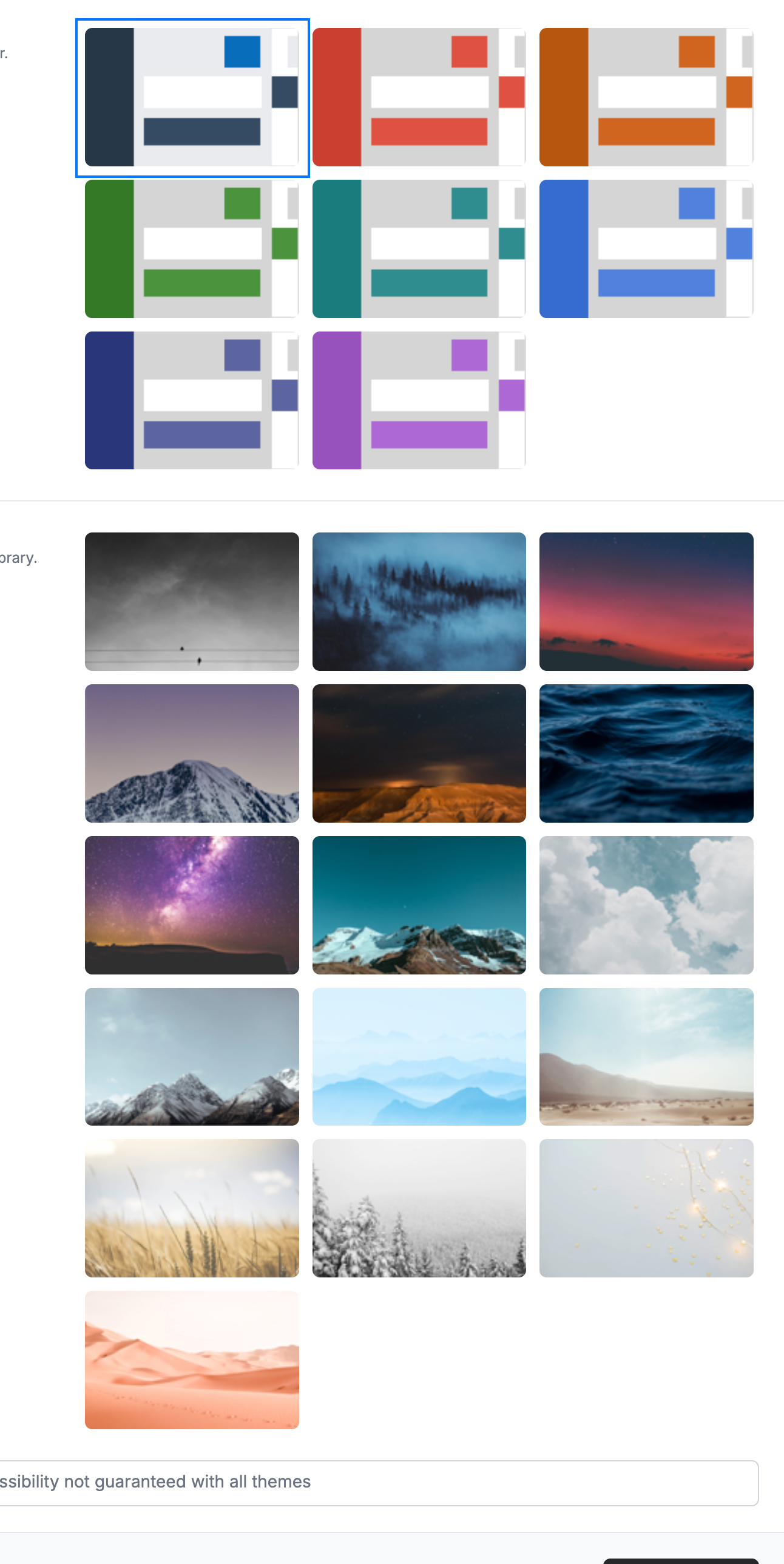
Click any theme to preview it instantly. Webmail offers 24 themes in three families: 8 colour themes that set the interface accent colour (default, red, orange, green, teal, blue, navy, and violet), 8 dark image backgrounds, and 8 light image backgrounds. Your current theme is outlined.
Note: Selecting a theme only previews it — it is not kept until you click Save Updates (see Step 5).
Step 4 — Add a custom background image
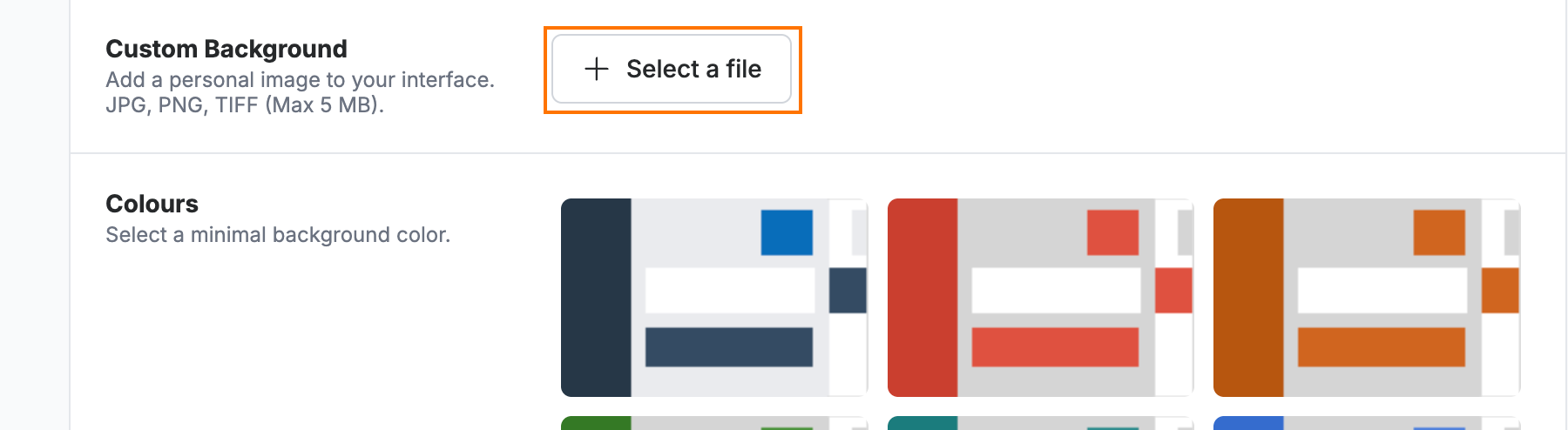
Click Select a file under Custom Background to use your own image instead of a built-in theme, then choose an image from your device.
Step 5 — Save Updates
Click Save Updates to apply your selected theme or background.

Explore our other guides to get the most out of Webmail.