Learn how to attach a file to an email in Webmail — whether it lives on your computer or in your Online Storage — so you can send documents, images, and other files alongside your message.
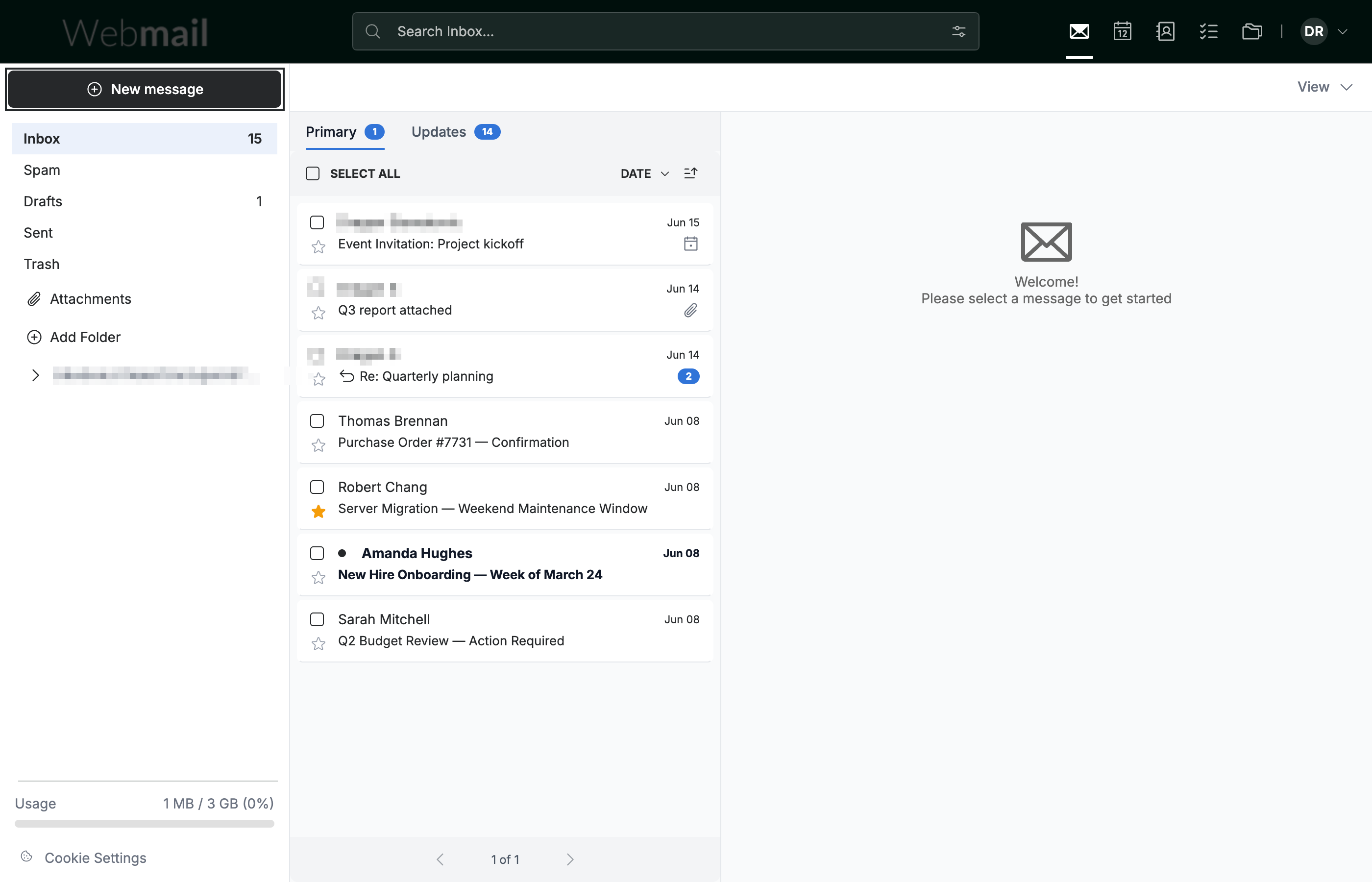
Step 1 — Click New message
Click New message in the top-left of the sidebar. The compose window opens.
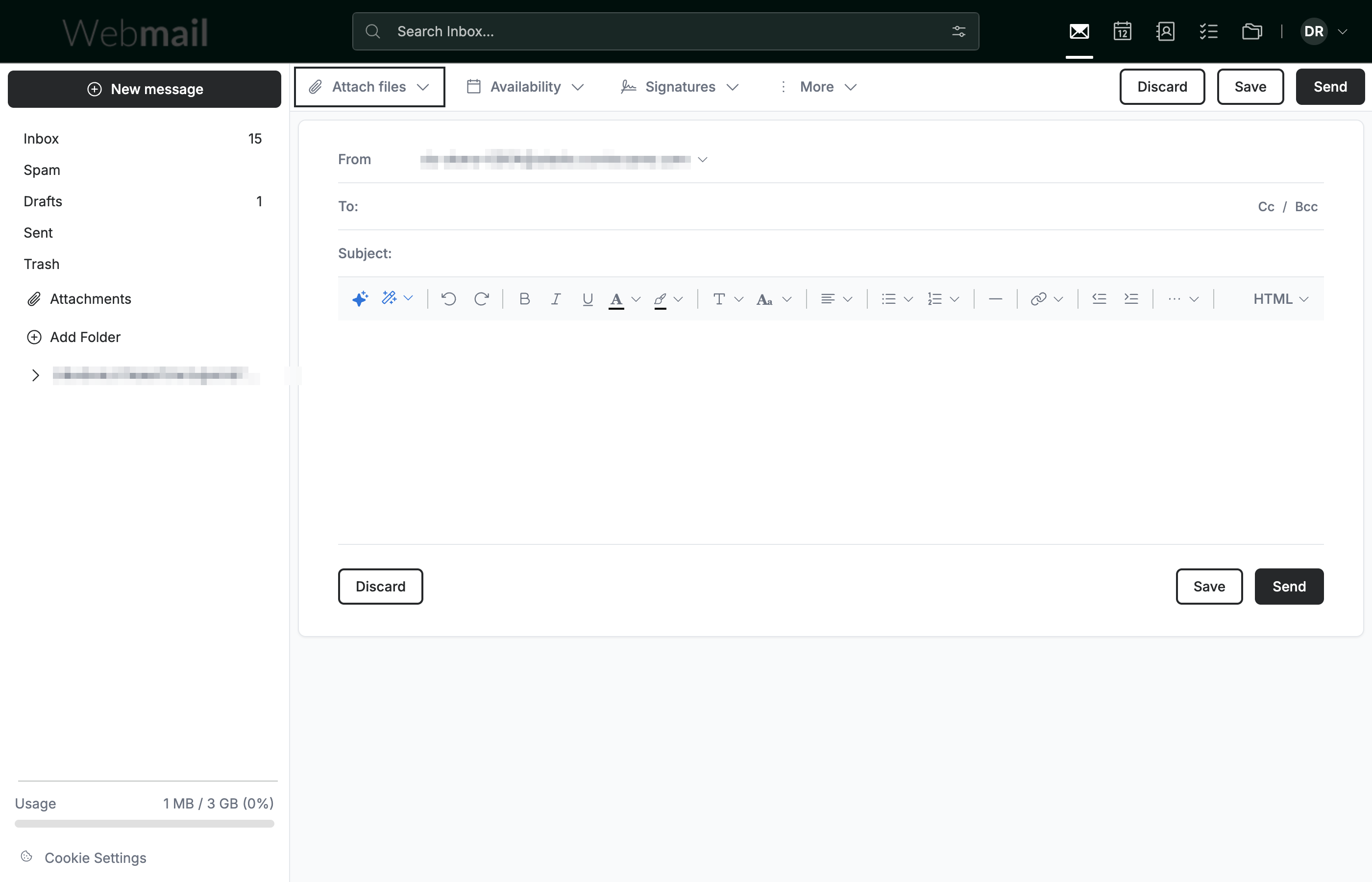
Step 2 — Click Attach files
Click Attach files in the compose action toolbar at the top of the window.
Step 3 — Choose where to attach from
Select Attach files from device to upload a file from your computer, or Attach files from Online Storage to attach a file you have saved online. The file is added to the Attachments panel of your message.
Tip: Use Attach files from Online Storage to attach a file already saved in your account without uploading it again.

Explore our other guides to get the most out of Webmail.