Set an event to repeat automatically — daily, weekly, monthly, or yearly — so you only have to create it once. This guide shows how to add a recurring event to your calendar.
Step 1 — Click New Event
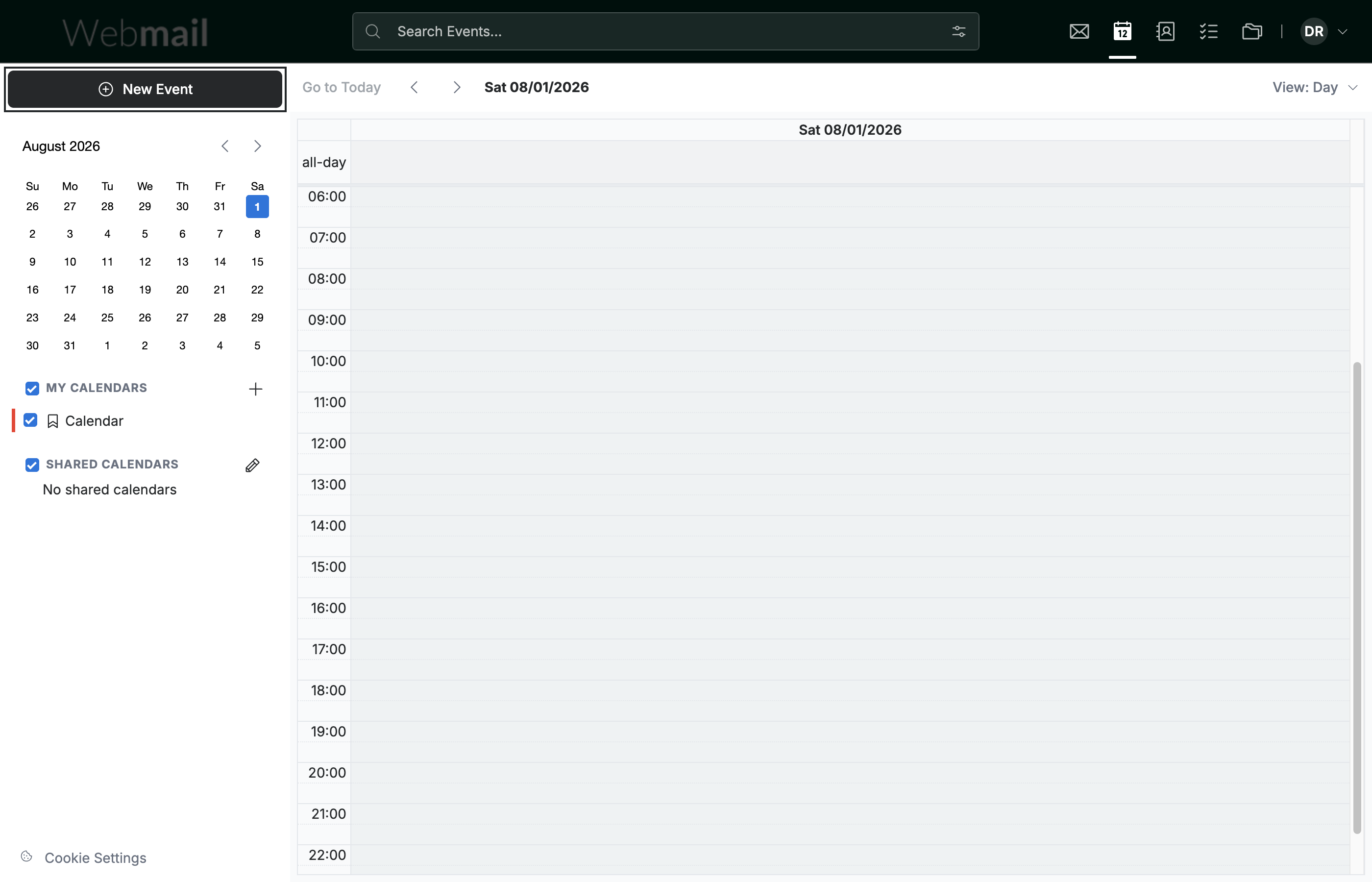
Click New Event in the top-left sidebar to open the event form.
Step 2 — Turn on Repeat
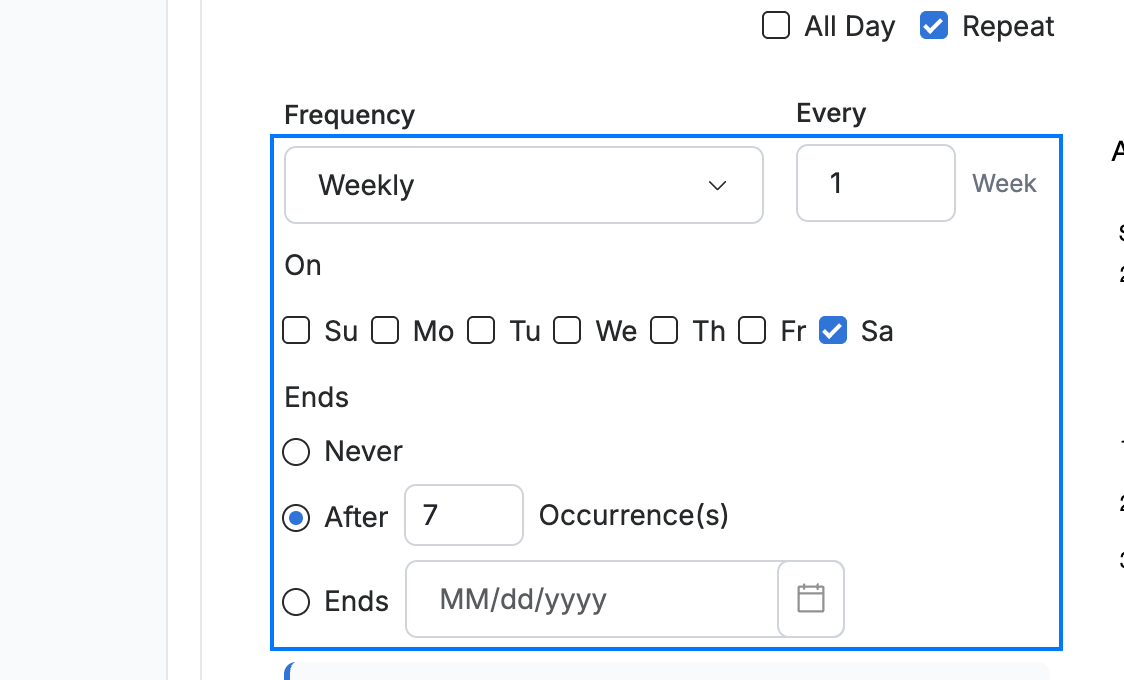
Enter the event title, date, and time, then turn on Repeat to reveal the recurrence options.

Step 3 — Set the recurrence pattern
Choose how often the event repeats — Daily, Weekly, Monthly, or Yearly — then set the interval (Every 1 Week), the days it falls On, and when it Ends.
Tip: Set Ends to a specific date if the event should stop repeating after a while, rather than continuing forever.
Step 4 — Click Create
Click Create to add the recurring event to your calendar.

Explore our other guides to get the most out of Webmail.