Online Storage gives you space to keep files in Webmail so you can reach them from any device. This guide shows how to upload a file from your computer into your storage.
Step 1 — Open Online Storage
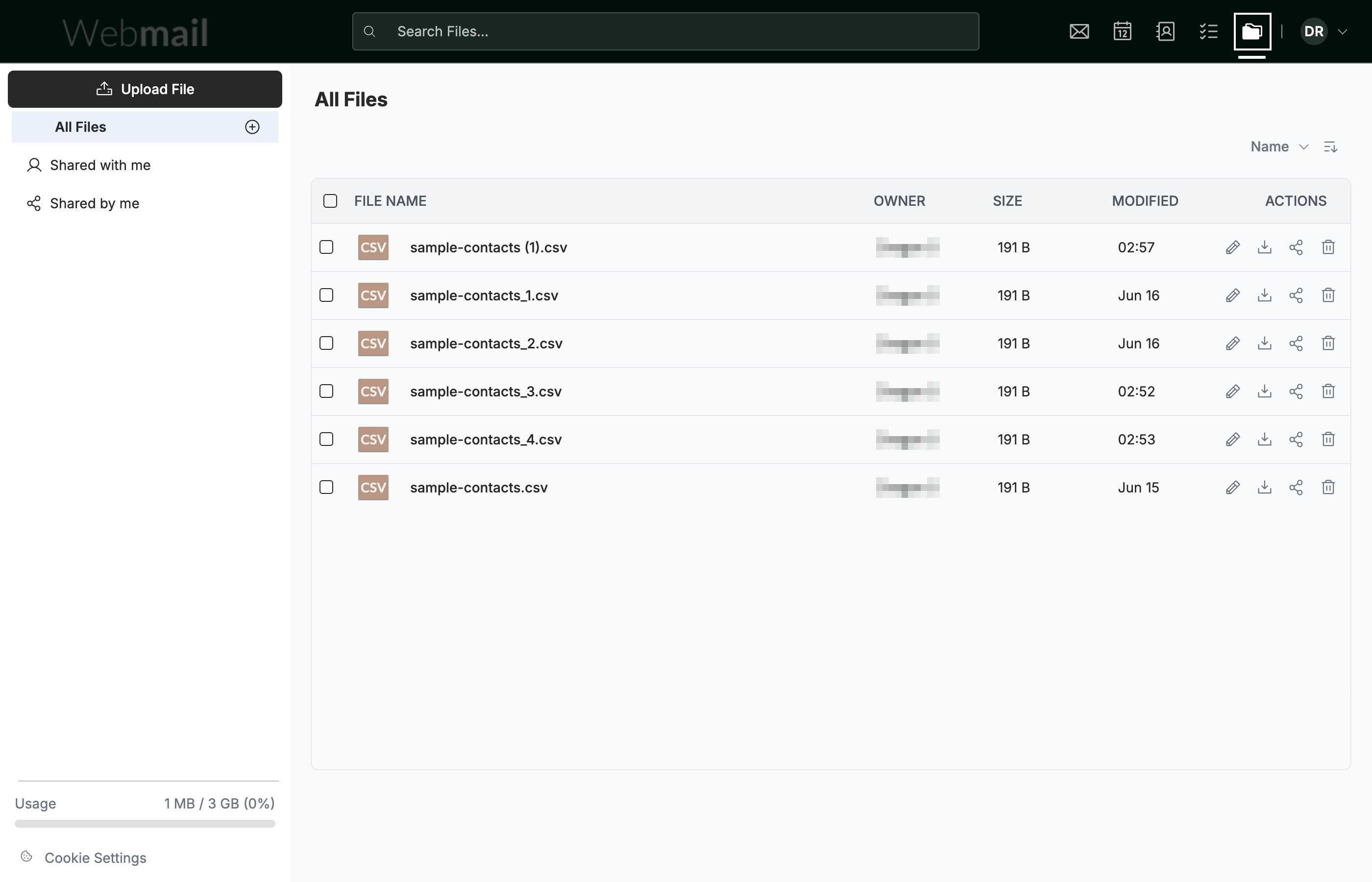
Click the Online Storage icon in the top navigation bar. The All Files view opens, listing everything in your storage.
Step 2 — Click Upload File
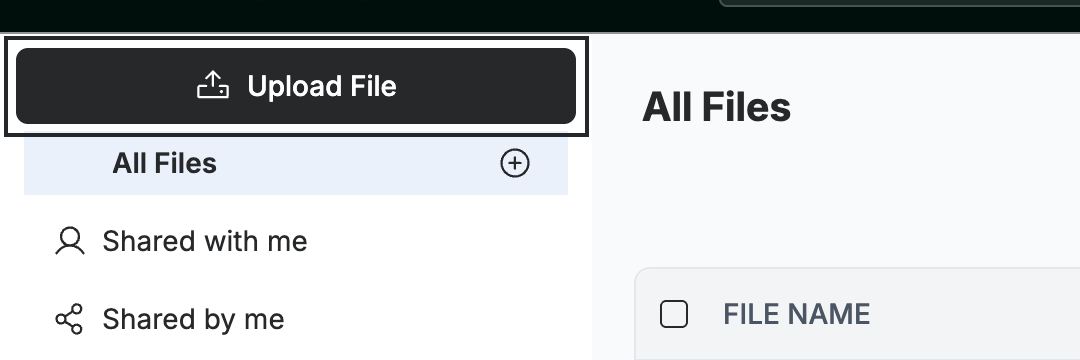
Click Upload File at the top of the sidebar to open your computer's file picker.
Tip: The file picker is your operating system's own dialog. Browse to the file you want, select it, and confirm — you can select more than one file at a time.
Step 3 — Confirm the upload
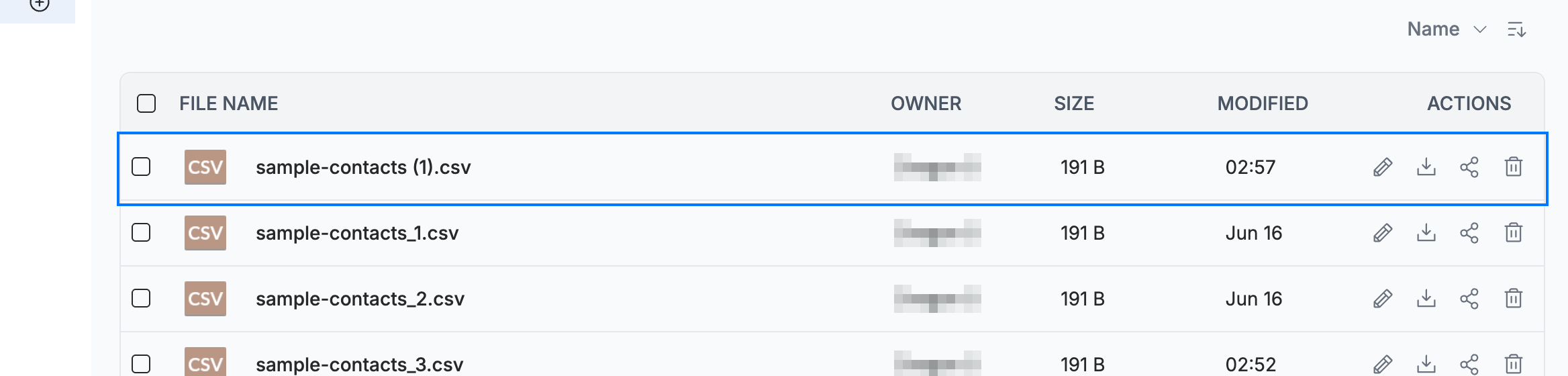
Review the All Files list (blue) — the uploaded file appears there with its owner, size, and date modified. A confirmation message shows when the upload finishes.
Explore our other guides to get the most out of Webmail.