Make important messages stand out by giving them a colour in the message list — for example, highlight everything from your manager. This guide shows how to create a highlighting filter.
Step 1 — Open Settings
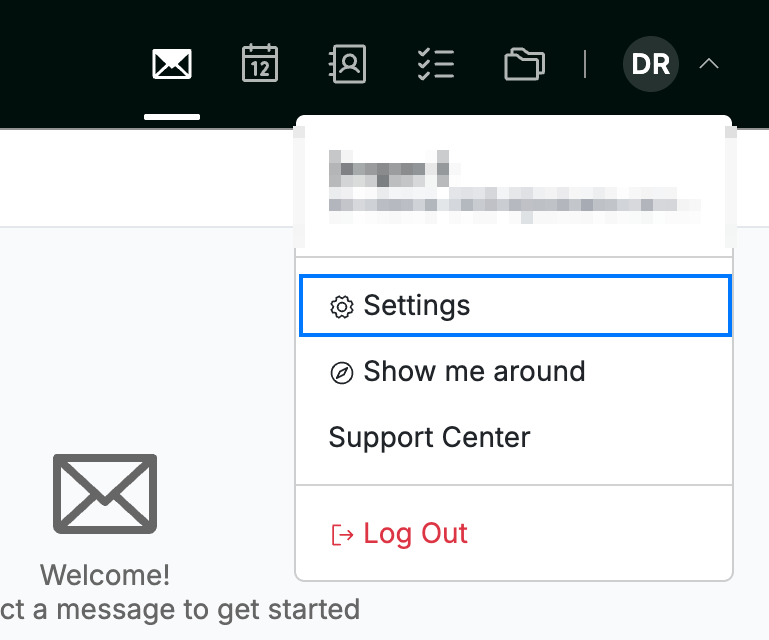
Click your avatar in the top-right corner and select Settings.
Step 2 — Open Highlighting
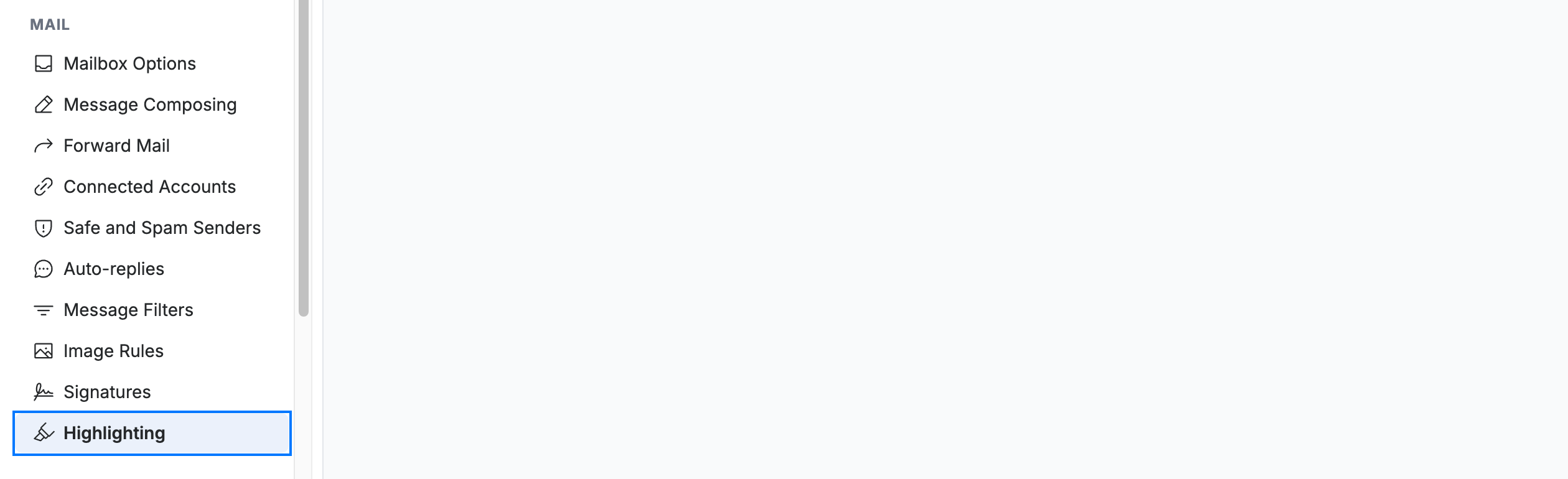
Select Highlighting from the Mail section of the settings sidebar.
Step 3 — Create a highlighting filter
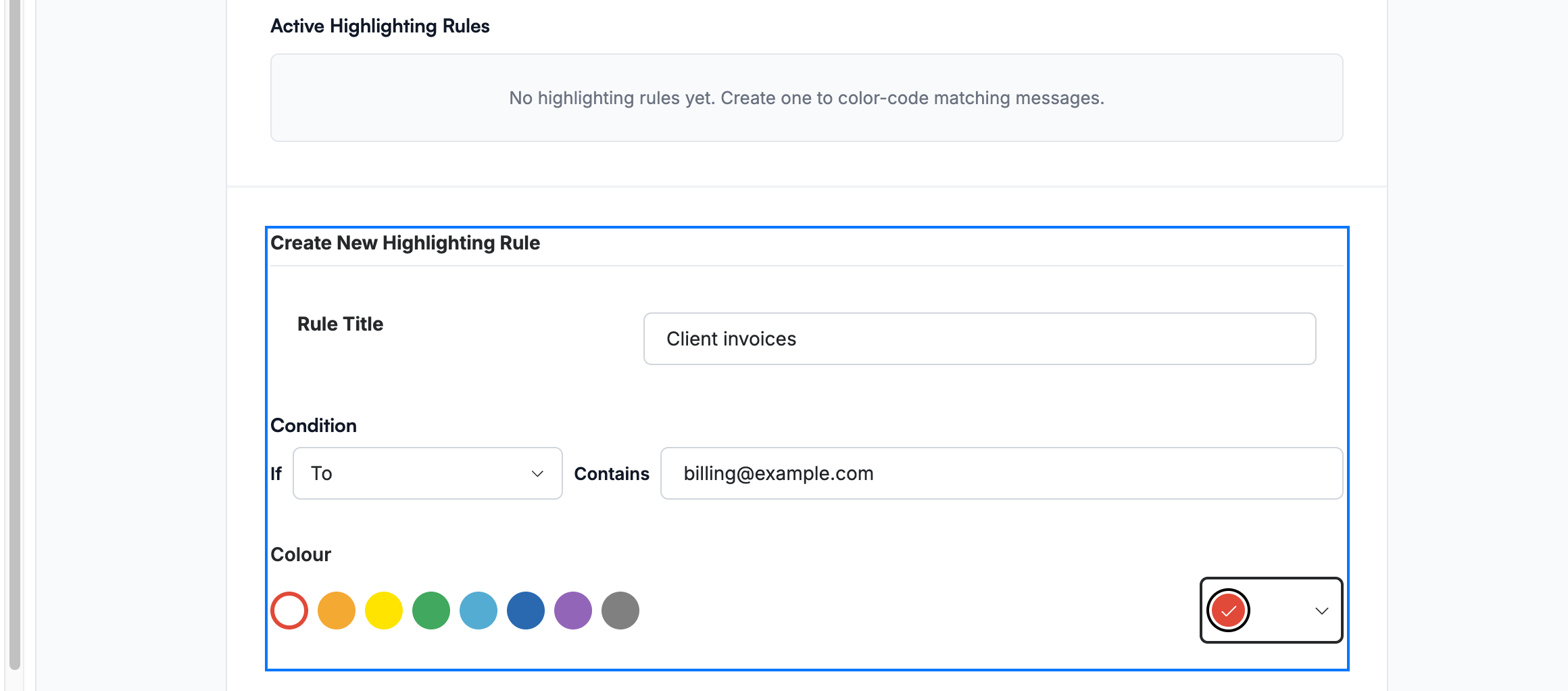
Fill in the Create New Highlighting Rule form (blue), then click Add:
- Title — a name for the filter.
- If — choose a field (From, To, Cc, To or cc, or Subject) and enter the term it should Contain (for example a sender's address).
- Colour — pick the colour to highlight matching messages with.
Explore our other guides to get the most out of Webmail.