While writing a message you can save it as a draft to finish later, or discard it to remove it without sending. This guide shows both options in the compose window.
Step 1 — Click New message
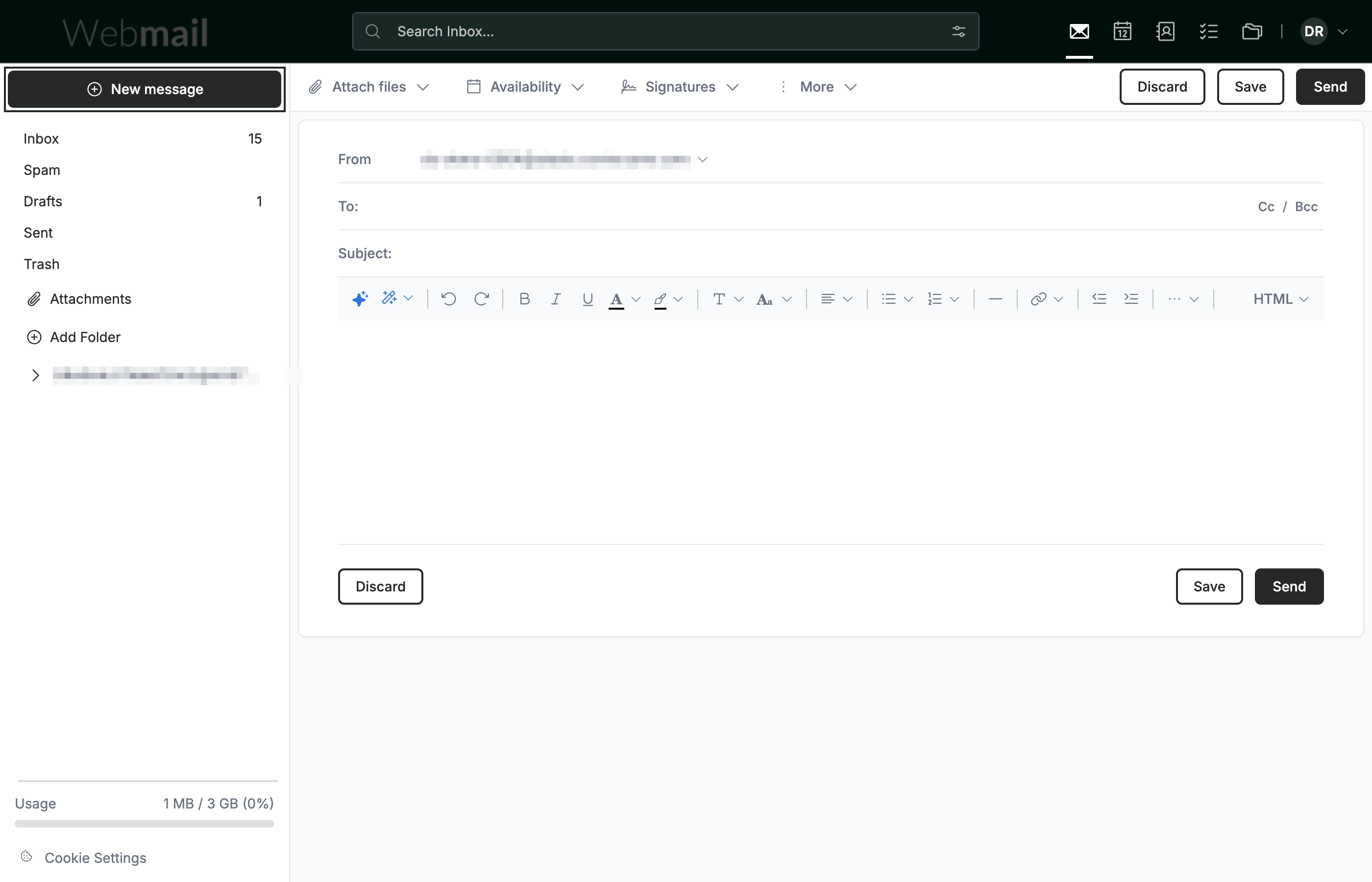
Click New message in the sidebar to open the compose window, then add your recipient, subject, and message.
Step 2 — Click Save to keep a draft
Click Save in the bottom-right of the compose window to store the message as a draft.
Tip: Your draft is kept in the Drafts folder. Open it any time to continue editing or to send it.

Step 3 — Click Discard to abandon the message
Click Discard in the bottom-left of the compose window to remove the message without saving or sending it.
Note: Discarding is permanent. A discarded message is not kept in Drafts and cannot be recovered.

Explore our other guides to get the most out of Webmail.