Conversation View groups an email and all of its replies into a single thread, so a back-and-forth exchange reads as one entry instead of many scattered messages. This guide shows how to recognise a conversation in the list and read the messages it contains.
Before you begin: Conversation View requires threaded messages to be turned on. Go to Preferences > Mailbox Options and enable Enable threaded messages, then save.
Step 1 — Spot a conversation in the message list
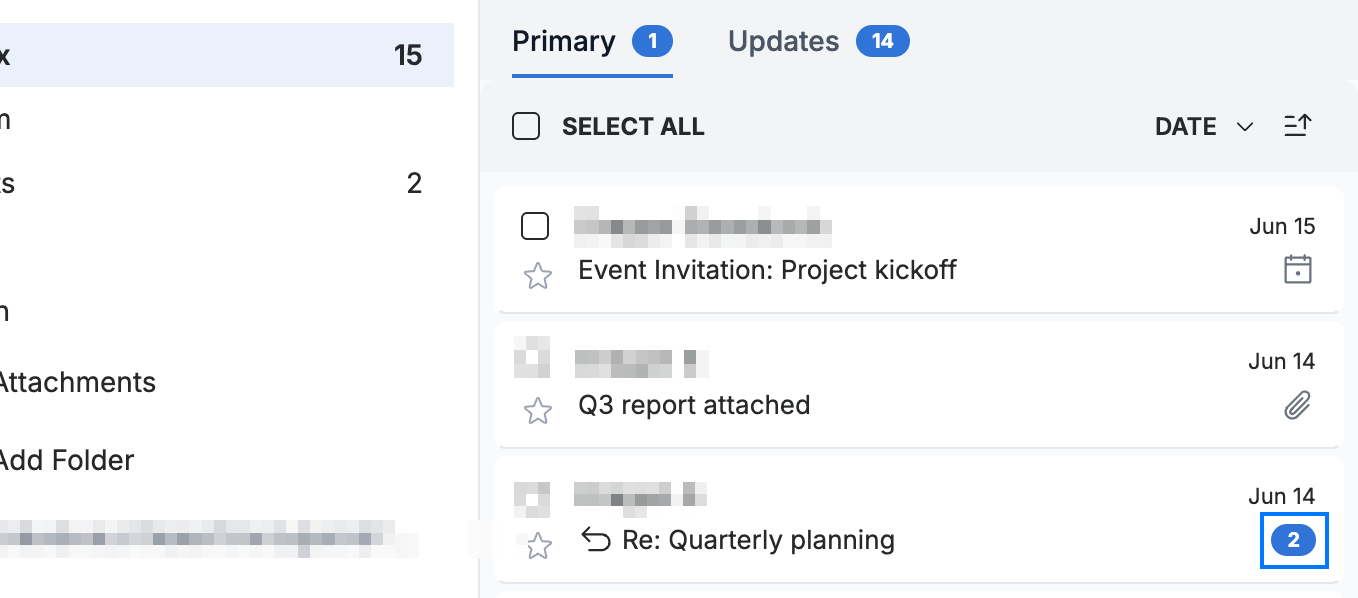
Look for messages that group their replies together. A conversation shows a count badge (blue) — here 2 — indicating how many messages it contains, and a reply arrow marks a message that is part of a thread.
Step 2 — Open the conversation
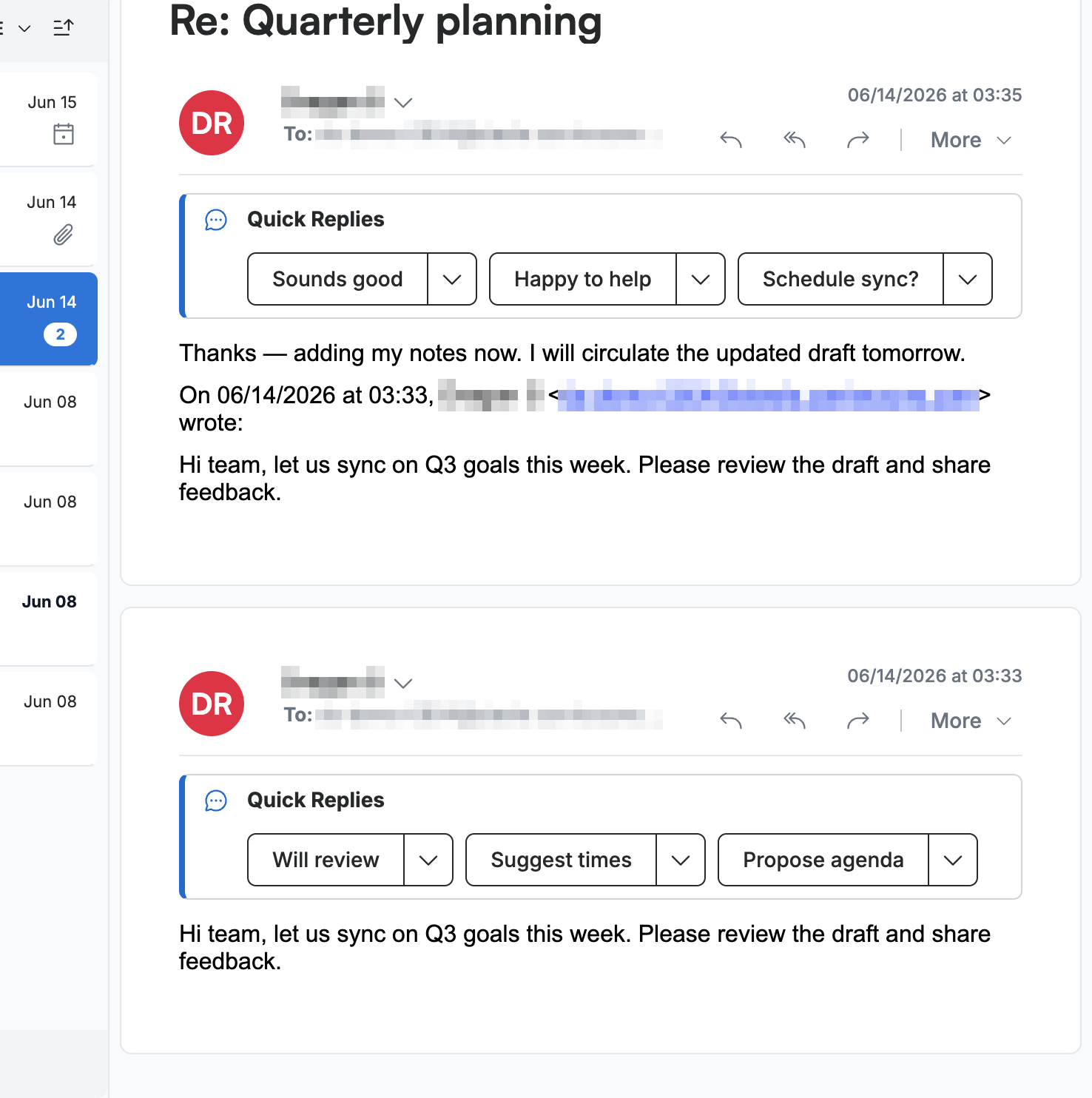
Click the conversation to open it. Every message in the thread is stacked together in the reading pane, with the most recent at the top and earlier messages below it — so you can follow the whole exchange in one place.
Step 3 — Read an earlier message in the thread
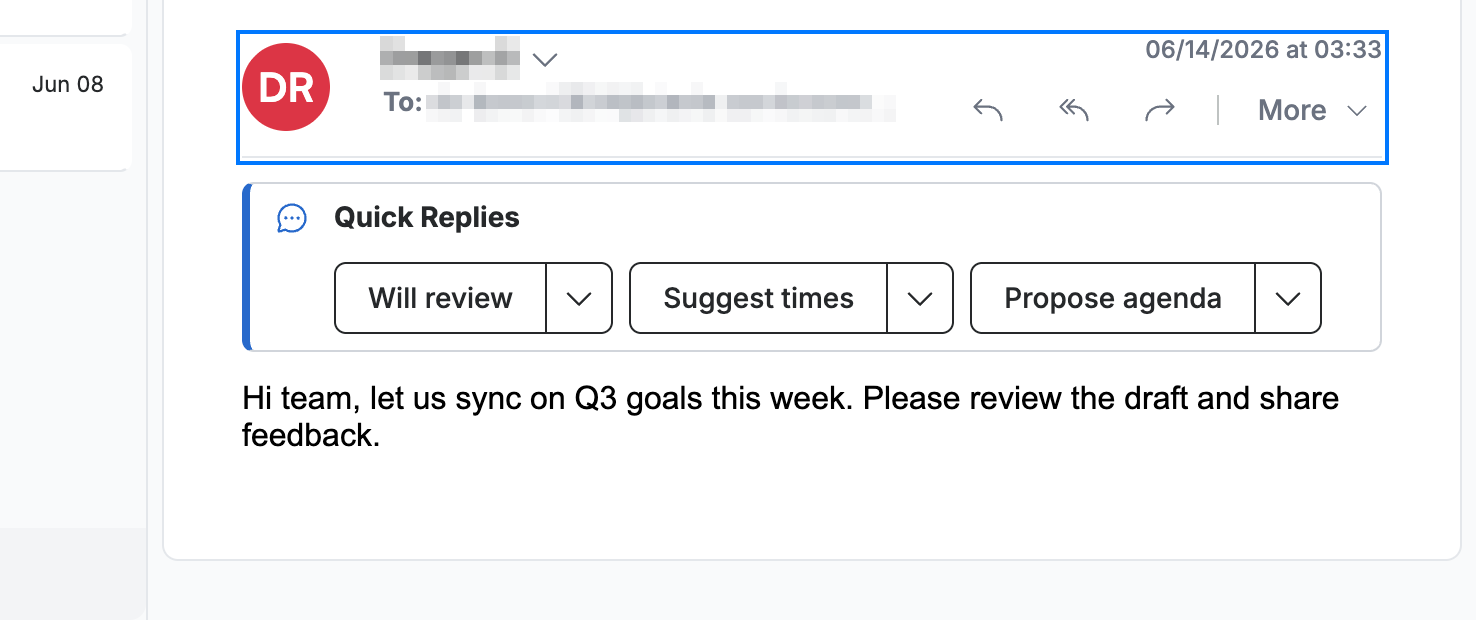
Click an earlier message (blue) further down the conversation to read it. Each message keeps its own Reply, Reply All, and Forward controls, so you can respond to any message in the thread.
Tip: Use the Quick Replies buttons below a message to send a short response — such as an acknowledgement — without opening the full compose window.
Explore our other guides to get the most out of Webmail.