The navigation bar runs along the top of every Webmail screen. This guide explains each part so you can move around Webmail and reach your account settings quickly.
Step 1 — Locate the navigation bar
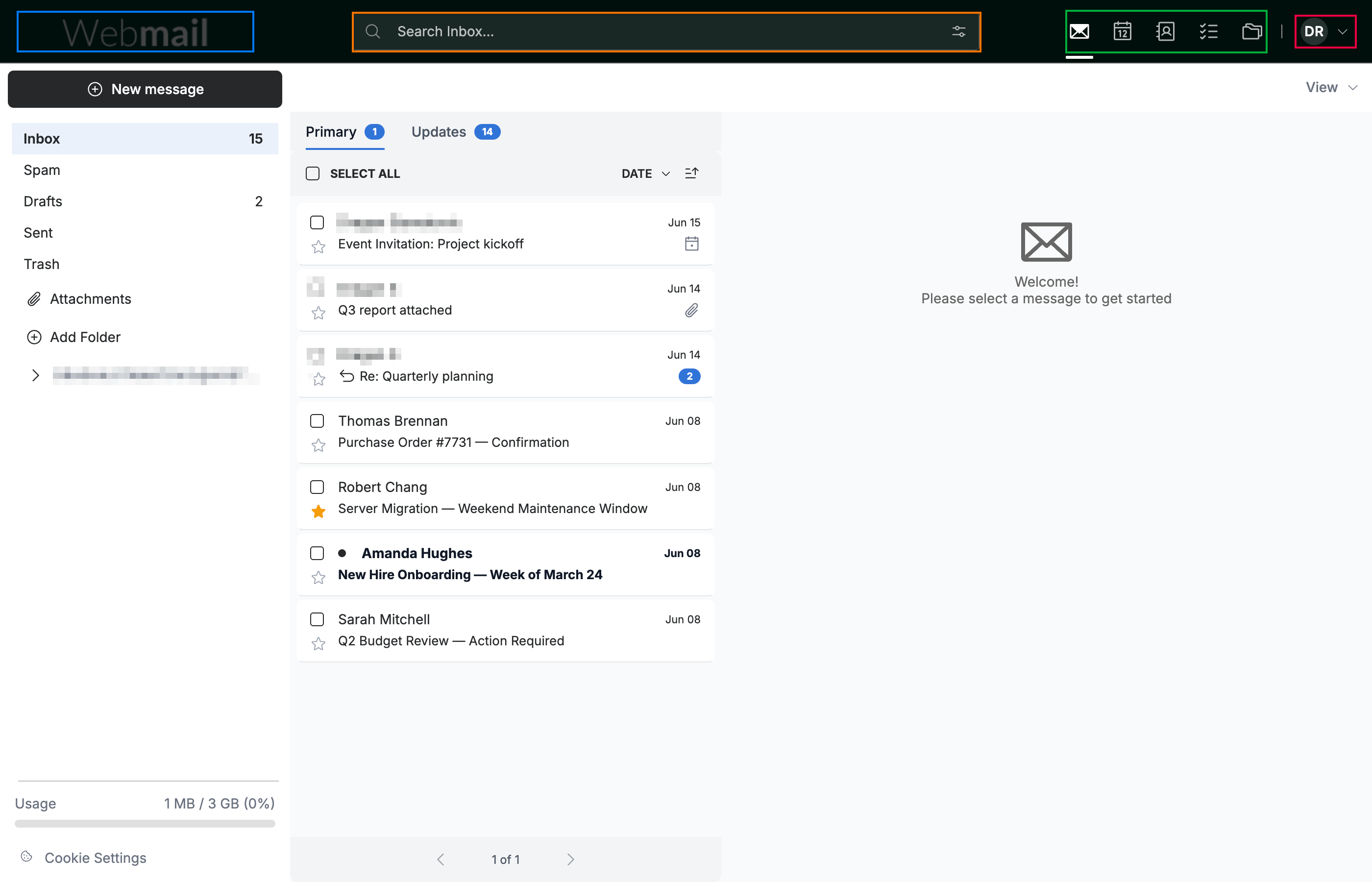
The navigation bar has four areas:
- The Webmail logo (blue) on the left — click it to return to your inbox.
- The search box (orange) in the centre — find messages in the current view.
- The module switcher (green) — jump between Mail, Calendar, Contacts, TaskBox, and Online Storage.
- The account menu (red) on the right — your profile, settings, and log out.
Step 2 — Switch between modules
Click an icon in the module switcher (green) to open that area:
- Mail — your inbox and folders
- Calendar — events and reminders
- Contacts — your address book
- TaskBox — your to-do list
- Online Storage — your files

Step 3 — Search and open your account menu
Use the two ends of the bar:
- Enter a term in the search box (orange) to find messages in the current view.
- Click your account avatar (red) to open your profile, settings, and log out.

Explore our other guides to get the most out of Webmail.