Automatically send a copy of incoming email to another address — handy for monitoring a second inbox or keeping a backup of your mail. This guide shows how to set it up from the Forward Mail panel.
Step 1 — Open Settings
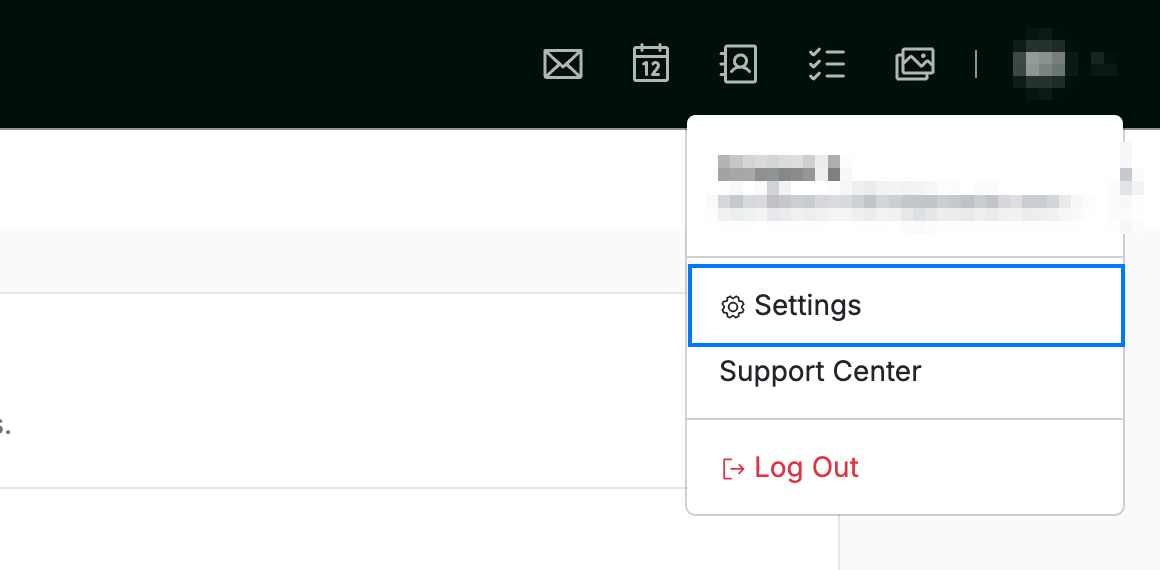
Open the user menu by clicking your initials in the top-right corner, then click Settings.
Step 2 — Select Forward Mail
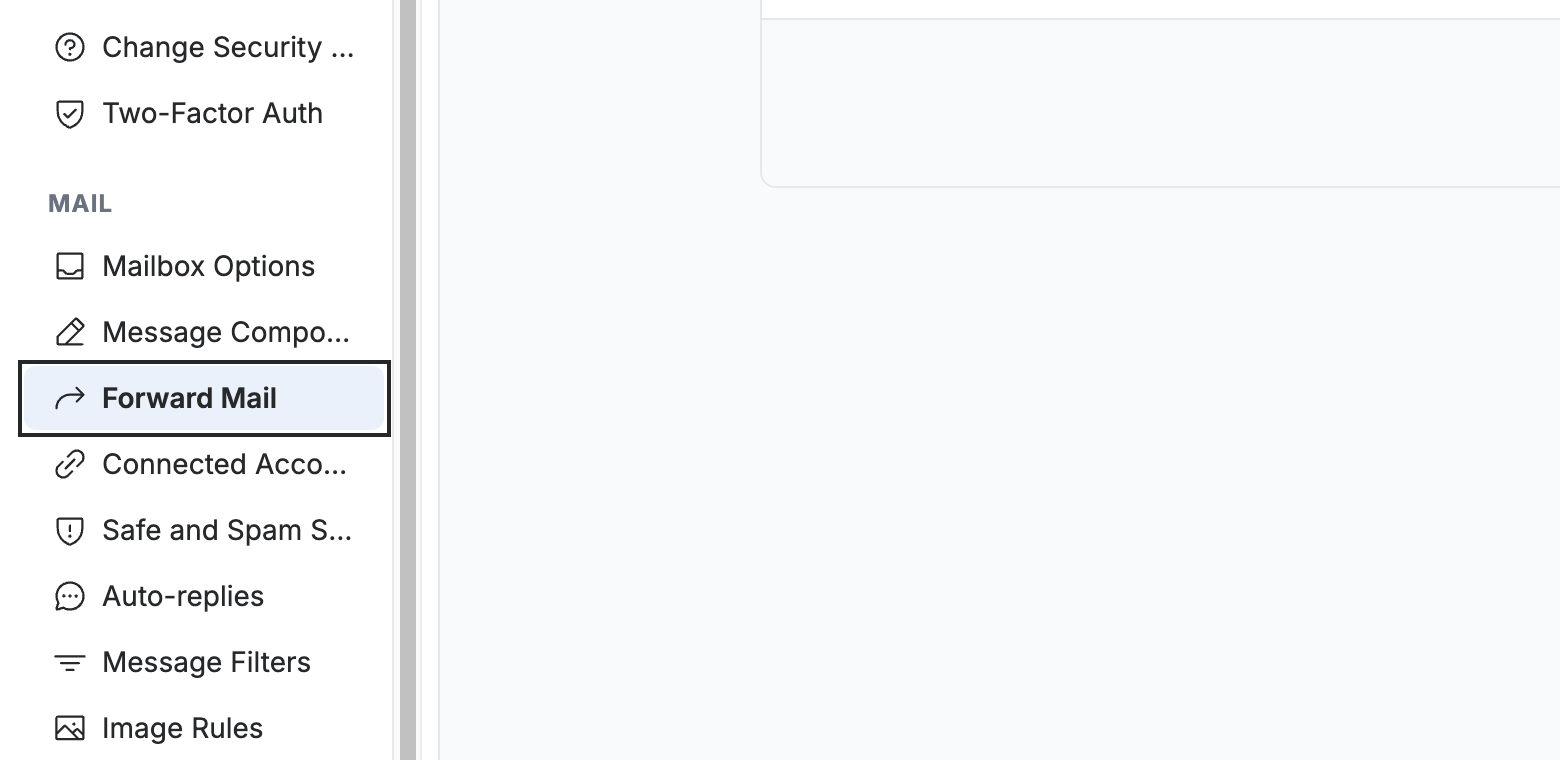
Select Forward Mail from the left sidebar, under the Mail section.
Step 3 — Enter the forwarding address
Enter the destination address in Forward to:. To forward to several addresses, separate them with commas and no spaces — for example, `backup@example.com,assistant@example.com`.
Tip: To stop forwarding later, clear Forward to: and click Save Updates.

Step 4 — Save your changes
Click Save Updates to turn on forwarding. New incoming messages are then copied to the address you entered.

Explore our other guides to get the most out of Webmail.