Tags let you label tasks by theme or priority so you can group and find related work quickly. This guide shows how to add a tag to a task.
Step 1 — Open the Tags section
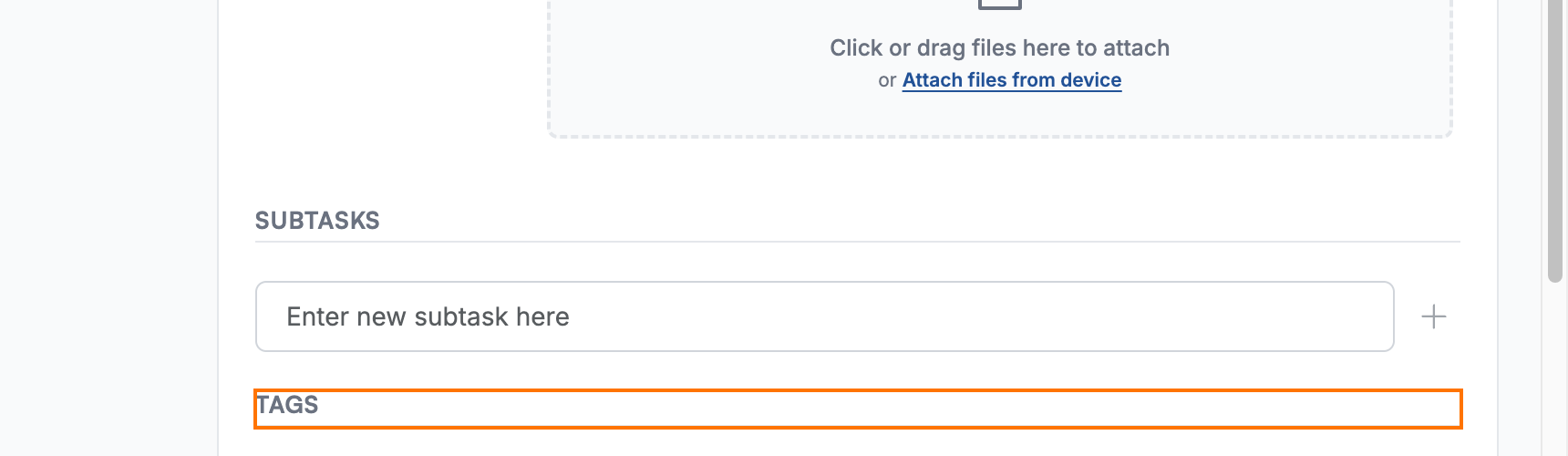
Go to the Tags section (orange) in a task, located below Subtasks.
Step 2 — Choose a tag
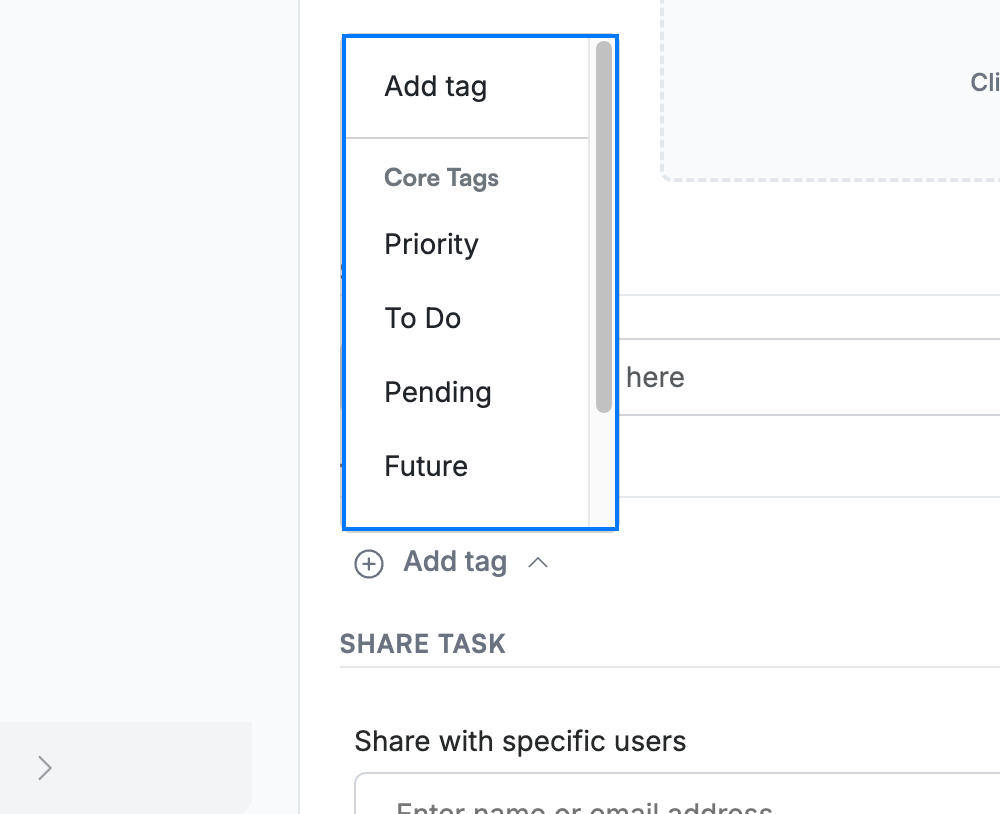
Click Add tag to open the tag menu (blue). Pick from the built-in Core Tags such as To Do, Pending, and Priority, or scroll to your Personal Tags.
Step 3 — Review the applied tag
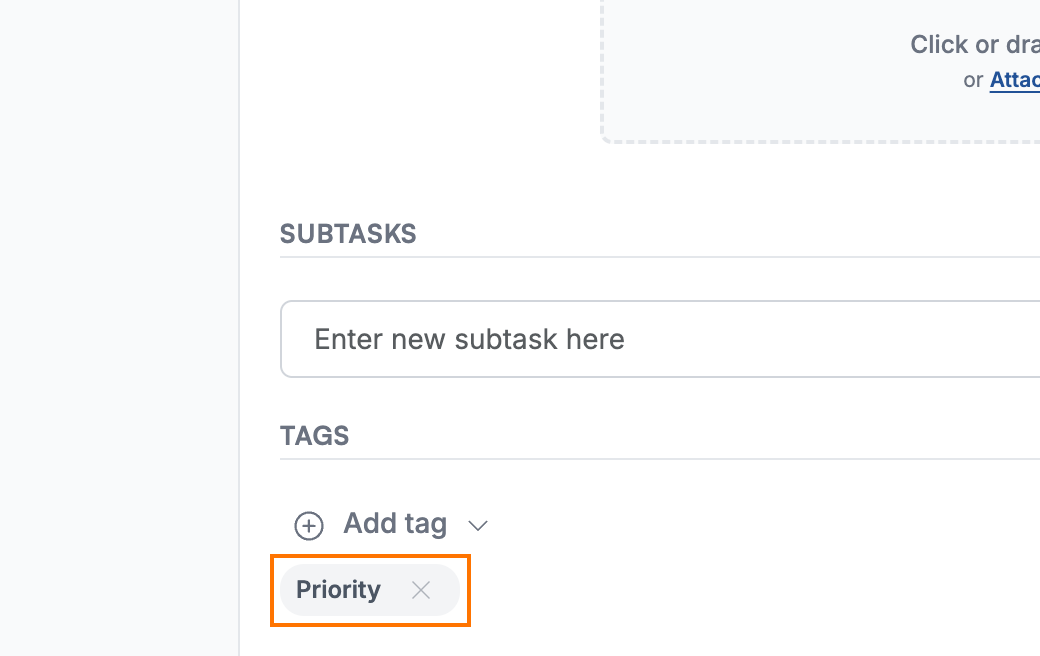
Review the Tags section: the tag appears as a coloured chip (orange). Add as many tags as you need; click the × on a chip to remove one.
Tip: Use Filter by Tags in the TaskBox sidebar to show only tasks with a chosen tag.
Explore our other guides to get the most out of Webmail.