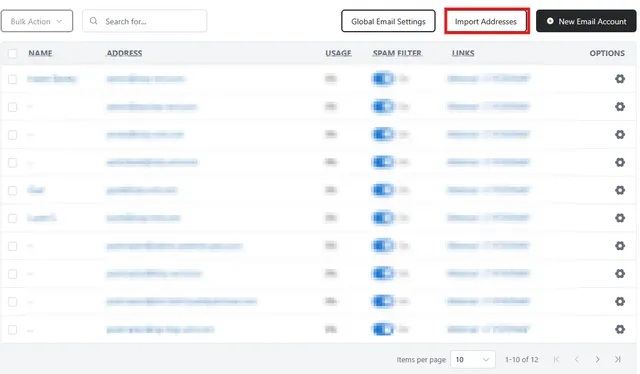
1. Select Import Addresses
Download the CSV template, or copy the example below.
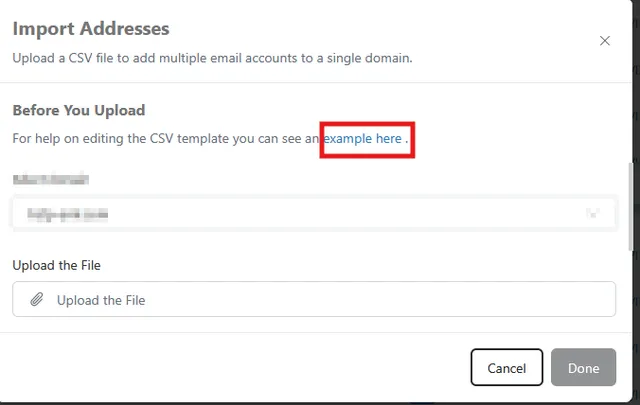
email,full name,password

account1,Firstname Lastname,Temp1234%

account2,Firstname Lastname,

account3,Firstname Lastname,
When creating the CSV the first line showing "email,full name,password" must be present and must remain unchanged. each line below it is a single account
the domain is based on the chosen domain in the drop down,
To enter ther following emails and passwords email - account1@bob.com
pass - A^=32b^DX
Name - Bob Dylan
email - account2@bob.com
pass - 4q7Yr~3X33
Name - Tom Holland
email - account3@bob.com
pass - kN7Cv?ko#0
Name - Garth Brooks
The CSV that you make in either excell, google sheets or any text editor would look like this
email,full name,password
account1,Bob Dylan,A^=32b^DX
account2,Tom Holland,4q7Yr~3X33
account3,Garth Brooks,kN7Cv?ko#0
Once the CSV is saved you can then upload the CSV. by clicking the upload the file button and choose the file form your local machine, click next the list of emails will be displayed to confirm the details are correct before finalizing the upload
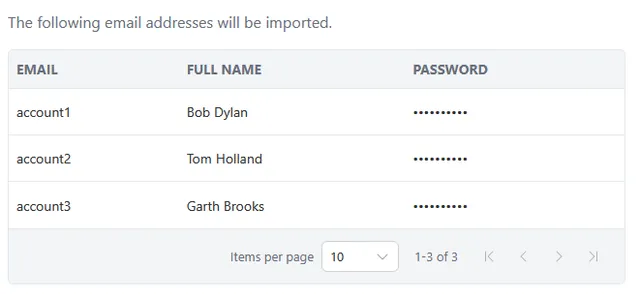
After the upload is complete, a list of the email addresses you have added will appear within the mail manager.