File Manager lets you browse, upload, edit, and manage the files on the selected domain name, from your browser.
The domain selected in the drop down at the top of the page will be the visible file structure.

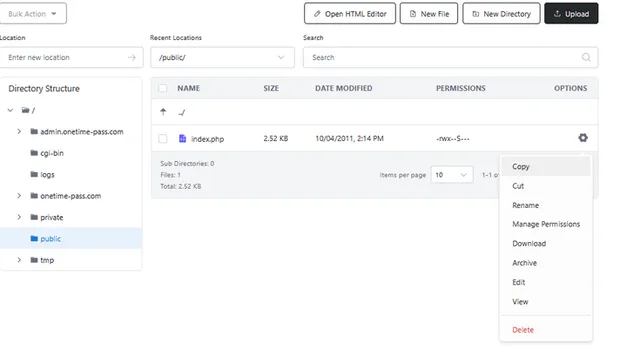
Search for files
Use the Search field at the top of File Manager to find files and directories in the folder you're viewing.
Location, Recent Locations, and Search are below the main buttons
1. Type a file or folder name in the Search field.
2. Matching results appear in the file list. Select a result to open or manage it. Please note that this will search the entire file structure not just the folder you are in so you may see multiple results for common file names such as index or config files.
File Options
Click the gear icon in the Options column next to any file or directory to see what you can do with it.
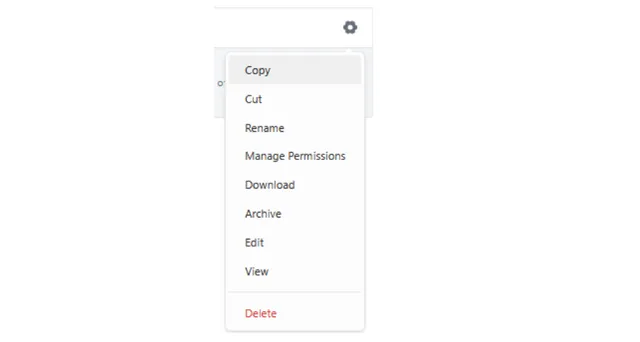
The options menu
Option | What it does |
Copy | Copies the item so you can place a duplicate in another folder. |
Cut | Moves the item to another folder. |
Rename | Changes the item's name. |
Manage Permissions | Sets who can read, write, or run the item. |
Download | Saves a copy to your computer. |
Archive | Compresses the item into an archive file. |
Edit | Opens the file in the code editor so you can change it. Files only. |
View | Shows the file's contents without changing anything. Files only. |
Delete | Removes the item. This can't be undone. |
To act on several items at once, tick the checkboxes next to them and choose an action from the Bulk Action menu.