You can create tasks directly from TaskBox or by saving an email as a task.
How to create a task:
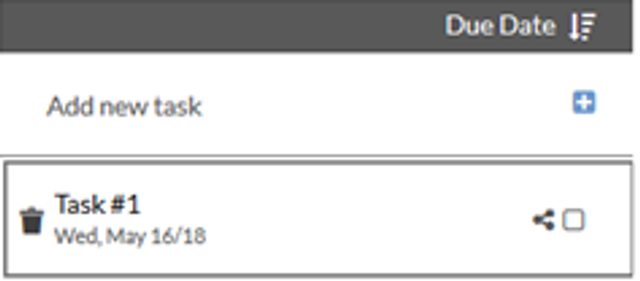
1. In the task list, click on the Add New Task icon.
icon.
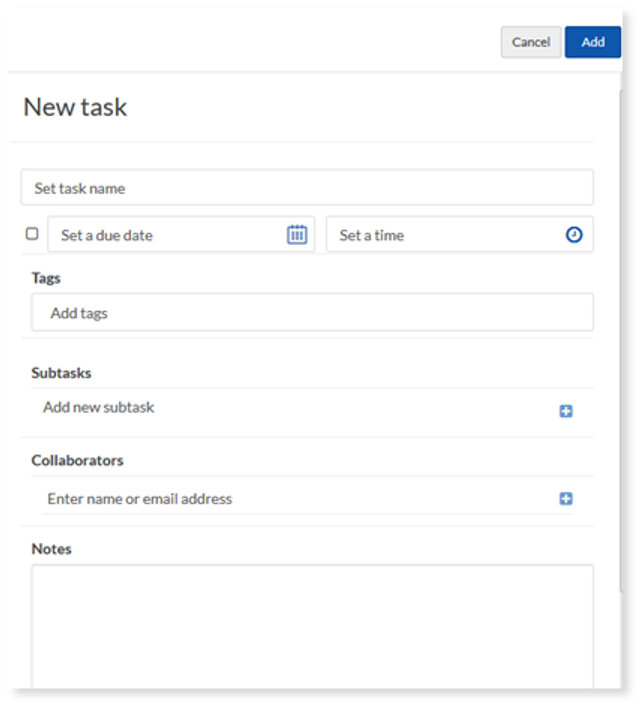
2. In the New Task section, you can fill in the following information:
- Set Task Name: Enter a name for the task.
- Set Due Date/Time: If the task has a due date, select the Due Date checkbox. Now you can modify the date and time. You also have the option to repeat the task as well as set alerts.
- Tags: Add a tag to help you identify or search for your task.
- Subtasks: Type in any subtasks associated with this task and click the plus icon to add them. To remove a subtask, hover over the content and click the trash can icon to the left of the task.
- Collaborators: Enter the name or email address of anyone involved with the task and click the plus icon. This feature is dependent on package availability. To remove a collaborator, select Remove.
- Attachments: To add an attachment to your task, click the Attachment icon, and upload your file. Press Save to attach the file to the selected task.
- Notes: Enter a brief description of the task.
3. Click Add.
How to edit a task:
- From your task list, click on the task that you want to edit.
- The task will open on the right. Once you've made changes to your task, click Save.
How to delete a task:
From the task list, select the task(s) that you want to delete and click the trash can icon.
How to archive a task:
- Select the task that you want to archive from the task list.
- Click the Archive
 icon.
icon.