1. First, purchase the SSL Certificate.
2. Once the purchase is complete, select Install from the main dashboard.

3. Choose Install Positive SSL and select Next.
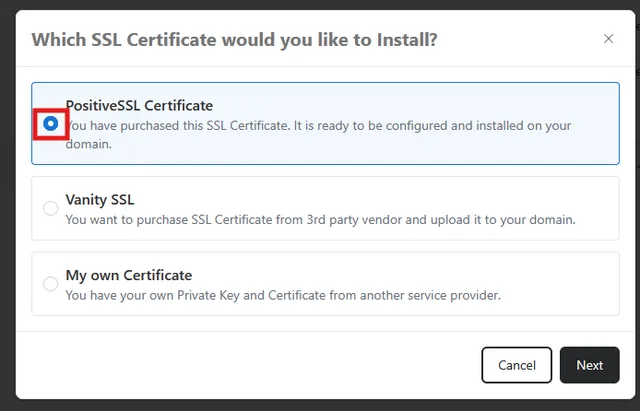
4. Enter the company information. and select the record that you wish to secure with the positive SSL certificate, blank or www, the not selected record can be redirected to the secured record through the forwarding section of your control panel via the use of a global redirect.
5. Once you have filled out all of the information, check the box at the bottom of the screen ensuring you have reviewed the information thereby verifying that it is correct and true.
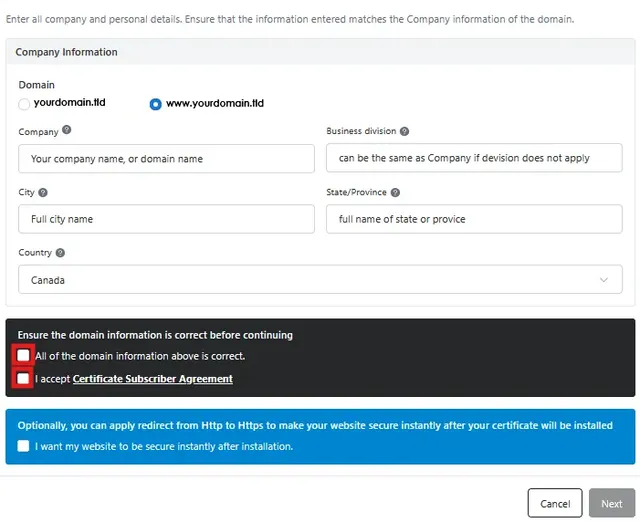
6. After selecting Next at the bottom of the screen, your certificate will be ordered, for the domain to be fully secured it will need to resolve to the proper secure IP address.
7. navigate back to the SSL manager and click the small gear icon to the right of the domain you have installed the SSL on, once installation is complete you will see the secure ip in the domain details tab
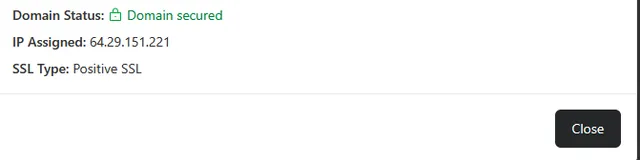
8. if your domain is not already showing this IP in the DNS manager / Domain Manager under DNS, you will need to update the IP address of your blank and www records.
9. to alter the IP open the DNS manager application, after copying the IP from the domain details section.
10. click the small pencil icon beside the blank record ( the one with no name ) enter the IP from the domain details page in the value field and click save.
11. Do the same for the www record, if your www record is Cnamed to the blank no further action is needed,
Note: In addition to the installation a DNS update is required. Once the installation is complete, it will take 48 hours for the IP address to become active. After 48 hours have lapsed you will need to update DNS settings. To check on the status of your SSL Certificate, go to the main dashboard and find the information under “SSL Status”.