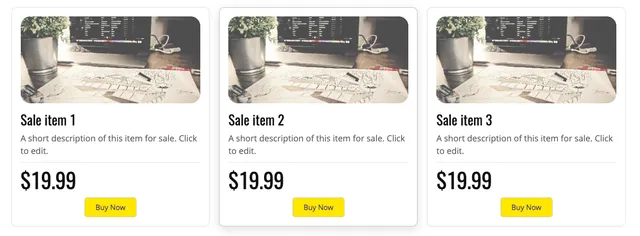
The Sale Items Grid is a ready-made page element for showing several things you sell side by side. It arrives as a grid of three cards, each one already holding a picture, a name and description, a price, and a Buy Now button. You replace the sample content with your own and the layout looks after itself.
Before you start
The Buy Now button on each card comes from the Online Payments app, so the grid depends on it in two separate ways:
- Online Payments has to be available on your plan. The builder installs it for you the moment you drop the grid onto a page. If your plan does not include it, the grid is not added at all and you see an error message instead.
- Online Payments then has to be configured. This is the easy one to miss: every Buy Now button appears fully styled from the moment you add the grid, so the cards look finished straight away. They are not. Each button only does something once you have set it up with the payment method you want to accept — until then it is decoration, and a visitor who clicks it gets nothing.
Add the grid to a page
- Open the page you want it on in the admin view.
- Click Build in the left-hand menu.
- Open the Container Elements category.
- Drag Sale Items Grid onto the page, where you want it to appear.
What is in each card
Every card is built from four editable areas, stacked top to bottom:
- A picture.
- A heading and a short description, together in one text block.
- A thin dividing line followed by the price, also together in one text block.
- The Online Payments Buy Now button.
Because the dividing line sits inside the same block as the price, editing the price leaves the line where it is.
Edit, add and remove items
- Click the picture to open the image options and put your own photo in its place.
- Click the heading, the description or the price to edit the text directly on the page.
- To add another item, hover over a card you have already finished and choose Copy. The card goes to the Clipboard panel in the left-hand menu; drag it from there back into the grid and edit the copy.
- To take an item out, hover over its card and choose Remove.
Change the layout
The grid starts with three columns. Hover over the grid in the admin view and click it — its settings open in the right panel. Use Grid Options to change Columns Number, Column Gap and Row Gap. If the right panel shows a single card instead of the grid, you have selected the card; move the pointer to the edge of the grid and click again.
That column count applies to desktop screens. On screens narrower than about 1024 pixels, which covers phones and small tablets, the cards always stack into a single column whatever you have set.
Card colours, borders and text styles follow your site design rather than being fixed, so the grid keeps working if you change designs later.
Make the Buy Now buttons work
- Click the Buy Now button at the bottom of a card. Its Online Payments settings open in the right panel.
- Choose your payment provider —
Stripe,PayPalorMercado Pago. - Under Select Button Type, leave Buy Now selected.
- Fill in Item Name, Price and Currency.
- Complete Payment Configuration for that provider.
- Repeat for every card. Each button is configured on its own.
The cards are set to Button only, so the app's own item name and price stay hidden and only the button shows. The name and price your visitor reads are the text you typed into the card, which means the two have to be kept in step by hand: changing the price in the card text does not change what the button charges, and the other way round.
For the payment side in full, see Online Payments.
Things that catch people out
- A picture you paste into the heading or price text is cropped to the same size as the card's own picture area. Use the picture at the top of the card for the product photo.
- The dividing line is what keeps the prices and buttons lined up along the bottom of each row. If you delete it from a card, that card's price and button rise to sit directly under the description instead.
- Nothing you change is live until you publish the site.