Note: Away Messages do not work for forwarded and alias accounts.
TO CREATE AN AWAY MESSAGE:
1. Click Add New Message.
2. Complete the following:
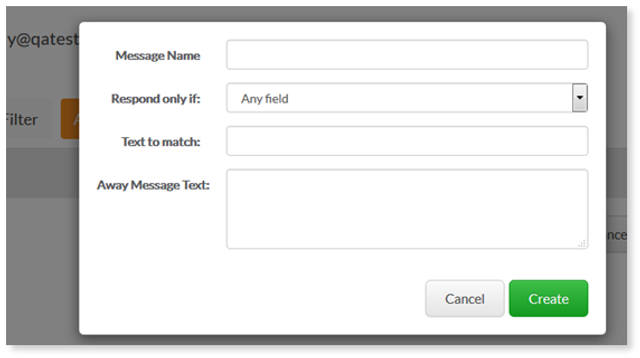
- Message Name - enter a message name.
- Respond only if – select the away message condition.
o Any field – will send the auto-reply message to everyone who sends an email to the email account.
o To (an email containing) – will auto reply to the email messages that are sent to a certain address
is - enter the words contained in the email address.You can enter multiple words. They must be entered with a comma separated by no spaces.
o From (an email containing) – will auto reply to messages sent from a specified email address
is - enter the desired words contained in the email address.You can enter multiple words. They must be entered with a comma separated by no spaces.
o CC (to an email containing) – will auto reply to email messages that are sent to a certain address. You can enter multiple words. They must be entered with a comma separated by no spaces.
o Subject – will reply to messages whose subject contains some specific text.
is - enter the text.
Away Message Text- specify the email messages that you want the Away Message to reply to by setting a condition.
3. Click Create.