You do not have to hunt for a photo or upload one. Describe the picture you want and the builder creates it for you — on any website, whatever design you use.
Where to find it
Click the image you want to change and choose Find or Create Images. The same option appears on galleries, page images, pictures inside text, and wherever you are asked to upload an image. For a section or container background, open Background Image — the dialog is the same.
Creating a picture
- In the dialog, open the AI Images tab. It always opens on Stock Images, so you need to switch across.
- Replace the text in the box with a description of what you want. The box arrives with a word or two already in it, taken from your site, so clear it first. Describe what is in the picture rather than how it should feel, and keep it to a sentence or two.
- Click Create AI Image, to the right of the box. This usually takes well under a minute.
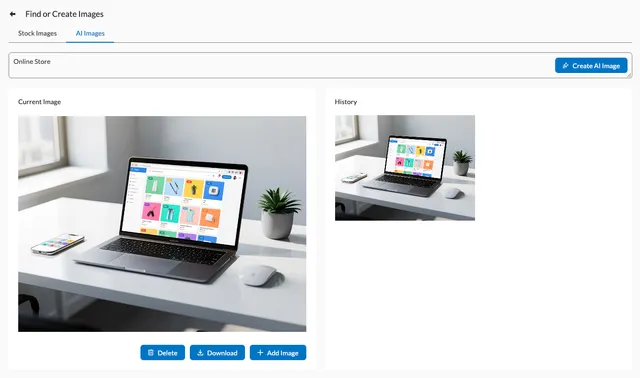
The result appears under Current Image, with Delete, Download and Add Image beneath it. Click Create AI Image again if you would like a different picture, then click Add Image to place the one you want on your page. Everything you create is also kept in History beside it, so you can pick any earlier picture from there and use it again elsewhere on the site. Each picture is 1024 by 768 pixels and comes with its own description text for screen readers and search engines.
When you get an ordinary photo instead
Each website can create up to 500 AI pictures per calendar year, and the allowance starts again in January. Once you are at that limit — or if a description cannot be used — the builder quietly gives you a free stock photo matching your description instead. There is no warning: a picture simply appears, and it is a stock photograph rather than one made for you. If your results suddenly look like ordinary stock photography, this is almost always why.
The other AI tools
To rewrite or check wording, see AI Assistant. To build or rebuild a whole page, see Adding AI-generated pages to your website and Using AI Arrange to rearrange a page.