If a page on your site is thin, dated, or simply not working, you can have it rebuilt. You pick one of the ready-made layouts, confirm a short description of what the page is about, and the page is written and laid out again around that description.
This is only offered on sites built with an AI design. If your site uses a different design, the option described below is not shown anywhere.
Where to find it
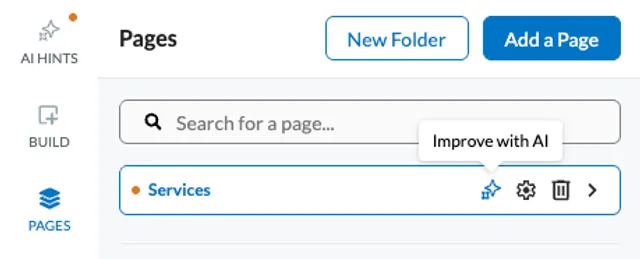
Open Pages in the left-hand menu and hover over the page you want to rebuild. An Improve with AI icon appears in the row of icons on the right. If your site does use an AI design and the icon still is not there, contact support — your design may not have its page layouts set up.
What it replaces
Read this before you start. Rebuilding a page replaces the body of that page completely. Your existing wording is used as background material for the new copy, not kept as it was, and the layout is rebuilt from scratch. If you edit the page description while the panel is open, the builder also warns you that Changing the page description will replace all text and images — in that case none of your current pictures are carried over either.
What is kept: the page name, its web address, and its place in your navigation. Only the content of the page changes. Your previous content is not deleted — see the last section.
Rebuilding the page
- In Pages, hover the page and click Improve with AI.
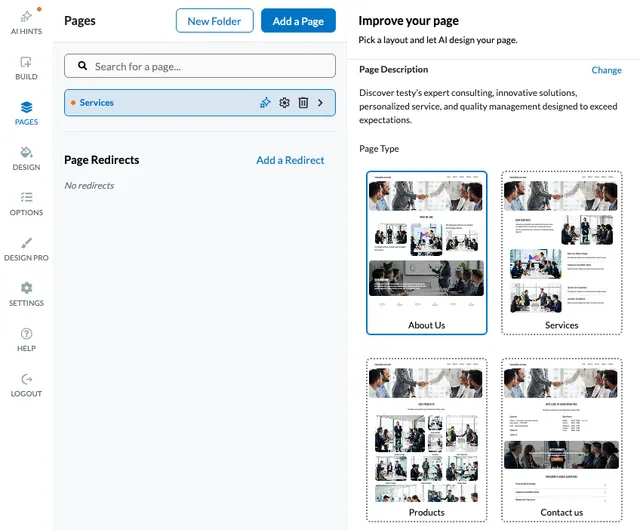
- Wait for the Improve your page panel to finish loading. It reads the page, drafts a Page Description, and prepares a set of pictures. The button at the bottom stays unavailable until this is done.
- Read the Page Description. This is what everything else is built from, so it is worth getting right. To change it, click Change, write a couple of sentences about what the page covers, and click Save. Reset brings back the original wording.
- Choose a layout: About Us, Services, Products, Contact us, Testimonials or Pricing. The exact choices depend on your design.
- Click Improve with AI. The page reloads with its new content.
Text is written in your site's content language. Photographs of people come from a free stock library rather than being created. If your site is at or near its yearly limit for AI pictures, the remaining picture slots are filled with stock photos instead, with no message; see Adding AI-generated images for how that allowance works. A short guided walkthrough runs the first time you open the panel.
Getting your old page back
There is no single button that undoes a rebuild, so be deliberate before you start. Two things do let you recover.
- Your old content is still on the page. It is moved to the bottom and hidden from visitors, so it is not on your live site but you can still see it in the editor. You can unhide any part of it, copy text out of it, or delete it once you are happy with the new page.
- A version of the site is saved just before the rebuild. Go to Settings, open Version, pick the entry from just before you clicked, and choose Restore.
Two things to know about restoring. It rolls back the whole site — every page, and your design settings — not only the page you rebuilt. And it restores your working copy, so you need to Publish afterwards for visitors to see the older version. Only a limited number of versions is kept, so if you want to go back, do it sooner rather than later.
Which AI tool do you want?
Use this when you want a whole page rewritten and redesigned. To polish or correct the text of one paragraph, use AI Assistant. To keep your existing content and only change how it is arranged on the page, use AI Arrange. To create a brand new page rather than rebuild an existing one, see Adding AI-generated pages to your website.