The editor looks like:
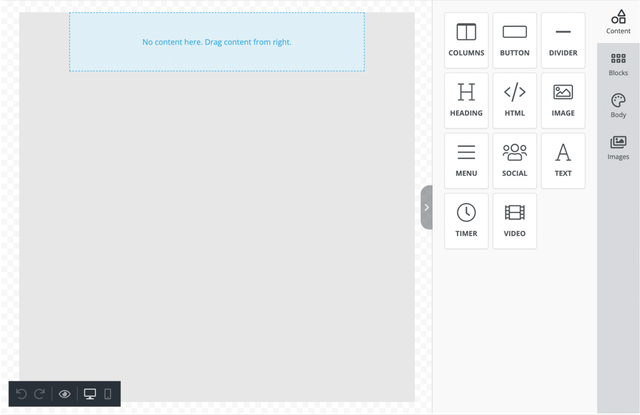
Main right-side bar:
Main right-side bar consists of Content tab, Blocks tab, and Body tab.
Content tab
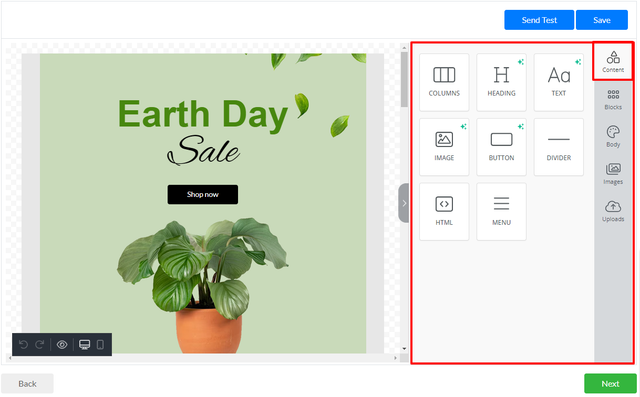
At the Content tab, you can select elements and add them to your email template.
There are next elements on the Content tab:
- Columns: It allows you to add columns to your design in order to have a better design arrangement.
- Heading: Add headings (from level 1-6) to the design.
- Text: Text is a built-in tool so you can add text to their designs.
- Image: To make your emails attractive, you can add images using this tool.
- Button: Add any type of button in your email. You can change colors and styles.
- Divider: It gives you appropriate spacing at any point they want in their design.
- HTML : This tool will give you room to add custom HTML to the design.
- Menu: Menu is a built-in tool used to create navigation menus.
The Content tab looks like:
Blocks tab
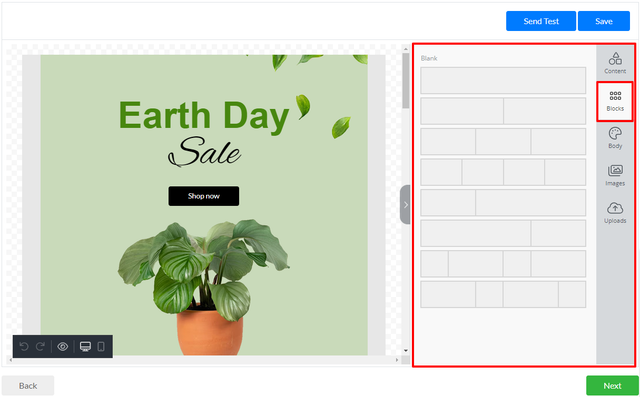
The Blocks tab allows you to select structure of the block and add it to your template.
Each block can be divided into one, two, three and four equal parts, or two and four different parts.
Body tab
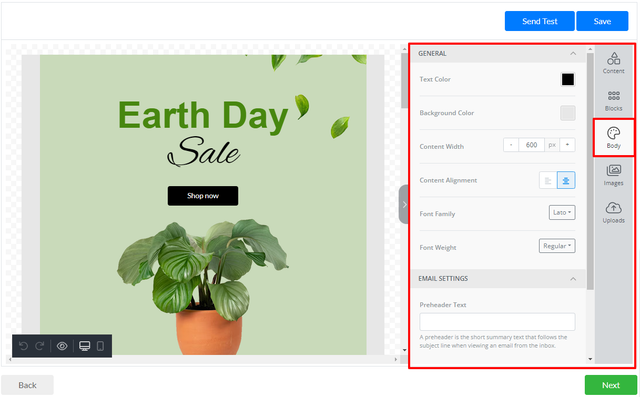
On the Body tab, there are a lot of custom settings for a body of you template.
The Body tab allows you to manage body of your email template.
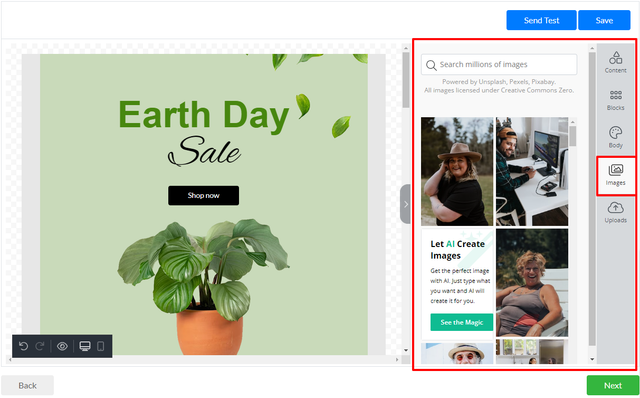
Images tab
This powerful page allows you to find and use millions of images licensed under Creative Commons Zero.
Uploads tab
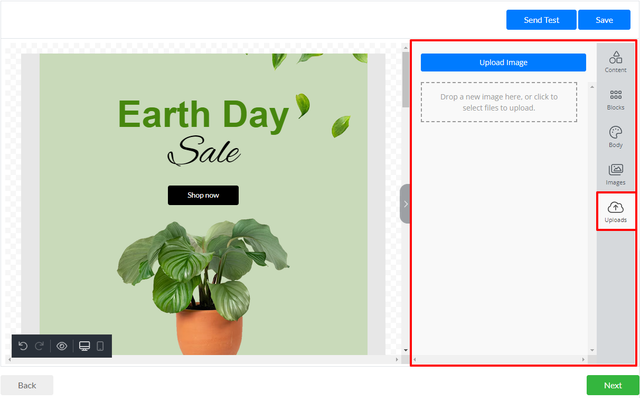
Once the media file has been uploaded to the template, it can be found on the Uploads page. You can reuse media files from this page in different places in the template.
Action bar
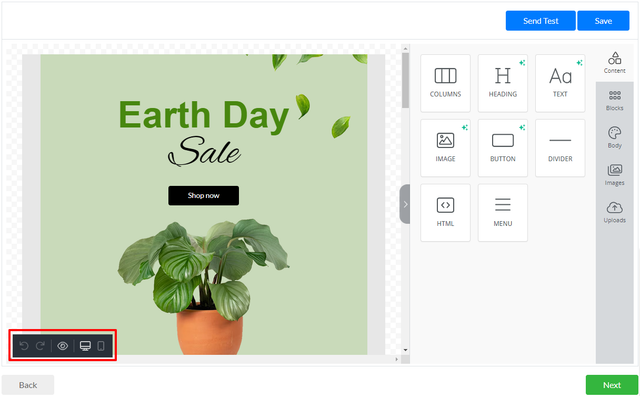
Action bar allows you to:
- Undo action
- Redo action
- Preview template
- Switch to Desktop template size
- Switch to Mobile template size
- Turn on/off Full screen editor mode
Information bar
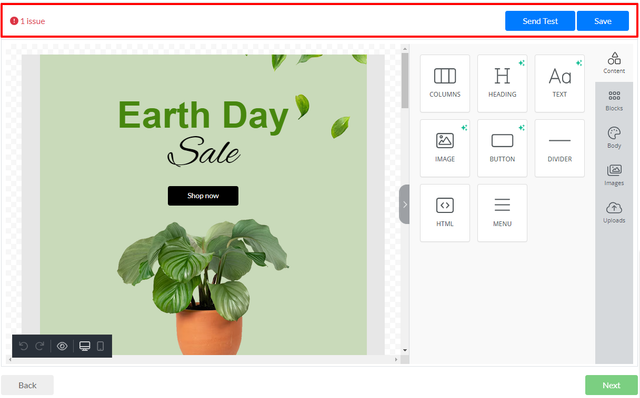
Error notifications are displayed in the information bar. When user clicks on the ‘issue’ message, the information about existing issue will be shown.
There are “Send Test” and “Save” buttons in this bar. They allow user to send test email and save template with current changes.
Floating bar
Floating bar is unique for each type of elements and has different settings. It appears when you click on any element on the template (block, button, image, etc.)
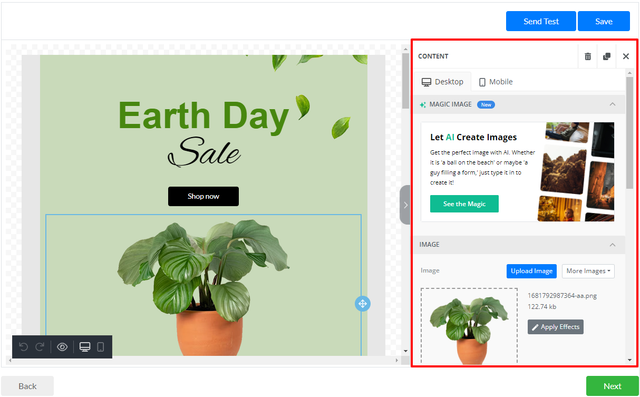
Moreover, Floating bar allows to delete and copy selected element, switch between settings for Desktop and Mobile template size for selected element.