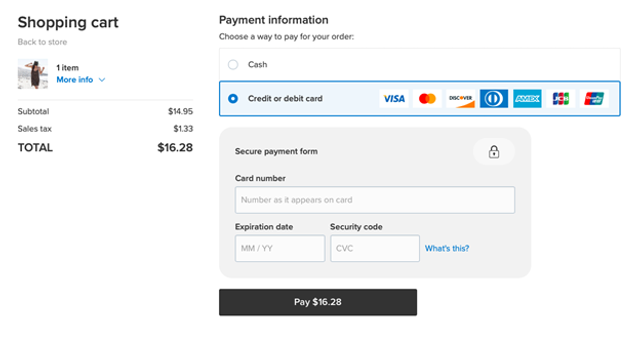
You can quickly start accepting regular credit and debit card payments in your Online Store by using Stripe as a payment option. You can also increase conversions by offering Apple Pay to your customers for an ultrafast checkout — Apple Pay allows shoppers to pay with one tap and skip entering shipping address and credit card details manually when using Safari on iPhone, iPad, and Mac.
Connecting your Online Store to Stripe
You can enable the Stripe payment option in your Online Store in a quick and easy way:
- From your Online Store, go to Payment.
- Scroll down to the Stripe block and click Connect with Stripe:
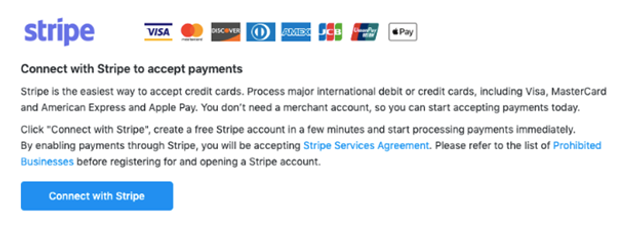
1. Choose what applies to you:
• If you're new to Stripe, fill in the registration form that opens in a new window, enable the required two-step authentication and click on the "Authorize access to this account" button to allow your store to connect to your Stripe account.
• If you already have an account with Stripe, click Sign In in the top right corner, then click "Connect by Stripe account" to grant permissions to your store to connect with your Stripe account.
2. You will be returned to your Online Store where you can enable Apple Pay if you want to offer this fast payment option to your customers in addition to credit/debit cards (this will also automatically enable Google Pay for customers using the Chrome browser on Android mobile devices):
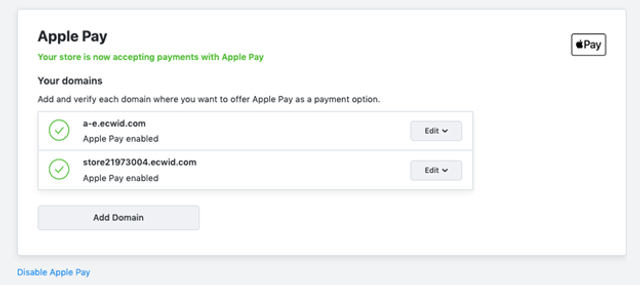
- If you use Online Store on other sites, to offer Apple Pay as a payment option there, click Set up Apple Pay and follow the prompts to add your site domain and verify domain ownership with Stripe:
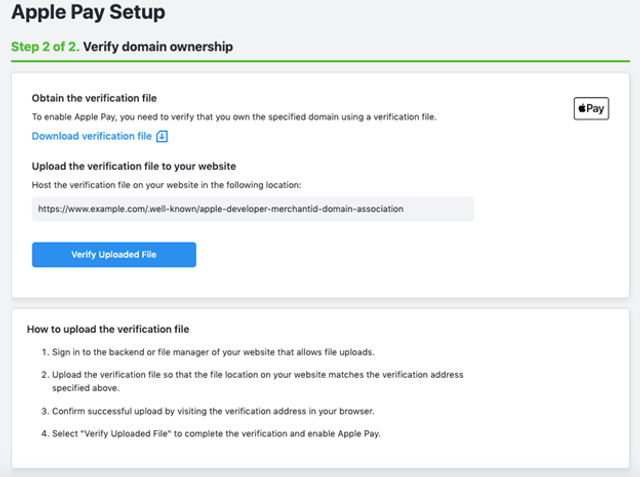
The verification file has to be uploaded with its initial name to the .well-known/ folder. You should create a folder with this name inside the root folder on the hosting server where your website resides. Usually, file uploading can be done by FTP or via a file/media manager.
Once uploaded, the file should be accessible in browser by the https://www.example.com/.well-known/apple-developer-merchantid-domain-association link (it will be your domain name in the link instead of the www.example.com part).
If you use Wix or another sitebuilder that doesn't allow uploading the verification file, Apple Pay is not supported there, unfortunately. Please contact your sitebuilder support for help on this.
- Enter the name of this payment method. Customers will see it at checkout.
- Keep the Enable this payment method at checkout toggle as enabled if you are ready to start offering the Stripe payment option to your customers at checkout.
- Add payment instructions, if needed. They will appear at checkout once your customers select to pay with Stripe.
- Save the changes.
That's it! Your Stripe account is connected to your Online Store. Now, all of your customers can choose to pay with their credit or debit card at checkout: