When enabled, your customers can buy an electronic gift card for any range you specify and get it via email. Any order containing a gift card must have an order status of Paid before the gift card will send.
After a customer gets a notification email with the gift card details they can forward this email to the gift recipient. The recipient can use the gift card to pay for products in your store until they spend the entire card balance.
To enable this feature: Online Store → Catalog → Gift Cards.
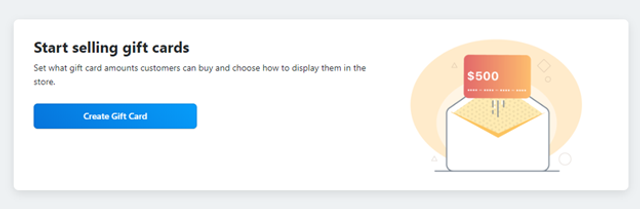
Enabling and Disabling Gift Cards
To start selling gift cards:
Go to your Online Store → Catalog → Gift cards
- Click Create Gift Card.
- Follow the one-page wizard: Either click Create Gift Card and start selling gift cards with the suggested settings or choose Edit settings.
Once a gift card is enabled, it appears among your other products in your Online Store→ Catalog → Products.
Here is an example of a gift card with default settings in the storefront:
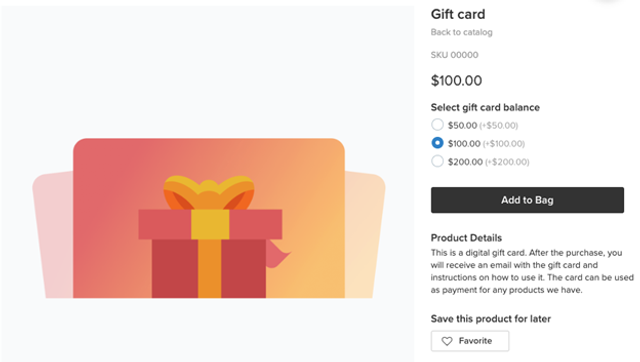
You can edit gift cards from the setup wizard or anytime later from your store Online Store → Catalog → Gift cards. Here is what you can customize in your gift cards:
Name. Keep the name simple and clear for customers and search engines.
Amounts. A gift card is created with several default amounts. When adding a new amount, make sure that it’s no less than the average product price in your store.
Image. You can upload your own image reflecting your brand style. This image shows in the storefront. In the email, a gift card uses another image that currently can’t be changed.
Description. Put here the info your customers should know about gift cards in your store, for example, the gift card’s expiry period.
Categories. The gift card displays on the category pages you select. To feature gift cards on the store home page, select the store front page.
Expiry period. By default, gift cards are set to never expire. You can change that in Catalog → Gift cards → Gift card expiry. Please make sure that you comply with the laws of the areas where you sell as setting the expiry period may be illegal in some countries or regions.
To stop selling gift cards:
- Go to your store Online Store→ Catalog → Gift cards.
- Change the status to Disabled.
A disabled gift card disappears from the storefront, but it remains in your catalog with all the settings so you can easily enable it back anytime later. Previously sold gift cards can still be redeemed.
Viewing Gift Card Details
On the Gift cards page in your store admin, you can see all the statistics on gift cards that you have sold.
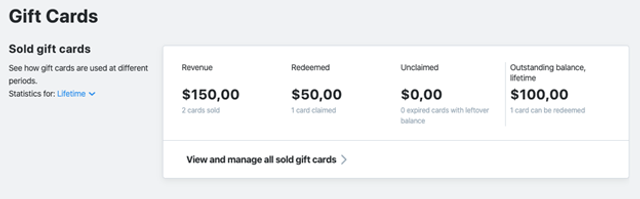
Store sold gift cards statistics
Revenue — The total you have earned by selling gift cards.
Redeemed — The total balance that has been spent.
Unclaimed — The remaining unused balance on cards that can’t be redeemed anymore (expired or deactivated cards).
Outstanding balance, lifetime — The remaining balance on all gift cards that have been issued to date and can still be redeemed.
Pay attention to the outstanding balance. That’s the balance available on sold gift cards that customers can still use. You should be ready to provide products or services when these cards are redeemed.
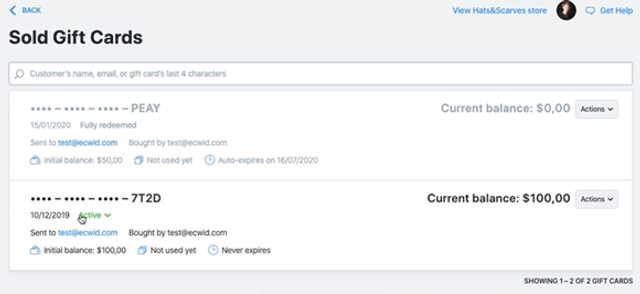
To see the details on each sold gift card, click View and manage all sold gift cards. You’ll see the card's current status, balance, expiration date, the customer’s email, the order where the gift card was purchased, and more.
Resending a Gift Card
You can resend a gift card if the customer lost the gift card email, accidentally deleted it, or can’t find it for any other reason.
To resend a gift card:
- From your store admin, go to Catalog → Gift cards.
- Under statistics, click View and manage all sold gift cards.
- Find the gift card that you want to resend by searching for the customer’s name, email, or the gift card’s last 4 characters.
- Next to the gift card, click Actions → Resend gift card.
The gift card will be resent to the “Sent to” email address.
Deactivating Gift Card
You may want to deactivate a card for any reason. For example, perhaps the order with the gift card purchase was canceled or you simply don’t want this card to be redeemed. A deactivated card can’t be redeemed, however you can reactivate it anytime.
To deactivate a gift card:
- From store admin, go to Catalog → Gift cards.
- Under statistics, click View and manage all sold gift cards.
- Find the gift card that you want to deactivate by searching for the customer’s name, email, or the gift card’s last 4 characters.
- Next to the gift card that you want to deactivate, click on its current status and choose Deactivate.
Exporting Gift Cards
When you export your gift cards, you will get a CSV file with the details of every gift card sold. In the file, you can filter gift cards by date, amount, and other details to see statistics for different time periods or just to keep the files for your own records.
To export gift cards:
- In your store admin, go to Catalog → Gift cards.
- Under statistics, click View and manage all sold gift cards.
- Scroll down to the bottom of the page and click Export Data.
- A CSV file will be downloaded to your computer. Use any spreadsheet program or text editor to open it.
Purchasing and Redeeming Gift Cards as a Customer
After purchase, your customer gets an email with a unique gift card code and instructions on how to use it. The email subject is “Your gift card is ready”. It’s automatically sent to customer’s email address as soon as the order gets “Paid” status.
Then your customer can forward the email or send the card code and the store link to another person via sms or messenger.
Here is an example of a gift card email:
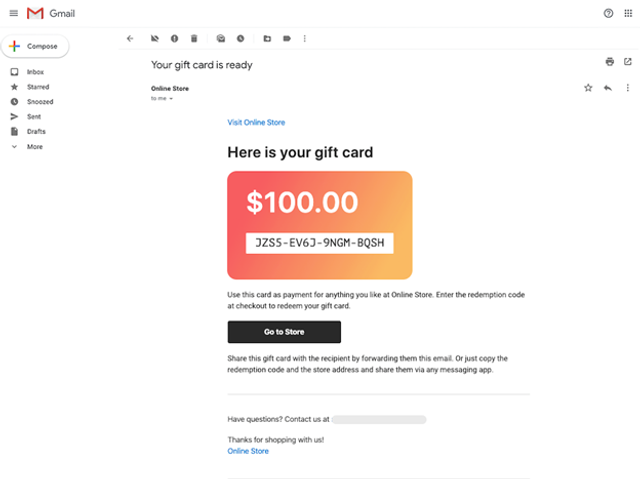
The card recipient can use the gift card to pay for any products in your store. To redeem it, they should enter the card code from the email to the field at checkout. This field automatically appears in your store after you set up a gift card.
A gift card can be used in several orders until it’s fully redeemed. A customer sees the remaining balance at checkout, after they apply a gift card.
If the order total is more than the gift card amount, the customer should pay the remaining amount using other payment methods in your store.
Other peculiarities:
- Customers can’t apply more than one gift card per order.
- Discount coupons can't be used for a gift card purchase. If a customer applies a coupon code to an order, the discount applies to all the products in the order except the gift card.
- A gift card can’t be used to buy another gift card.
- Gift cards are tax free.
- Gift cards cannot be uploaded to Facebook or Instagram due to Facebook’s Terms of Use.