Product ribbons allow you to highlight featured products on your storefront, whether it’s a bestseller, sale item, new product, or any other item that deserves a spotlight.
How to add a product ribbon
To add a ribbon to your product:
1. From your Online Store, go to Catalog then Products .
2. Click Add New Product or choose a product from the list.
3. Scroll down to the Add or edit ribbon field and click on it.

4. Fill out the Ribbon text field.
5. Choose the Ribbon color (by default labels are orange).
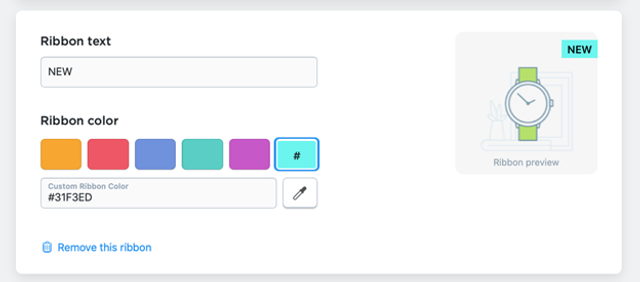
6. Click Save .
Once you set up a ribbon, it is always shown in the product grid in your store. Ribbons are also displayed on the product details page – you can find them under the price field – and on the images of your related products (if these products have ribbons).
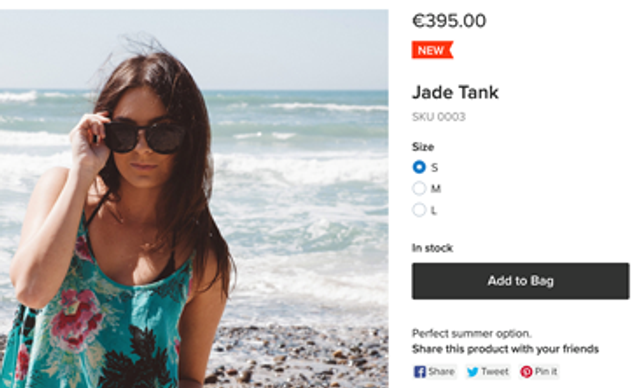
To delete the ribbon – if, for example, it can no longer be useful – press Remove this ribbon on the product details page in your Online Store and click Save.
Customizing the text of ribbons
A pitchy and easily readable label is meant to catch your customer's attention. That's why the Ribbon text field cannot contain more than 30 symbols
You can provide ribbons in different languages if you use additional storefront languages. The translation field(s) will appear right under the Ribbon text field. If you leave them empty, the texts of your ribbons will be shown in your store’s default language.
Customizing the color of you ribbon
You can choose the color of your ribbons from several predefined options, or you can set up your own color – e. g. a color that fits into the concept of your store. To customize label color to your liking, press the “#” button and then click on the eyedropper to use the color chooser tool:
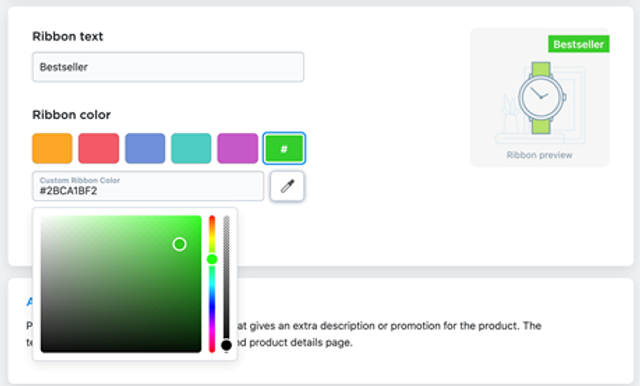
You'll see a palette and two bars: the color bar and the opacity bar. You can move the pointers on these bars to create a perfect ribbon for your Online Store. The resulting color code will be displayed in the Custom Ribbon Color field.
Adding and Updating Product Ribbons in Bulk
If you have a large catalog that is difficult to update or you want to have products with the same ribbons in several stores, you can use CSV export and import to add or update your product ribbons in bulk.
To add or edit product ribbons in bulk:
1. From your Online Store , go to Catalog then Products .
2. If you want to edit ribbons for all products, click Export All below your product list
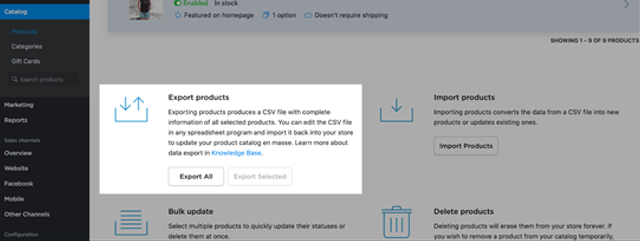
If you need to manage ribbons for particular products, you can select them in the list and then click Export Selected.
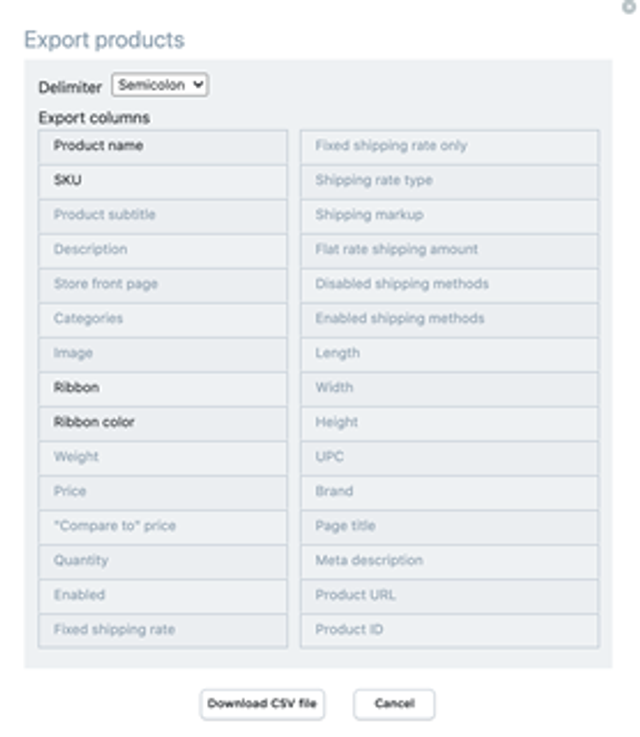
3. 3. Select the following columns for export – Product name , SKU , Ribbon , and Ribbon color (you can choose other columns as well if you need them):
4. Click Download CSV file
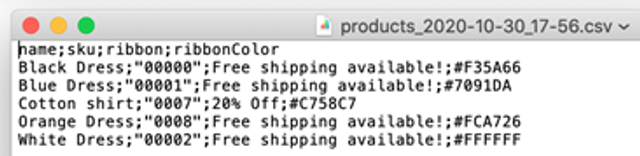
5. Open the file in a plain text editor or in a spreadsheet (with the same delimiter that you’ve used for export). Here is, for example, how the data looks in TextEdit editor:
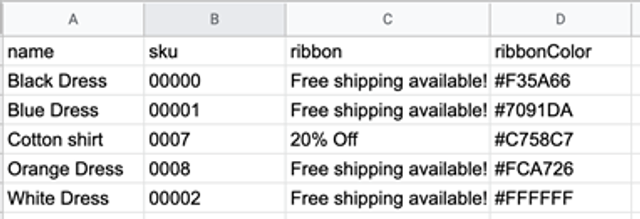
And this is how the same data should look in Google Sheets:
6. Add or edit the texts of your ribbons for each product in the ribbon column.
7. Add or edit the colors (color codes) of your ribbons for each product in the ribbon color column.
8. Save the file.
9. Return to Catalog → Products and click Import Products.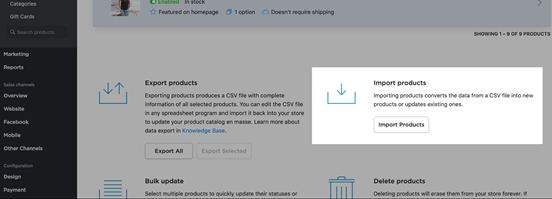
10. Upload your file, paying attention to the type of delimiter and the order of columns. They should be the same as in your file:
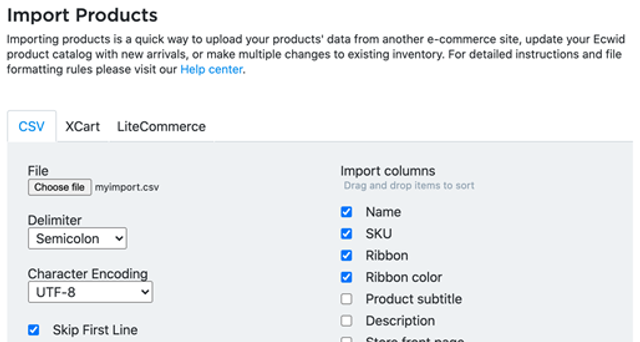
After the import is complete, the texts and colors of your ribbons will be updated automatically.