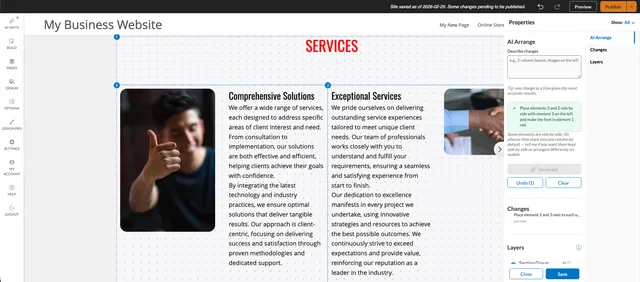
AI Arrange lets you reshape a part of a page by describing what you want in plain language. You type something like 2-column layout, images on the left, click Generate, and the elements already in that area are moved, resized and restyled to match. It is a layout assistant, not a page writer — it works with the content you have put on the page.
Open the panel
- Open the page in the admin view.
- Hover over any element in the main content area of the page.
- In the small toolbar that appears over the element, choose Arrange Siblings.

The page switches into arrange mode and the Properties panel opens on the right, covering the element you hovered and everything sitting alongside it in that area.
If you do not see Arrange Siblings, your plan may not include this feature, or the element may not be directly in the page's content area — elements nested inside a container or a section group do not offer it.
What is in the panel
The panel has three sections and a Save / Close footer.
- AI Arrange — a Describe changes box, the Generate button, and Undo and Clear below it.
- Changes — the instructions you have applied, newest first, with how long ago each one ran. It reads
No changes yet.until you generate something. - Layers — a numbered list of the elements in the area, top of the stack first. Hovering a row highlights that element on the page and clicking a row scrolls to it. Drag a row to change which element sits on top where two overlap. Rows marked
AIcarry a tooltip, What AI can do with this element, listing what the assistant is allowed to change there — anything from Layout & visual styles up to Edit text content, depending on the element.
Writing a good instruction
The panel's own advice is the most useful rule: one change at a time gives the most accurate results. Short, concrete instructions work far better than a paragraph describing a whole redesign.
Things that work well: putting elements into columns, swapping the order of an image and its text, making one element full width, tightening or loosening spacing, changing alignment. Ask for several of those at once and the result is much harder to predict — and much harder to undo cleanly.
While a request is running, Generate reads Generating... and the panel shows what stage it has reached. You can also move and resize elements by hand on the page while arrange mode is open.
Undo, clear, save and close
- Undo steps back one AI change at a time. The number beside it is how many steps are still available, up to ten.
- Clear removes all your placements, styles and AI history for that area and returns it to how the design had it.
- Save keeps the arrangement and leaves arrange mode.
- Close leaves without saving and discards the arrangement.
The one thing to be careful about
On some elements the assistant can edit the words as well as the layout, and those text edits are saved as soon as they are made. Close and Clear only discard layout and styling — the builder will tell you so before you confirm. To put rewritten text back, use the Undo button in the top menu of the builder, not the Undo inside this panel.
Limits
- It rearranges and restyles what is already in the area. It does not create new pages, new sections or new content.
- It works on one area at a time — the elements alongside the one you opened it from.
- Results are not identical between runs. If an answer is close but not right, undo it and rephrase rather than stacking a correction on top.
- As with any change in the builder, nothing reaches your visitors until you publish.