Please use the interactive dots below to explore what the options in the DNS section of your domain manager do.
When accessed through the domain manager via clicking on the domain name, then the DNS tab you will see both the DNS records as well as name server options When accessed through the DNS Manager application you will see only the DNS records with an option to reset the zone file to default if need be.
Add A Nameserver - Click this button to add a new name server ot the existing set shown in the "NAMESERVERS" section of the page, please note to avoid latency and DNS resolution issues it is strongly advised to use only one set of name servers.
E.G:
NS1.aplus.net + NS2.aplus.net
= DNS resolving to the same zone file each time with redundancy in a case where NS1 fails to resolve
NS1.aplus.net + NS2.google.com
= DNS resolves to the proper zone if resolved the first time, but in a case where NS1 fails NS2 is loading a completely separate zone file when the connection fails over.
The Pencil and Trash can icons respectively allow you to edit the value of a single name server and remove a name server from the list.
ADD RECORD - Clicking the "Add Record" button will open the DNS record editor, in this screen you will be able to add DNS records by entering the name, type and value. Currently you are able to enter the following record types. A, AAAA, MX, CNAME, TXT and SRV
Similar to the Name server section, the pencil and trashcan icons allow you to edit and delete records as needed, although when editing you are only able to edit the value of a record not the name, to change the name of a record it must be deleted and re-added
Once added or altered successfully DNS propagation may take up to 24 hours to reflect the changes in the live zone file.
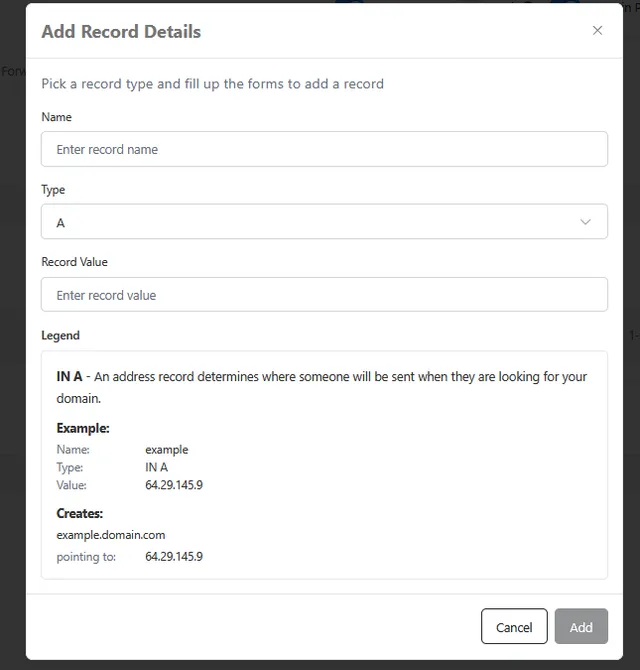
Record Types explained.
Below are the different DNS Record Types you can manage in your DNS Manager application.
A (Host address) - Points your domain or subdomain to a server’s IPv4 address, which is the address of the server where your website is hosted. For example, example.com → 64.29.151.221. This is the most common record and tells browsers where to find your website.
AAAA (IPv6 host address) - Does the same job as an A record, but points to an IPv6 address, the newer and longer style of IP address
(for example, 2001:db8::1). You only need one if your server has an IPv6 address. If you add one, make sure it’s correct, since some visitors will use it instead of the A record.
CNAME (Canonical name for an alias) - Points a subdomain to another domain name instead of an IP address, like a nickname. For example, www.example.com → example.com. If the destination’s address changes, the CNAME follows it automatically. A CNAME can’t be used on the main domain itself, and it can’t share its name with any other record.
MX (Mail eXchange)- Tells the internet which mail server should receive email for your domain. Each MX record has a priority number, and lower numbers are tried first. Any others act as backups. MX records must point to a server name (like mail.example.com), not an IP address.
SRV (location of service) - Tells a specific service, like a phone system, chat app or Microsoft 365, which server and port to connect to. Along with the server name, it includes a priority, a weight (for sharing traffic between servers) and a port number. You usually only add one when a service provider gives you the exact values to use.
TXT (Descriptive text) - Holds text that other services read to check things about your domain. Common uses include proving you own the domain (for services like Google or Microsoft) and email security settings like SPF, DKIM and DMARC, which help stop your email from landing in spam or being faked.