The Inbox allows you to manage all received faxes. Here you will see the following information for each fax received:
- Fax number
- Company name (if available)
- Pages
- Date and time received
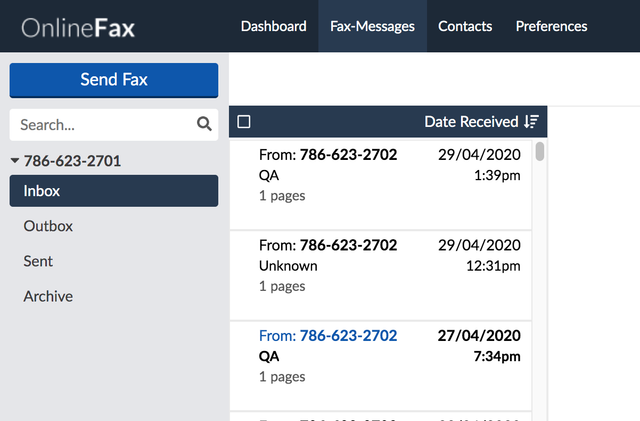
Click on the fax to view the contents. From the Inbox, you have the following options:
Utility | Description |
| Add the contact to your contact list. |
| Rotate your fax to adjust the view. |
| Permanently delete the selected fax. |
| Download your fax as a PDF document. |
| Download your fax as a TIFF document. |
| Move the fax to your archive folder. |
| Mark a fax as read or unread. |
 Add Contact
 Rotate
 Delete
 Download PDF
 Download TIFF
 Move to Archive
 More
MoreTo View a Fax:
- Click on the fax you would like to view.
To add a contact:
- Click on the fax.
- Click the add contact icon next to the recipient’s fax number.
- Fill in the contact's first and last name as well as the company name if they are not auto-populated.
- Click Save.
To rotate the fax:
- Click on a received fax to view the contents.
- Click the rotate icon. The fax image will rotate 180° clockwise.
To download a fax as a PDF:
- Select the fax you would like to download.
- The PDF icon will appear at the top of your inbox. Once clicked, the fax contents will be downloaded as a PDF file.
To download a fax as a TIFF:
- Select the fax you would like to download.
- The TIFF icon will appear at the top of your inbox. Once you click it, all the fax contents will be downloaded as a TIFF file.
To move a fax to the archive:
- Hover over the fax you would like to move to the archive and click the archive icon. You can also select the fax(s) you would like to move and then select the archive icon located at the top of your inbox.
To delete a fax:
- Hover over the fax you would like to delete and click the trash icon. You can also use the checkboxes to select the fax(s) that you would like to delete and then select the trash icon located at the top of your inbox.
- On the confirmation dialog, click Yes.
Note: Faxes that have been deleted are permanently removed from the system and cannot be restored.