The Online Payments application adds a payment or donation button to a page on your site. It works with three payment providers — Stripe, PayPal and Mercado Pago — and each button is configured on its own, so one page can hold several.
Placing the application
- Drag Online Payments from the left menu onto the page, in the position where you want the button to appear.
- Hover over the placed element and click the cogwheel icon. The configuration panel opens.
Everything else is set in this panel. Work down it from the top.
Choosing a payment provider
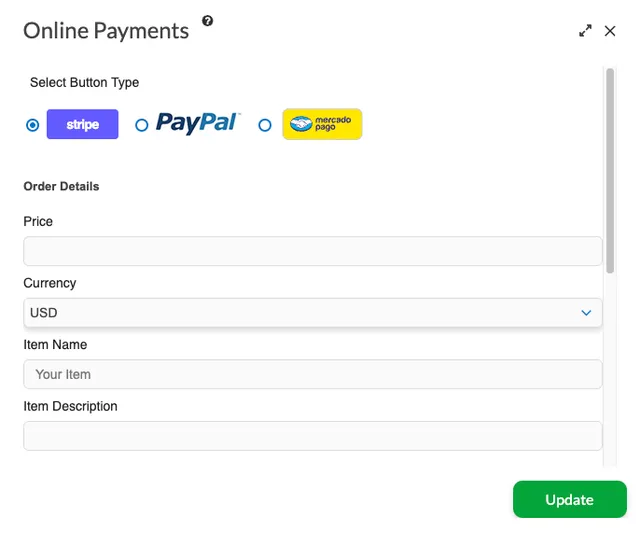
The first control is labelled Select Button Type and shows three logos: Stripe, PayPal and Mercado Pago. Despite its name, this is where you choose which provider will process the payment.
Which providers you see depends on your plan. If only PayPal appears, Stripe and Mercado Pago are not included in your package, and the panel opens on PayPal instead.
Order Details
These describe what is being sold, and apply to this one button:
- Price — a number greater than zero.
- Currency — chosen from a dropdown, so each button can use a different one.
- Item Name — what the customer is paying for. Required; the field shows
Your Itemuntil you fill it in. - Item Description — optional extra detail shown alongside the name.
Stripe and PayPal both offer a long list of currencies. Mercado Pago offers the full list until you connect your account, then narrows it to the single currency your country settles in. A few currencies, such as the Japanese yen and the Chilean peso, are not used with decimals, and a price with decimal places will be refused.
Connecting your payment account
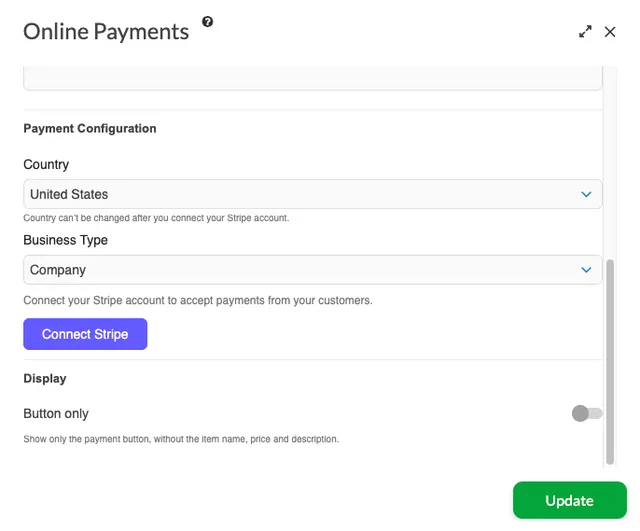
Below Order Details is a Payment Configuration section; you may need to scroll the panel to reach it. This is the step most often missed, and it differs by provider:
- Stripe — there are no keys to copy. Choose your Country and Business Type, then click Connect Stripe. Stripe's own sign-up opens in a new tab and returns you here when it finishes. The country cannot be changed once the account is connected, so choose it carefully.
- Mercado Pago — you supply an Access Token. The panel links to the Mercado Pago developer site: sign in, open your application under "Your integrations", copy the Access Token from its Credentials section, paste it here and click Connect Mercado Pago.
- PayPal — there is no connection step. You only enter your PayPal Account Email, pre-filled with your account address. It is checked for a valid email format and nothing more, so a mistyped address will simply send payments nowhere.
If you fill in the order details but skip this step, the button still saves. On the published site, however, visitors see Missing Payment Configuration. where the button should be, instead of something they can pay with.
Saving the button
Click Add at the foot of the panel for a button you have just placed, or Update when you are editing one that already exists. The panel has no test mode: once your account is connected, the button takes real payments.
Extra button types for PayPal
When PayPal is the selected provider, a further row of choices appears below the three logos:
- Buy Now — the customer buys a single item in one click.
- Add To Cart — the customer collects several items for one checkout.
- View Cart — lets customers review their cart before checking out.
- Donate — a fixed amount, or one the donor enters.
There is no subscription or recurring-payment button. PayPal buttons also carry optional extras: alignment, an item ID for tracking, a quantity option, item-type dropdowns that can set their own price, up to two free-text fields and a custom button image.
Button only
Stripe and Mercado Pago buttons have a Button only switch under Display. With it on, the published element shows just the payment button, without the item name, price and description. This is how buttons inside the Sale Items Grid element appear, because the surrounding card already shows that information.
The payment itself is unaffected — the price, currency and item name still travel with the button — but nothing keeps the visible text in step with it, so if you change the price here, change it in the surrounding content by hand too. See Sale Items Grid.