Introduction.
The Website Security application is utilized to apply password and additional protections to a specified file or directory within your domains file structure. when setting access restrictions please know that the protection is set for that file only, and will not protect files accessed via direct file path
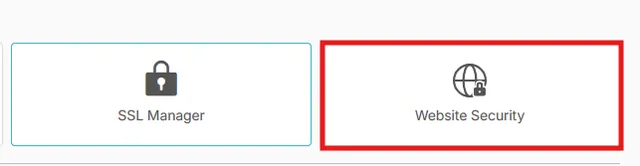
Choosing a directory
Upon opening the Website Security application you will be presented with a layout of the current document root of the selected domain name. a directory can be selected / highlighted with a single click, while double clicking will open the contents of the directory
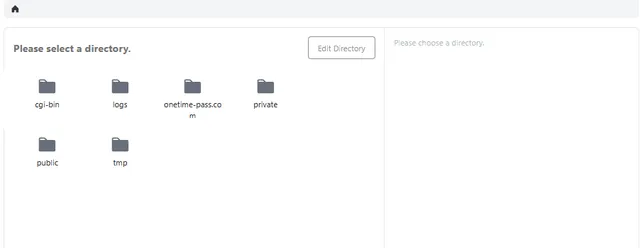
Once you have located the directory or file that you wish to apply the protection to. highlight the directory / file and click on EDIT DIRECTORY
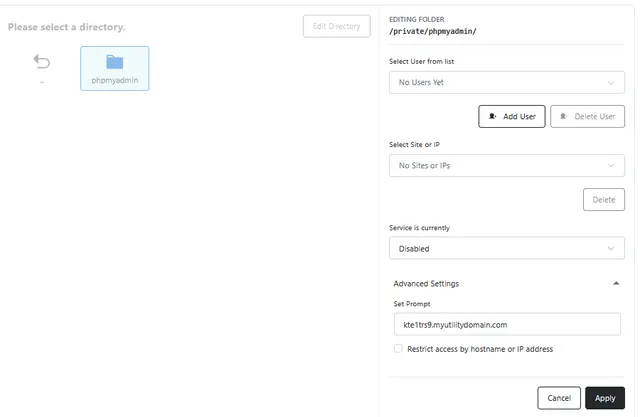
From here you will have the options
Select User from list :
Drop-down containing the existing users for this folder. Pick a user here before clicking Delete User.
Add user :
Opens a window where you enter a username and password for a new user. These credentials will be used to access the secured directory when prompted upon visiting the page.

Delete user :
Removes the user selected in the list. That user will no longer be able to log in.
Select Site or IP :
Select from the sites or IP addresses you have entered in the Advanced Settings
Delete:
Removes the site or IP selected in the list.
Service is currently:
Turns protection on or off for this folder. When Disabled, the folder opens without asking for a login.
Advanced Settings:
expands menue to allow " Set Prompt" and "Restrict access by hostname or IP address " options, allowing you to set the message displayed in the login window and restrict successful logins to certain URL's or IP addresses.