Subtitles are short texts that can help you describe products better, increase the conversion rate, and get more orders. You can highlight important information in this field: promotions, product target audience, ingredients (especially useful for restaurants), free shipping availability.
To add subtitle to a product
1. From your Online Store, go to Catalog → Products .
2. Open details of a product you want to add a short description for.
3. Scroll down to the Add product subtitle field and click on it.

4. Enter the subtitle for your product.
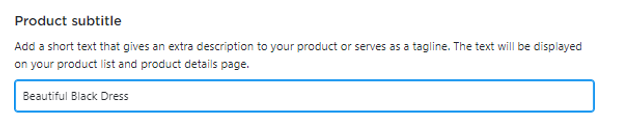
5. Click Save .
Now your customers see the short description for this product in your store: both on the storefront and the product details page.
You can provide subtitles in different languages if you use additional storefront languages. The translation field(s) will appear right under the Product subtitle field. If you leave them empty the subtitles will be shown in your store’s default language.
Choosing how to display subtitles on the product list
By default, subtitles are displayed on your product list as “fixed”, always visible text. But you can choose to display short descriptions only if your customer hovers a mouse over the product picture in the grid. The rest of the time subtitles will be invisible on your storefront:
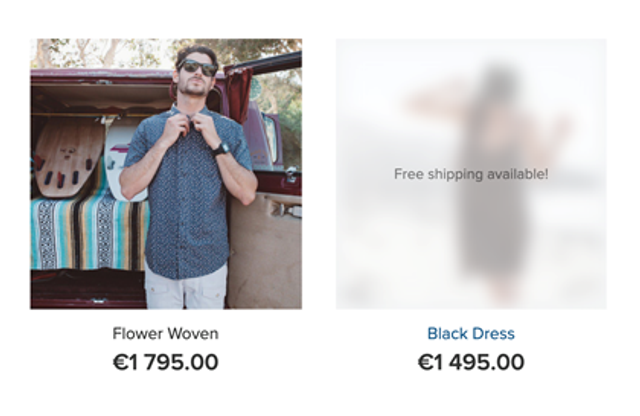
To set up how subtitles look on your product list:
- Go to Design.
- Scroll down to Product Card details and layout.
- In the Product subtitle, drop-down menu choose Show or Show on mouse hover.
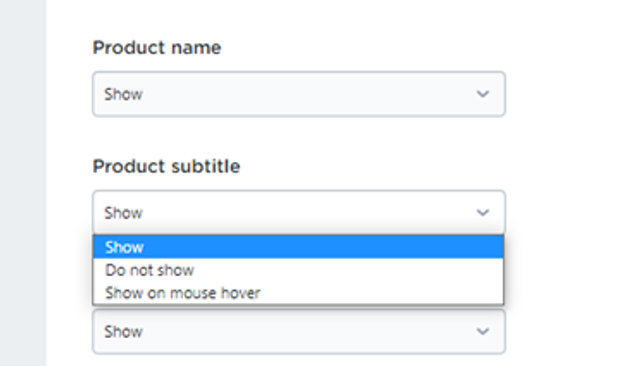
The changes will be autosaved.
Choosing where to display subtitles in your store
By default, subtitles are displayed both on your product list and on your product details page:

But it is possible to display them only on the storefront or only on the product details page if you want to show subtitles only in one place.
To turn off subtitles on the product details page:
- Go to Design.
- Scroll to Product Page layout.
- In the Sidebar, section find and untick the Product subtitle checkbox.
The changes will be autosaved.
To stop showing subtitles on your storefront choose Do not show in the corresponding Product Card details and layout section on the Design page.
Adding and updating product subtitles in bulk
If you have a large catalog that is difficult to update or you want to have products with the same subtitles in several locations, you can use CSV export and import to add or update your product subtitles in bulk.
To add or edit product subtitles in bulk:
1. From your Online Store, go to Catalog → Products .
2. If you want to edit subtitles for all products, click Export All below your product list
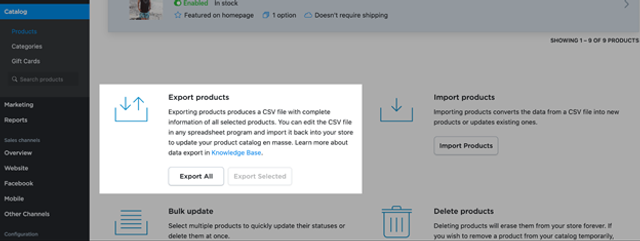
If you need to manage subtitles for particular products, you can select them in the list and then click Export Selected.
1. Select the following columns for export – Product name , SKU , and Product subtitle (you can choose other columns as well if you need them):
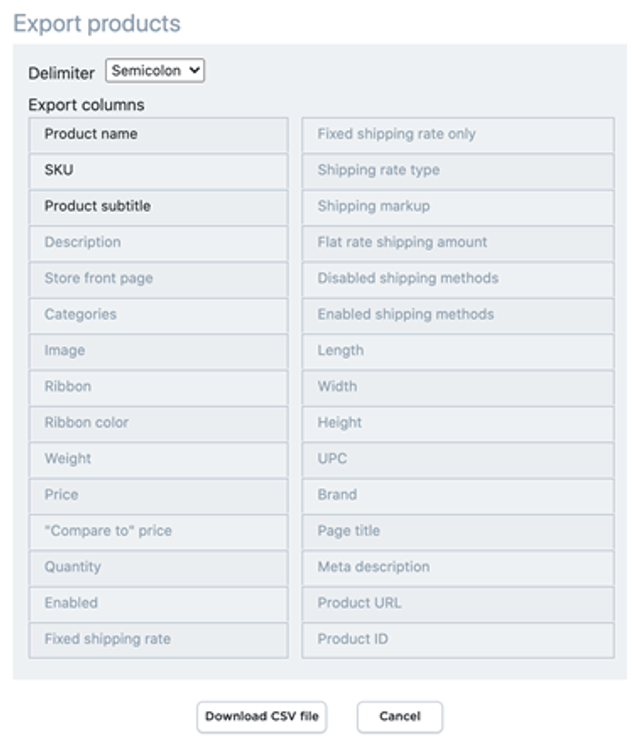
2. Click Download CSV file .
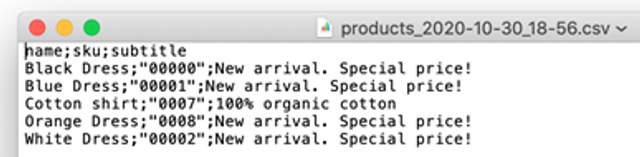
3. Open the file in a plain text editor or in a spreadsheet (with the same delimiter that you’ve used for export). Here is, for example, how the data looks in TextEdit editor:
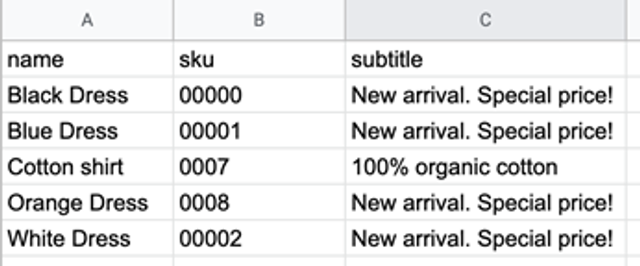
And this is how the same data should look in Google Sheets:
1. Add or edit the texts of your subtitles for each product in the subtitle column.
2. Save the file.
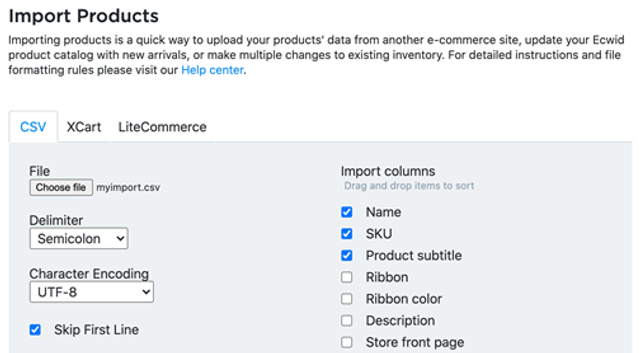
3. Return to Catalog → Products and click Import Products .
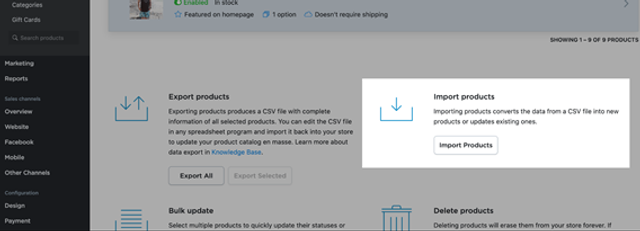
4. Upload your file, paying attention to the type of delimiter and the order of columns. They should be the same as in your file:
After the import is complete, the texts and colors of your subtitles will be updated automatically.